

Here’s the thing almost every “Krisp vs. Adobe Podcast” comparison gets slightly wrong: these two tools aren’t really competing for the same job. Krisp removes noise while you’re talking — live, during a call or recording session. Adobe Podcast’s Enhance Speech cleans up a file after it’s already been recorded. Comparing them head-to-head as if you’re choosing one over the other is a bit like comparing a water filter to a water treatment plant — related problem, completely different point in the pipeline.
That distinction matters more than any feature checklist, because it changes what “which one is better” even means. This comparison breaks down how each tool actually works, what independent testing shows about sound quality, what they cost, and — more usefully — when you actually want one, the other, or both working together.
If you’re weighing up your options more broadly, our roundups of the best AI audio enhancers for podcasts and the best AI tools to remove background noise from recordings cover the wider field beyond just these two.
The Short Answer
If you need clean audio during a live call, meeting, or stream, Krisp is the tool built for that job. If you’re cleaning up a recording that already has noise baked into it — a podcast, an interview, a voiceover — Adobe Podcast’s Enhance Speech is built for that job instead. Most people who take their audio seriously end up using both: Krisp during recording to prevent noise from ever reaching the file, and Adobe Podcast afterward to polish whatever slipped through.

Quick Comparison Table
| Krisp | Adobe Podcast (Enhance Speech) | |
|---|---|---|
| Core job | Real-time noise removal during live audio | Post-production cleanup of existing recordings |
| When it works | While you’re speaking/recording | After the recording already exists |
| How it’s used | Runs as a virtual microphone/speaker between your hardware and any app | Upload a file to a browser tool |
| Platform support | Windows, Mac, Linux; works with 800+ apps | Browser-based, works on any OS |
| Processing location | Local, on-device | Cloud-based (file is uploaded) |
| Free tier | Yes, roughly 30–60 minutes/day of noise cancellation | Yes, with monthly usage limits (~2 hours/month reported) |
| Paid pricing | Roughly $8–$16/month individual; ~$30/month for business tiers | Free tier is often sufficient for casual use; paid/pay-as-you-go for higher volume |
| Can fix a remote guest’s noisy room mid-call | Yes | No — it only works on files, not live audio |
| Can rebuild/reconstruct badly damaged audio | No | Yes, more capable at reconstructing vocal frequencies from degraded sources |
| Reversible? | N/A — noise is removed before it’s ever recorded | Yes — you can re-run at different strengths or keep the original |
| Best at | Preventing noise from ever reaching the recording | Polishing noise that’s already there |
How Krisp Actually Works
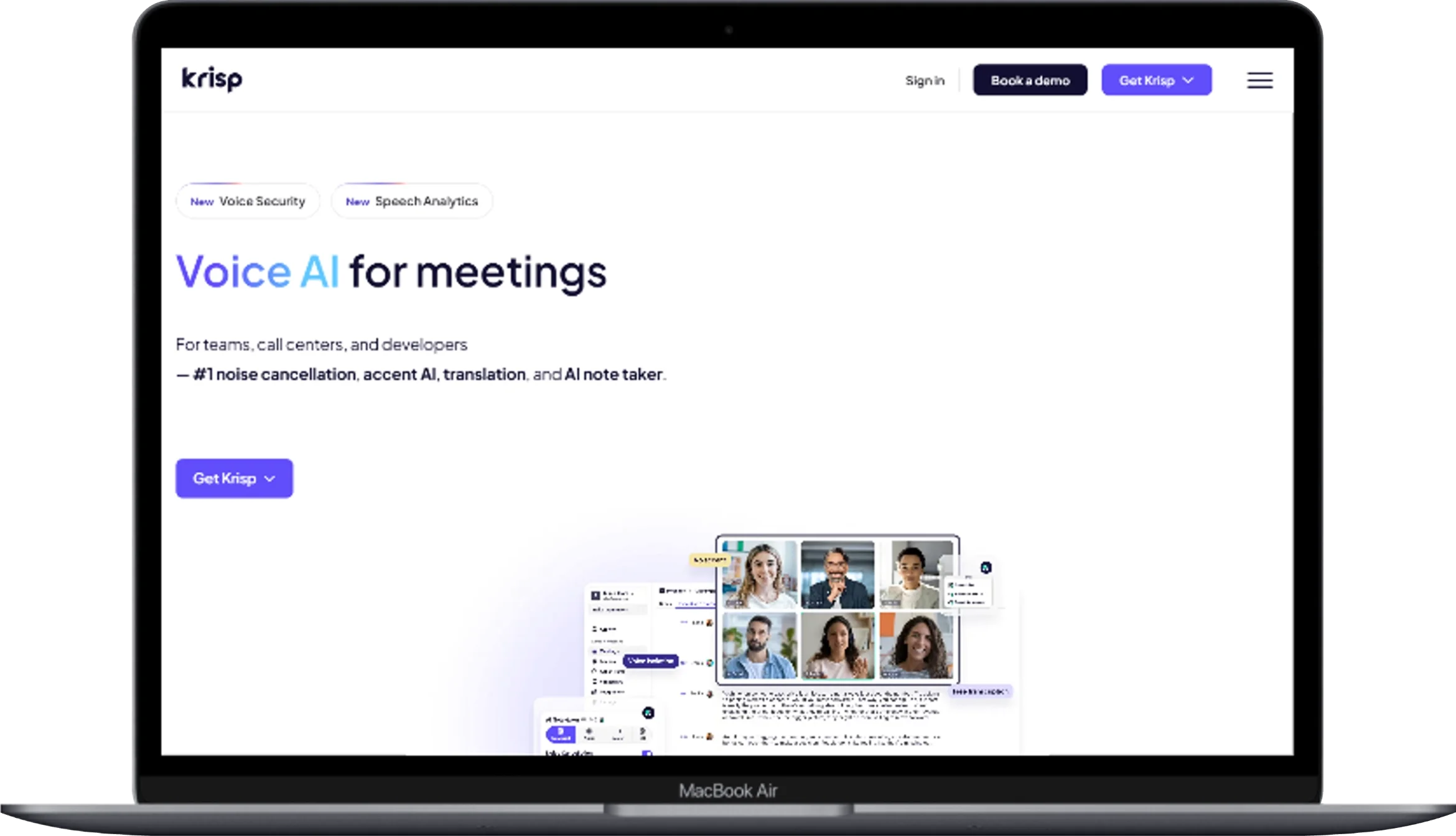
Krisp installs as a virtual microphone and virtual speaker that sits between your actual hardware and whatever communication app you’re using — Zoom, Teams, Google Meet, Discord, Riverside, or any of the roughly 800 apps it supports. When it’s active, it runs a lightweight AI model directly on your device, analyzing your microphone input and stripping out background noise, echo, and even other people’s voices before that audio ever reaches the app you’re recording or calling through.
This live-processing approach is what makes Krisp genuinely useful in a way post-production tools can’t replicate: it can clean up a remote guest’s noisy kitchen in real time during a Zoom interview, something Adobe Podcast simply can’t touch, because by the time Adobe Podcast sees the file, that noise is already permanently mixed into the recording. For a wider look at how Krisp stacks up against other real-time options, see our guide to the best noise cancellation software.
Krisp’s real limitation, according to multiple independent testers, is quality under pressure. It’s genuinely good, but it can’t match the polish of offline tools when applied to the same recording — and in cases of very loud background noise or a quiet speaker, it can occasionally suppress actual voice content along with the noise. The processing also lacks manual control: it’s essentially an on/off switch with no parameters to adjust, unlike a spectral repair tool where you can dial in exactly how aggressive the cleanup should be.
How Adobe Podcast’s Enhance Speech Actually Works

Adobe Podcast takes the opposite approach entirely. You upload an already-recorded audio file — MP3, WAV, M4A, or AAC, up to 1GB on the free tier — to a browser-based tool, click Enhance, and the AI analyzes and reconstructs the vocal frequencies in the recording, removing background noise, room echo, and reverb. Because it’s working with the full recorded file rather than a live audio stream, it has more information to work with and can afford to be more careful and precise than a real-time tool that has to make decisions instantly.
One detail worth knowing: Adobe Podcast’s processing is idempotent, meaning you can run the same file through Enhance Speech multiple times without the noise-gate style artifact stacking that plagues older, traditional noise reduction tools. It also includes a Microphone Check feature that tests your recording setup before you start — flagging issues like mic distance or room acoustics that would otherwise require a full re-record to fix.
Adobe Podcast’s real limitation is exactly what you’d expect from a tool that only sees the finished file: it can’t do anything about noise happening live, and it can’t help a remote guest whose noisy environment is actively ruining a call in progress. It’s also cloud-based, meaning your file gets uploaded for processing — a consideration if you’re working with confidential or sensitive recordings. If privacy or redacting sensitive audio content matters to your workflow, our piece on audio redaction software is worth a look too.
What Independent Testing Actually Shows About Sound Quality
This is where the comparison gets genuinely useful instead of theoretical. Working audio engineers who’ve tested both tools directly on the same recordings report a consistent pattern:
- For live calls, Krisp is close to essential — as one comparison put it, “if you need real-time noise removal for calls, streams or meetings, Krisp is hard to beat, as long as you accept some loss in vocal fidelity.”
- For recorded audio, offline tools consistently outperform Krisp — even strong real-time processing can’t match what a tool like Adobe Podcast, Descript’s Studio Sound, or iZotope RX can do when working with a complete file instead of a live stream. One direct working-engineer comparison stated plainly: “Krisp is extremely good, but it cannot match the quality of offline tools like Adobe Podcast Enhanced Speech, Descript Studio Sound, or RX 12 Dialogue Isolate when applied to the same recording.”
- Neither tool is “best” in every situation — the recurring conclusion across independent reviews isn’t which tool wins, but that most serious podcasters end up using one real-time tool (Krisp or NVIDIA Broadcast) during recording, and one offline tool (Adobe Podcast, Descript, or iZotope RX) for final polish.
That last point is the single most useful finding across every independent comparison we found — it’s not really a competition, it’s a two-stage pipeline.
Pricing Comparison
| Krisp | Adobe Podcast (Enhance Speech) | |
|---|---|---|
| Free tier | ~30–60 minutes/day of noise cancellation | Free tier with monthly usage limits (~2 hours/month) |
| Individual paid plan | ~$8–$16/month (billed annually is typically cheaper) | Free tier often covers casual use; pay-as-you-go for heavier volume |
| Team/business plan | ~$30/month per seat | N/A (individual file-based pricing model) |
| Enterprise | Custom pricing | N/A |
Because these tools solve different problems, the pricing comparison isn’t really “which is cheaper” — it’s “which free tier fits your actual usage pattern.” A podcaster recording one or two episodes a week may never hit Adobe Podcast’s free-tier ceiling. Someone on video calls eight hours a day will burn through Krisp’s daily free allowance almost immediately.
Pros and Cons
Krisp
Pros:
- Cleans audio live — genuinely useful for calls, meetings, and streams where post-production isn’t an option
- Can fix a remote guest’s noisy environment during the call itself, something no post-production tool can do
- Local, on-device processing — nothing uploaded to the cloud
- Works across 800+ apps as a system-wide virtual microphone
Cons:
- Quality doesn’t match offline tools when applied to the same recording
- No manual control — simple on/off, no adjustable parameters
- Can occasionally suppress quiet voice content along with loud background noise
- Ongoing subscription required for anything beyond light daily use
Adobe Podcast (Enhance Speech)
Pros:
- Free tier is genuinely capable for casual, occasional use
- More precise and natural-sounding results than real-time processing, since it works with the complete file
- Idempotent processing — safe to re-run without stacking artifacts
- Includes a Microphone Check tool to catch recording problems before you even start
- No installation — works entirely in the browser
Cons:
- Cannot help with noise happening live, during an active call or recording session
- Cloud-based — your file is uploaded rather than processed locally
- Built specifically for speech, not music or complex audio
- Limited manual control compared to a full audio-repair suite
When to Use Krisp vs. Adobe Podcast
Use Krisp when:
- You’re on live calls, meetings, or streams and need clean audio in real time
- You’re interviewing a remote guest whose environment is noisy and you want it handled before it’s ever recorded
- You want noise handled automatically without touching the audio afterward
- Privacy matters and you’d rather avoid uploading recordings to the cloud
Use Adobe Podcast when:
- You already have a recorded file with noise, echo, or a “recorded on a laptop mic” quality you want cleaned up
- You want the highest achievable quality for a finished podcast episode, interview, or voiceover
- You need to reconstruct or rescue audio that’s more significantly degraded, not just lightly noisy
- You don’t want to pay for or install anything — the free tier covers a lot of casual use
Use both when:
- You’re producing anything you actually care about the final quality of. Run Krisp during the recording session itself to prevent as much noise as possible from ever being captured, then run the resulting file through Adobe Podcast for a final pass. This combination plays to each tool’s actual strength instead of asking either one to do a job it wasn’t built for.
A Practical Two-Step Workflow
Based on how working podcast producers actually combine these tools:
- Before recording: Use Krisp as your virtual microphone during the session, especially if you’re interviewing a remote guest whose room quality you can’t control.
- After recording: Export the recorded file and run it through Adobe Podcast’s Enhance Speech for a final cleanup pass — catching room tone, light echo, or anything Krisp’s real-time processing didn’t fully catch.
- Quality check: A/B compare the original and enhanced versions before publishing, listening specifically for unnatural silences, breath noise, or any thinning of the voice that aggressive processing can introduce.
This sequence leans on Krisp’s real strength — adapting live, in the moment — and Adobe Podcast’s real strength — careful, after-the-fact precision — rather than asking one tool to cover for the other’s blind spot. If you’re assembling a full production toolkit, you may also want to check out our list of the best free video editing software for the next step after audio cleanup.
Frequently Asked Questions
Is Krisp or Adobe Podcast better for noise removal?
Neither is universally “better” — they solve different problems. Krisp is built for real-time noise removal during live calls and recording sessions. Adobe Podcast is built for cleaning up audio after it’s already been recorded. Most serious podcasters and audio producers use both, at different stages of the same workflow.
Can Adobe Podcast fix noise from a live Zoom call?
No. Adobe Podcast only works on already-recorded files uploaded through its browser tool — it has no way to process audio in real time during a live call. That’s specifically what Krisp is built for.
Can Krisp fully replace post-production noise cleanup?
Not for anyone aiming for genuinely polished audio. Independent testing consistently shows offline tools like Adobe Podcast, Descript’s Studio Sound, and iZotope RX outperform real-time processing when applied to the same recording, simply because they can analyze the complete file rather than making instant, live decisions.
Is Krisp or Adobe Podcast free?
Both offer free tiers. Krisp’s free tier includes roughly 30–60 minutes of daily noise cancellation. Adobe Podcast’s free tier includes a monthly usage allowance (commonly cited around 2 hours/month) for Enhance Speech processing.
Does Krisp upload my audio to the cloud?
No — Krisp processes audio locally on your device, which is a meaningful advantage for privacy-sensitive calls. Adobe Podcast, by contrast, requires uploading your file for cloud-based processing.
Which tool is better for fixing a remote podcast guest’s noisy background?
Krisp, without question — it’s the only one of the two that can act on live audio. By the time a file reaches Adobe Podcast, any noise from a guest’s environment is already permanently part of the recording, though Adobe Podcast can still meaningfully reduce it afterward.
Which tool gives more natural-sounding results?
Independent testers generally report that post-production tools like Adobe Podcast produce more natural results than real-time processing, since they can afford more careful analysis. Real-time tools like Krisp involve some inherent tradeoff in vocal fidelity in exchange for working instantly, live.
Final Verdict
Treating “Krisp vs. Adobe Podcast” as a single winner-take-all comparison misses what each tool is actually good at. Krisp solves a problem post-production tools structurally can’t touch — noise happening live, in the moment, especially from someone else’s environment during a call. Adobe Podcast solves a different problem — turning an already-recorded, imperfect file into something that sounds studio-produced, with more precision than any real-time tool can offer.
If you had to pick just one: choose based on where your actual noise problem happens. If it’s during live calls and meetings, get Krisp. If it’s in recordings you’ve already made, use Adobe Podcast. But if audio quality genuinely matters to your work — a podcast, a YouTube channel, professional voiceover — the honest answer, backed consistently by working audio engineers who’ve tested both, is to use them together: Krisp to catch noise before it’s recorded, Adobe Podcast to polish what’s left.
You May Also Like
 SaaS
SaaSWhy Cloud CRM Has Quietly Become the Backbone of Modern Customer Support
 SaaS
SaaSWhat Is No-Code Automation? How It Works, Benefits, and Risks
 Cloud Computing
8 Best AWS S3 Alternatives Compared: Pricing, Egress, and S3 Compatibility
 SaaS
SaaSWhat is Confluence Used For In Project Management?
 SaaS
SaaSCognito Forms to Jira Software Cloud Integration: Setup, Automation, Field Mapping, and Best Practices
 Web Development
Building Apps with Lovable and Supabase: A Step-by-Step Guide
 Web Development
Heroku vs. Netlify (2026): Pricing, Features, and Best Uses
 Software
When Fixing Bugs Is No Longer Enough: How to Rescue a Failing Software Project
 SaaS
SaaS