

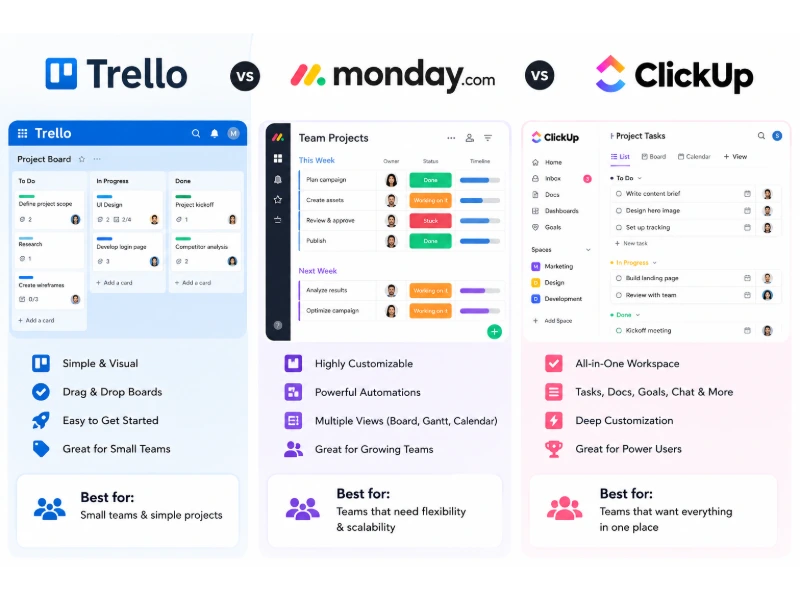
Trello is best for teams that need a simple visual workflow, monday.com is best for teams that need clear reporting and structured work, and ClickUp is best for teams that need one flexible system for tasks, documents, goals, and detailed processes.
The right choice depends less on the number of features and more on the type of work your team repeats each week. A content team may need a clean editorial board. A service team may need workload planning, client reporting, and controlled access. A product team may need task hierarchies, sprint tracking, documents, and automation rules.
This comparison explains the real work experience behind each platform. It compares setup effort, task visibility, automation, reporting, cost, team adoption, permissions, and long-term scaling. It also uses percentage-based fit scores. These percentages are an editorial decision model, not a survey or market-share claim. They show how well each tool fits common work situations.
Featured Snippet Answer:
Choose Trello for simple visual work, monday.com for structured team reporting, and ClickUp for deep task customization. Trello reduces setup time. monday.com improves cross-team visibility. ClickUp combines tasks, documents, goals, dashboards, and advanced automation in one workspace.
What Is the Direct Difference Between Trello, monday.com, and ClickUp?
The main difference is the amount of structure each platform requires before a team can work clearly.
Trello starts with boards, lists, and cards. A card can represent a task, request, article, customer issue, or event. This simple layout works well when the workflow moves through visible stages, such as To Do, In Progress, Review, and Done.
monday.com starts with boards and columns. Each row can be a task, client, project, employee request, or campaign item. Each column can track a status, owner, date, priority, number, formula, or file. This structure helps teams turn work into trackable data.
ClickUp starts with a deeper hierarchy. A workspace can contain Spaces, Folders, Lists, tasks, and subtasks. Teams can also connect Docs, Goals, Whiteboards, dashboards, forms, chat, and time tracking. This design supports many work types, but it needs stronger setup rules.
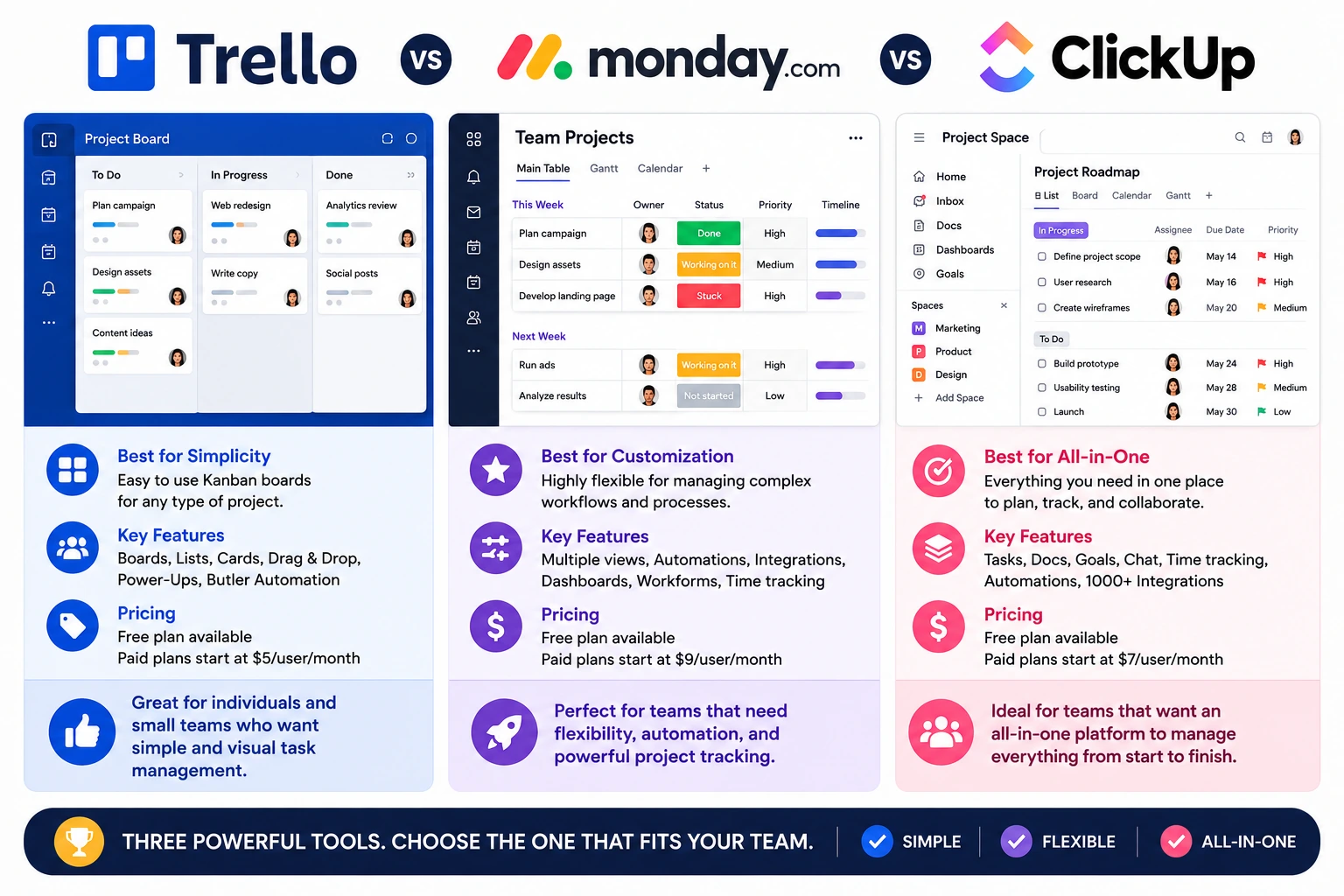
Quick Comparison Table
| Category | Trello | monday.com | ClickUp |
|---|---|---|---|
| Core work model | Boards, lists, cards | Boards, rows, columns | Spaces, folders, lists, tasks |
| Best starting point | Simple Kanban workflow | Structured team tracking | Flexible operating system |
| Setup effort | Low | Medium | Medium to high |
| Best visual strength | Board clarity | Dashboards and data views | Multiple task views |
| Best for small teams | Yes | Yes, with paid-seat rules | Yes |
| Best for complex projects | Limited without strong setup | Strong | Very strong |
| Best for detailed automation | Moderate | Strong | Strong |
| Best for reporting | Basic to moderate | Strong | Strong |
| Best for task plus docs | Moderate | Moderate | Strong |
| Main risk | Board sprawl | Column overload | Workspace complexity |
Which Tool Has the Best Overall Fit Percentage?
ClickUp has the highest overall flexibility score at 88%, monday.com has the strongest structured-operations score at 84%, and Trello has the strongest simplicity score at 90%.
The scores below use a 100-point editorial model. The model weighs seven practical areas: setup speed, daily clarity, customization, reporting, automation, governance, and scale. The percentages do not measure customer satisfaction, market share, or software reliability. They show likely fit for a team with common project management needs.
| Platform | Overall Flexible Work Score | What the Percentage Means |
|---|---|---|
| Trello | 74% | Strong fit for clear, visual workflows with fewer process rules |
| monday.com | 84% | Strong fit for teams that need tracking, reporting, and shared planning |
| ClickUp | 88% | Strong fit for teams that need one configurable workspace across many work types |
How Should You Read These Percentages?
Use the percentages as a starting point, then match them to your team’s work habits.
A 10-person agency that tracks client work, deadlines, budgets, and workload may get more value from monday.com than Trello, even if its staff prefers a simple board. A three-person marketing team may choose Trello because it can start work in one hour instead of spending several days setting rules in a larger system.
The best platform is the one that makes the next task clear. It should not force employees to search across several boards, forms, documents, or chats to find one due date.
Why Does Trello Work Best for Simple Visual Workflows?
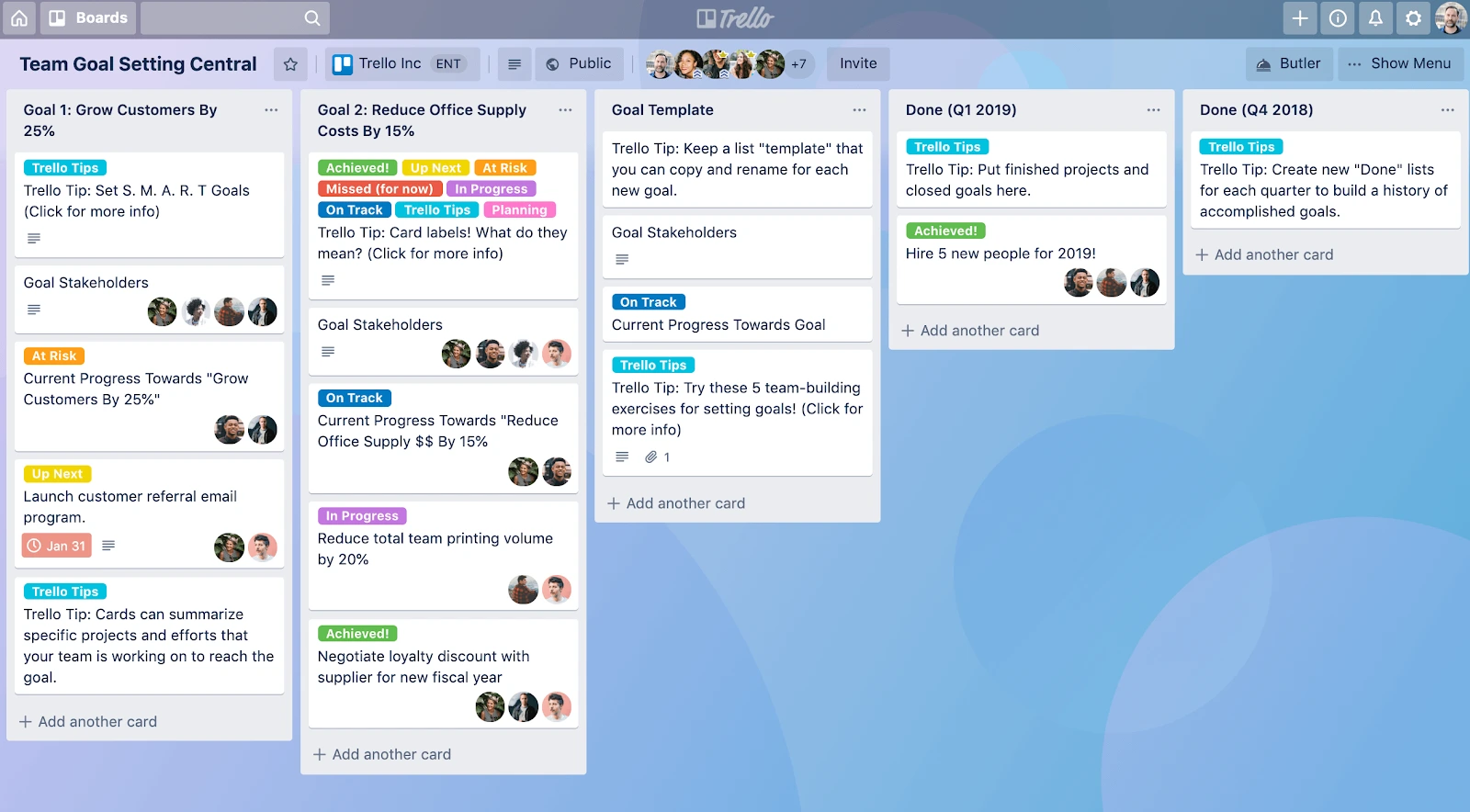
Trello works best when each task can move through a short set of visible stages.
A typical Trello board uses lists such as Ideas, Ready to Start, In Progress, Waiting for Review, and Published. This setup makes work status easy to scan. A new team member can often understand a board without formal training because the workflow is visible from left to right.
Trello also supports due dates, assignees, checklists, labels, attachments, card templates, custom fields, automation, and Power-Ups. Paid plans add broader views, such as Calendar, Timeline, Dashboard, Table, and Map views. Calendar view shows task start dates, due dates, labels, members, and checklists, which helps teams see upcoming work and balance assignments.
What Is the Trello Experience During Daily Work?
Trello reduces daily friction because a person can open one board and see active work in seconds.
This matters when work is simple but frequent. For example, a small marketing team may use one board for blog posts:
- Add article ideas as cards.
- Add a writer and due date.
- Move each card to Drafting.
- Add an editor checklist.
- Move the card to Scheduled after approval.
- Archive the card after publication.
The board gives everyone a shared answer to one question: What happens next?
Trello becomes less effective when a team needs to manage many linked projects, complex task dependencies, resource capacity, detailed budgets, or several levels of approval. These needs are possible to manage, but the team may need many boards, Power-Ups, labels, and manual rules. That can reduce the simple experience that made Trello useful in the first place.
Trello Fit Scores by Use Case
| Use Case | Trello Fit Percentage | Reason |
|---|---|---|
| Personal task planning | 92% | Cards and lists are fast to understand |
| Content calendar | 90% | Visual stages match editorial work |
| Small marketing team | 86% | Easy collaboration and due-date tracking |
| Event planning | 84% | Cards can store vendors, checklists, and dates |
| Agile sprint board | 78% | Useful for simple sprint flow |
| Client service operations | 69% | Works, but reporting may become limited |
| Portfolio management | 58% | Multi-project reporting needs more structure |
| Complex product delivery | 60% | Dependencies and hierarchy need extra planning |
What Does Trello Cost for Teams?
Trello has a free plan for up to 10 collaborators per Workspace, while paid plans start at $5 per user per month when billed annually.
Trello Standard costs $5 per user per month on annual billing, Premium costs $10 per user per month on annual billing, and Enterprise starts at $17.50 per user per month on annual billing. Standard adds unlimited boards, card mirroring, and more automation. Premium adds more views and admin tools. Enterprise adds stronger organization-wide controls and support.
For a five-person team, annual-billed Standard pricing is about $25 per month, while Premium is about $50 per month. The cost difference matters only if the team will use the added views, controls, or reporting tools.
Why Does monday.com Work Best for Structured Team Visibility?
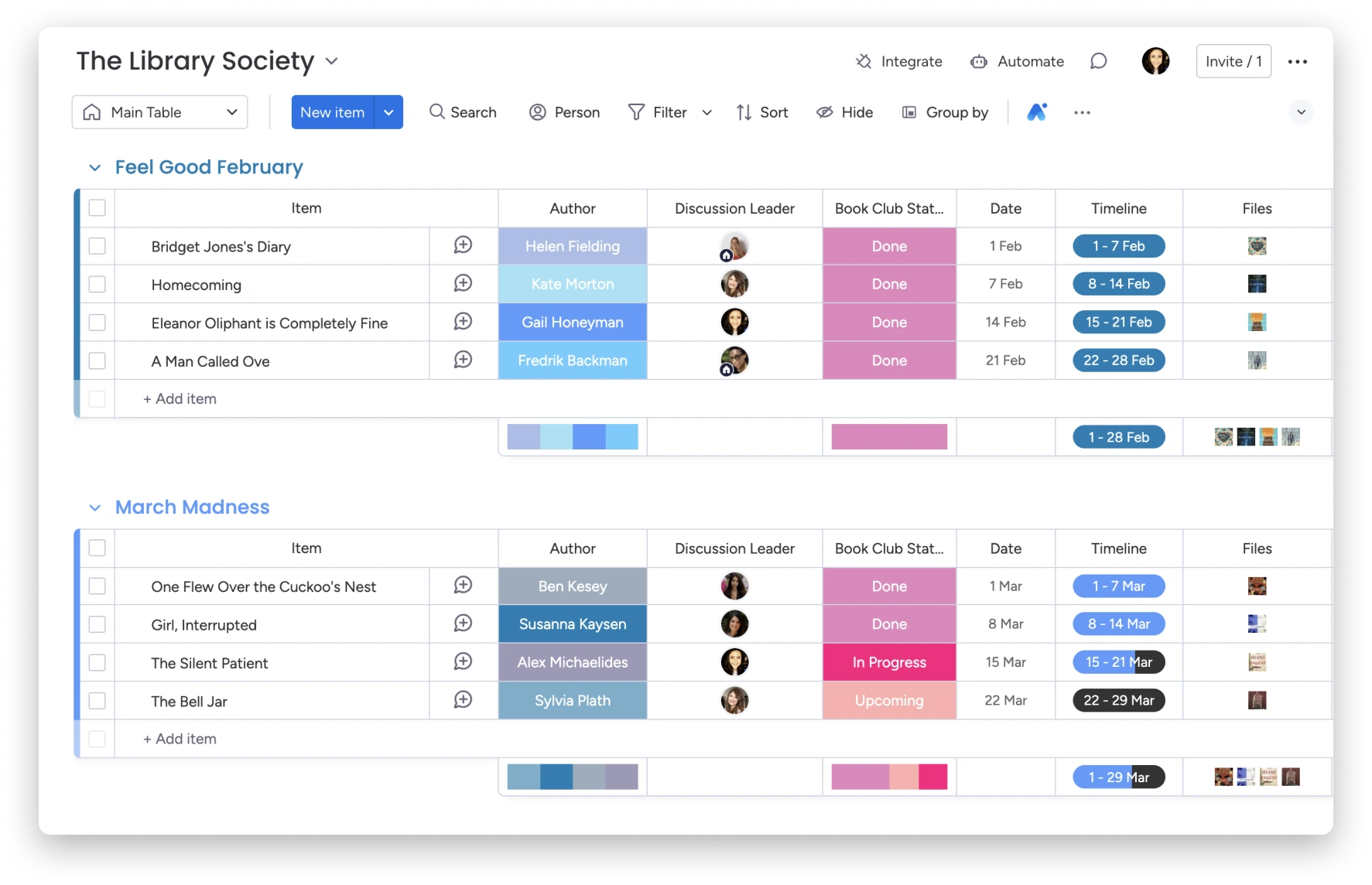
monday.com works best when teams need to turn project work into clear fields, reports, and repeatable workflows.
A monday.com board can include columns for task owner, project status, priority, due date, effort, budget, client, risk level, and approval status. This structure gives managers and team members a consistent way to answer questions such as:
- Which tasks are late?
- Which client projects are at risk?
- Which employee owns each task?
- How many items are waiting for approval?
- Which projects have no due date?
- Which campaigns need more budget?
The platform is useful when the work needs both a human view and a measurable view. A team can still use Kanban boards, but it can also switch to Table, Calendar, Timeline, Gantt, Workload, Chart, and dashboard views, based on the plan.
What Is the monday.com Experience During Daily Work?
monday.com improves cross-team work because each board can use the same columns, statuses, and rules.
Consider a creative agency with 30 active client projects. Each project can include the same fields:
- Client name
- Project owner
- Project stage
- Start date
- Delivery date
- Monthly budget
- Current workload
- Approval status
- Project risk
A manager can use a dashboard to pull information from several boards. This reduces the need to ask for status updates in chat. Instead, the work record becomes the status update.
monday.com documents that dashboards can pull data from 1 board on Free and Basic plans, 5 boards on Standard, 20 boards on Pro, and 50 boards on Enterprise. Its All Projects Dashboard can support up to 200 project boards.
Why Do monday.com Dashboards Matter for Operations?
monday.com dashboards improve operational visibility by showing project data in one location.
Dashboards are useful for people who need a summary instead of a task list. A department lead may need to see delivery dates, workload, budget, project health, and overdue items. A team member may need only their assigned tasks.
This separation is valuable. It prevents a manager from asking every employee for a manual update. It also prevents employees from spending time building reports in spreadsheets after the work has already been recorded.
The platform provides 15 available dashboard widgets, according to its plan guide. These widgets can track project progress, budgets, and other work data.
monday.com Fit Scores by Use Case
| Use Case | monday.com Fit Percentage | Reason |
|---|---|---|
| Team project tracking | 91% | Columns make ownership and status clear |
| Client operations | 90% | Boards and dashboards support repeatable work |
| Marketing planning | 88% | Calendars, timelines, and campaign fields help |
| Resource planning | 87% | Workload and reporting tools improve visibility |
| Executive reporting | 89% | Dashboards combine multiple data sources |
| Personal productivity | 70% | More setup than many individuals need |
| Software development | 76% | Useful, but development teams may want deeper issue tools |
| Knowledge management | 72% | Works, but it is not centered on documentation |
How Strong Is monday.com Automation?
monday.com automation helps teams reduce repeated updates, reminders, assignments, and status changes.
For example, a marketing board can use a rule that assigns an editor when a writer changes a task status to Ready for Review. Another rule can alert a project owner when a due date arrives and a task is not complete.
Automation limits vary by plan. The Standard plan includes 250 automation actions and 250 integration actions each month. Pro includes 25,000 of each, while Enterprise includes 250,000 of each.
A team should count workflow events before choosing a plan. A 250-action limit can disappear quickly if one rule runs every time a new task is created or a status changes.
What Does monday.com Cost for Teams?
monday.com paid plans start at $9 per seat per month on annual billing, with plans beginning at three users.
Its Basic plan starts at $9 per seat per month, Standard starts at $12, and Pro starts at $19 when billed annually. Annual billing receives an 18% discount, according to monday.com. Plans start with three users, which affects the effective cost for solo users and very small teams.
For a three-person team on annual billing, the starting monthly cost is about:
| monday.com Plan | Price Per Seat | Starting Monthly Team Cost |
|---|---|---|
| Basic | $9 | $27 |
| Standard | $12 | $36 |
| Pro | $19 | $57 |
This cost can be efficient when a team replaces manual status meetings, separate reporting sheets, and disconnected project lists. It can be unnecessary when the team only needs a shared Kanban board.
Why Does ClickUp Work Best for Flexible, Detailed Work Systems?
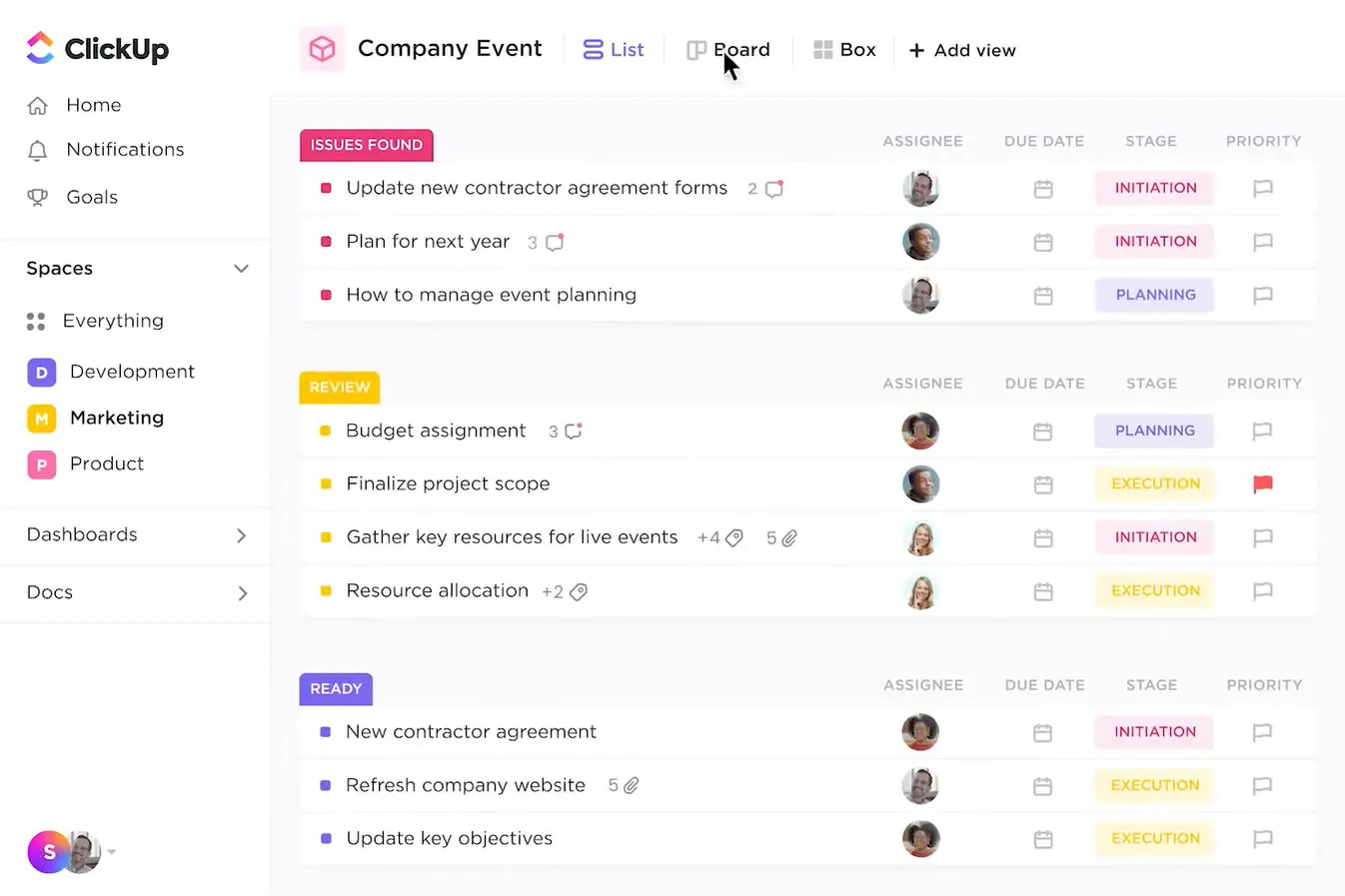
ClickUp works best when a team needs to manage tasks, documents, goals, communication, automation, and reporting in one connected workspace.
ClickUp gives teams more configuration choices than Trello and more hierarchy options than a standard board setup. A company can create separate Spaces for Marketing, Product, Sales, Client Services, and Operations. Inside each Space, it can create Folders for programs, Lists for projects, and tasks for work items.
This flexibility helps a team build one system instead of adding separate tools for task tracking, internal documentation, simple chat, forms, goals, time tracking, and dashboards.
What Is the ClickUp Experience During Daily Work?
ClickUp supports detailed work, but it requires a clear workspace design before broad adoption.
A product team may use:
- A Space for Product Development
- A Folder for each product area
- A List for each sprint
- A Task for each feature or bug
- A Subtask for design, engineering, testing, and documentation
- A Doc for requirements
- A Dashboard for sprint health
- A Goal for release targets
This setup can reduce duplicate work. The same task can connect to a doc, comment thread, due date, owner, status, and dashboard. However, too many custom statuses, fields, views, and ClickApps can make the workspace difficult for new employees.
The strongest ClickUp experience comes from limits. Use fewer statuses. Use a small number of required custom fields. Create templates for repeated work. Give each team a clear reason for using each Space.
How Does ClickUp Automation Reduce Admin Work?
ClickUp automation can assign work, add watchers, assign comments, and send task-based emails after a trigger occurs.
For example, a support team can create a rule that assigns a high-priority bug to an engineering lead. A content team can add an editor as a watcher when a draft reaches the review stage. A client-service team can send an email when a task status changes to Client Approval Needed.
ClickUp explains that every automation includes a trigger and an action. Business plans and above can add conditions and multiple actions. Automation limits range from 100 actions per month on Free Forever to 250,000 actions per month on Enterprise.
ClickUp Fit Scores by Use Case
| Use Case | ClickUp Fit Percentage | Reason |
|---|---|---|
| Product management | 92% | Hierarchy, sprints, tasks, docs, and goals work together |
| Agency operations | 89% | Custom fields and dashboards support client work |
| Content operations | 86% | Tasks, docs, forms, and approvals can connect |
| Software development | 90% | Sprints, task layers, reporting, and integrations help |
| Knowledge and task management | 88% | Docs and tasks can stay in the same workspace |
| Solo task planning | 76% | Powerful, but more than some users need |
| Fast temporary project | 68% | Setup can take longer than Trello |
| Executive reporting | 85% | Dashboards and portfolio tools support summaries |
What Does ClickUp Cost for Teams?
ClickUp offers a Free Forever plan, while Unlimited costs $7 and Business costs $12 per user per month when billed annually.
The Free Forever plan includes unlimited tasks, unlimited free-plan members, Kanban boards, sprint management, Calendar view, collaborative Docs, and 60 MB of storage. Unlimited adds unlimited Spaces, Folders, Forms, Gantt charts, integrations, storage, custom fields, time tracking, goals, and portfolio management. Business adds advanced dashboards, timeline views, webhooks, automation integrations, mind mapping, private Whiteboards, and more.
| ClickUp Plan | Annual-Billed Price | Strongest Use |
|---|---|---|
| Free Forever | $0 | Personal work and basic team task tracking |
| Unlimited | $7 per user/month | Small teams that need task depth and integrations |
| Business | $12 per user/month | Teams that need advanced reporting and automation |
| Enterprise | Custom pricing | Governance, SSO, audit logs, and enterprise controls |
ClickUp also sells AI plans separately. Brain AI is listed at $9 per user per month, and Everything AI is listed at $28 per user per month. A team should treat AI as a separate budget line instead of assuming it is included in task-management pricing.
Which Platform Is Easiest for Employees to Adopt?
Trello is the easiest platform for most employees to adopt because its board structure is visible and familiar.
The adoption score below estimates how quickly a typical nontechnical team can understand the basic system. It assumes the team receives a short setup guide and has one clear workflow.
| Platform | Basic Adoption Score | Main Adoption Challenge |
|---|---|---|
| Trello | 90% | Teams may create too many separate boards |
| monday.com | 80% | Teams must understand columns, filters, and board rules |
| ClickUp | 72% | Teams must learn hierarchy, views, and workspace rules |
Trello has the smallest learning curve. monday.com needs more explanation because columns control the data model. ClickUp needs the most governance because users can build many task structures and views.
A fast rollout does not always create long-term success. Trello can be easy on day one but difficult after 100 boards. ClickUp can feel complex on day one but become efficient after the team creates strong templates and naming rules.
Which Platform Provides the Best Reporting?
monday.com provides the clearest reporting experience for most business teams because its boards, columns, and dashboards are built around structured work data.
Trello provides Dashboard views on paid plans, but its main strength remains board-based work. ClickUp provides dashboards and portfolio features, but teams need to define fields, goals, statuses, and task structures carefully before reports become useful.
Reporting Fit Percentages
| Reporting Need | Trello | monday.com | ClickUp |
|---|---|---|---|
| Simple task progress | 80% | 88% | 87% |
| Multi-project status | 62% | 92% | 88% |
| Budget tracking | 55% | 90% | 82% |
| Workload planning | 60% | 87% | 86% |
| Executive dashboard | 64% | 91% | 87% |
| Custom task reporting | 68% | 88% | 90% |
monday.com is often the clearest choice when managers need to review work across departments. ClickUp is a strong alternative when reporting must connect closely to tasks, docs, goals, and detailed task relationships.
Which Platform Has the Best Automation for Repeated Work?
ClickUp and monday.com provide stronger automation depth than Trello for complex workflows, while Trello offers a simpler automation experience for board actions.
Trello includes built-in no-code automation in every board. Its paid plans provide larger automation quotas. It also supports integrations and more than 200 Power-Ups, though some partner Power-Ups can require separate subscriptions.
monday.com is useful when automations must update structured fields, notify users, and work across business processes. ClickUp is useful when automation must act within a detailed task hierarchy and use triggers, conditions, multiple actions, webhooks, or automation integrations.
| Automation Need | Best Platform | Fit Percentage |
|---|---|---|
| Move a card after a status change | Trello | 90% |
| Assign an editor after a draft is ready | Trello or monday.com | 85% |
| Update project fields and dashboards | monday.com | 91% |
| Trigger multi-step task rules | ClickUp | 92% |
| Run workflow actions across detailed task systems | ClickUp | 90% |
| Control high-volume business workflows | monday.com or ClickUp | 89% |
How Should a Team Choose Between Trello, monday.com, and ClickUp?
Choose the platform that matches your work complexity today and your expected complexity over the next 12 months.
Use this five-step selection process:
- List your repeated work.
Write down work types such as blog posts, client projects, product bugs, employee requests, sales tasks, and events. - Count your required fields.
Use Trello if each task needs only a title, owner, due date, checklist, and a few labels. Consider monday.com or ClickUp if each task needs budget, client, workload, priority, risk, effort, and approval fields. - Identify your reporting need.
Choose monday.com when leaders need dashboards across many boards. Choose ClickUp when reports need deep links to tasks, docs, goals, and project hierarchies. - Set an adoption limit.
Choose Trello when your team needs to start quickly. Choose monday.com when the team can learn a structured board system. Choose ClickUp when an owner can manage templates and workspace rules. - Test one real workflow for 14 days.
Do not test a blank workspace. Build one active process, such as a content calendar, onboarding process, client request system, or sprint plan. Measure task completion, late work, status questions, and setup time.
Conclusion: Which Project Management Tool Should You Choose?
Choose Trello for a clear visual workflow, monday.com for operational reporting, and ClickUp for a configurable all-in-one work system.
Trello earns a 90% simplicity score because boards, lists, and cards make task movement easy to see. It is a practical choice for content calendars, event plans, small marketing teams, and personal work systems.
monday.com earns an 84% structured-work score because boards, columns, dashboards, workload views, and automation support teams that manage many projects and need reliable reporting. It is a strong choice for agencies, operations teams, service businesses, and department leaders.
ClickUp earns an 88% flexibility score because it connects tasks, documents, goals, dashboards, automation, and detailed project structure. It is a strong choice for product teams, growing agencies, software teams, and businesses that want to reduce tool switching.
The final decision should follow your real workflow. Start with one active project. Track missed deadlines, status questions, setup time, and reporting needs for 14 days. Then choose the platform that gives your team the clearest next action with the least extra work.
You May Also Like
 Cloud Computing
8 Best AWS S3 Alternatives Compared: Pricing, Egress, and S3 Compatibility
 SaaS
SaaSWhat is Confluence Used For In Project Management?
 SaaS
SaaSCognito Forms to Jira Software Cloud Integration: Setup, Automation, Field Mapping, and Best Practices
 Web Development
Building Apps with Lovable and Supabase: A Step-by-Step Guide
 Web Development
Heroku vs. Netlify (2026): Pricing, Features, and Best Uses
 Software
9 Best Free Laser Engraver Software Tools in 2026
 Software
When Fixing Bugs Is No Longer Enough: How to Rescue a Failing Software Project
 SaaS
SaaS25 Best Pipedrive Integrations to Automate Sales and Grow Your Business
 SaaS
SaaS