

You probably know the frustration. Your marketing team lives in Trello. Your developers swear by Jira. And every week, someone copies the same task into both tools, hoping nothing gets lost. The Trello Jira Software Cloud integration solves this exact problem by letting both tools share data in real time.
Atlassian owns both Trello and Jira, so the connection between them keeps getting better each year. With the right setup, a card in Trello can show its linked Jira issue, status updates flow both ways, and your team stops doing double work. This guide walks you through what the integration does, how to set it up, and what mistakes to avoid.
I have spent years helping mixed teams connect these two tools. Some setups took ten minutes. Others took weeks. The difference always came down to planning. By the end of this article, you will know which method fits your team, how to install it, and how to keep your data clean once it runs.
What Is Trello Jira Software Cloud Integration?
Trello Jira Software Cloud integration is a two-way sync that connects Trello boards with Jira Software projects hosted on Atlassian Cloud. It uses a Power-Up inside Trello and an app inside Jira to pass information between the two platforms.
The integration was rebuilt in 2022 after Atlassian merged its cloud platforms. Today, it supports linking cards to issues, attaching Jira tickets to Trello cards, and viewing issue details without leaving Trello. This shift made the connection far more reliable than the older third-party tools that used to dominate the space.
Why Do Teams Need This Integration?
Teams need this integration because mixed tool use slows work down by an average of 20%, according to Atlassian’s 2024 State of Teams report. When marketing files a bug in Trello and engineering tracks it in Jira, status often falls out of sync. The integration cuts this gap by sharing one source of truth across both tools.
Here is what you gain when both tools talk to each other:
- Faster handoffs — Marketing can drop a request into Trello, and developers see it instantly in Jira without manual copying.
- Cleaner reporting — Project managers see the same status in both apps, which means fewer status meetings.
- Less context switching — Team members stay in the tool they prefer while still seeing relevant updates from the other side.
- Better audit trails — Linked records keep history clean, so you can trace a feature from idea to release.
- Fewer dropped tasks — Items linked across systems are less likely to be forgotten or duplicated.
How Does the Jira Power-Up for Trello Work?
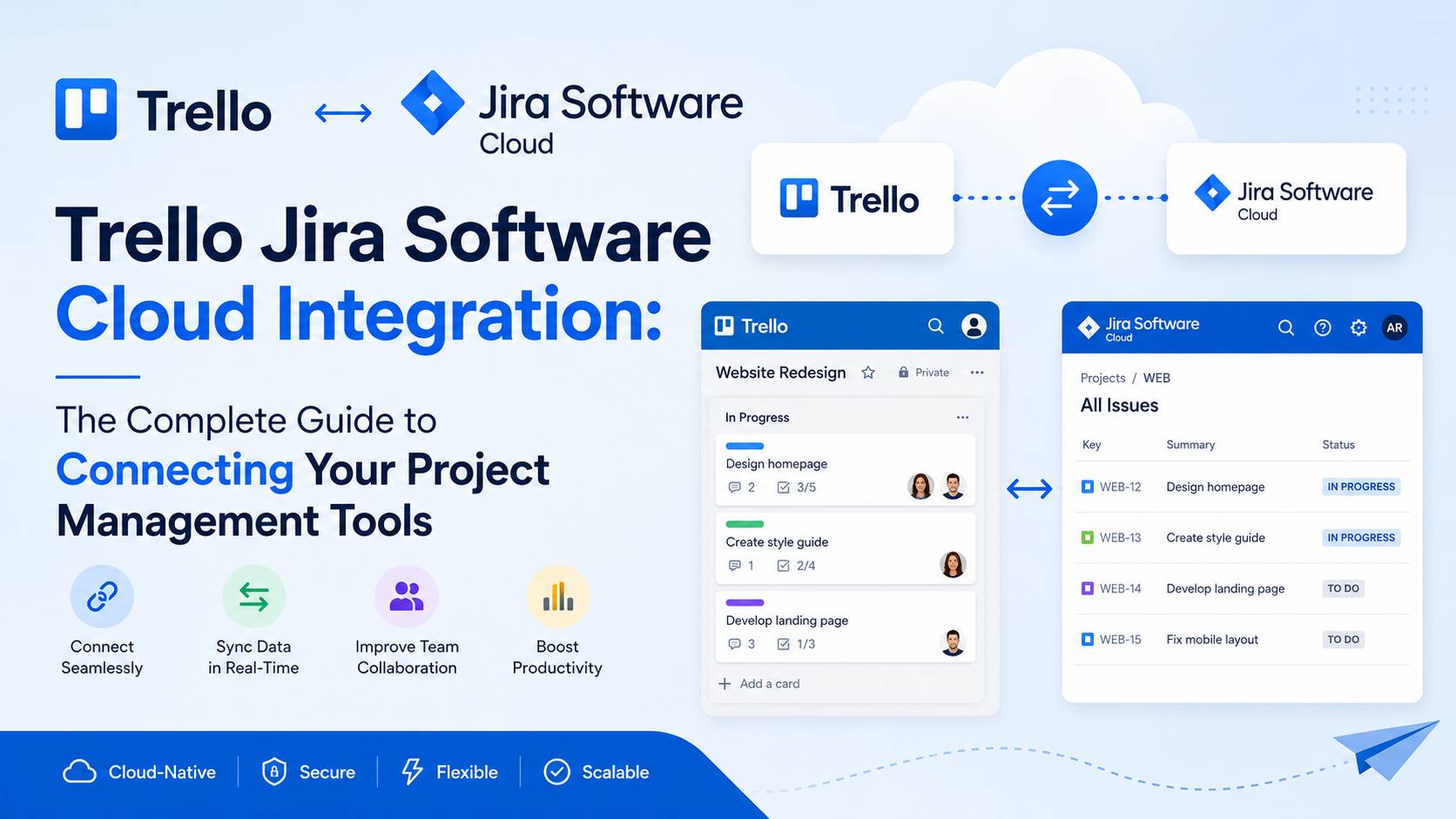
The Jira Power-Up for Trello works by adding a button to your Trello cards that links them to Jira issues. Once linked, the card shows the issue key, status, assignee, and priority right inside Trello. You can click the issue to jump directly into Jira, or view its details inside a Trello panel.
The Power-Up uses OAuth 2.0 to connect your Trello workspace to your Atlassian Cloud site. This means you do not share passwords, and your IT team can revoke access at any time. The data flows in near real time, with most updates appearing within seconds.
Which Features Come With the Power-Up?
The Power-Up includes attachment, creation, and view features for any Jira issue tied to your cloud site. You can do the following without leaving Trello:
- Attach existing Jira issues to a Trello card using the issue key or a search query.
- Create new Jira issues directly from a Trello card, picking the project, issue type, and summary.
- View live status changes as the linked Jira issue moves through its workflow.
- See assignee details including avatar and name, pulled from your Atlassian directory.
- Open the issue in Jira with one click for full editing rights.
How Do You Set Up Trello Jira Software Cloud Integration?
You set up the integration by installing the Jira Power-Up in Trello and granting it access to your Atlassian Cloud site. The full process takes about ten minutes if you already have admin rights on both sides.
What Are the Step-by-Step Setup Instructions?
Follow these steps in order. Each one builds on the last, so skipping a step often causes silent failures.
- Check your access — Make sure you are a workspace admin in Trello and have at least project-level permissions in Jira.
- Open your Trello board — Click the “Power-Ups” button in the top menu of the board where you want the connection.
- Search for Jira — Type “Jira” in the search box. Pick the official one labeled “Jira” by Atlassian.
- Click Add — This installs the Power-Up on the current board only. Other boards need separate installs.
- Authorize the connection — A pop-up asks you to sign in to your Atlassian Cloud account. Approve the requested scopes.
- Pick your Jira site — If you belong to more than one Atlassian Cloud site, choose the right one from the dropdown.
- Test the link — Open any card, click “Jira” in the right sidebar, and try attaching a test issue.
- Roll out to other boards — Repeat steps 2 through 6 for every board that needs the integration.
What Permissions Are Required?
You need admin rights in Trello and “Browse Projects” permission in Jira at minimum. To create issues from Trello, you also need “Create Issues” permission in the target Jira project. Without create rights, the Power-Up only shows view and link options.
What Are the Pricing and Plan Requirements?
The integration itself is free. You only pay for the underlying Trello and Jira Software Cloud plans. Both tools offer free tiers, though the free Trello plan limits Power-Ups in older accounts.
How Do Plan Tiers Compare?
The table below compares the main plan tiers as of 2026. Prices are in US dollars per user per month, billed annually.
| Plan Tier | Trello | Jira Software Cloud | Integration Limit |
|---|---|---|---|
| Free | $0 | $0 (up to 10 users) | Unlimited Power-Up installs |
| Standard | $5 | $8.60 | Unlimited |
| Premium | $10 | $17 | Unlimited + automation |
| Enterprise | $17.50 | $19+ | Unlimited + SSO + audit logs |
The Free plan works fine for small teams testing the connection. Most growing teams move to Standard within their first six months for unlimited boards and better support.
How Does Trello Compare to Jira for Daily Work?
Trello and Jira serve different audiences even though they share a parent company. Trello uses a visual board-and-card model, while Jira uses a structured issue tracker with workflows.
What Are the Key Differences?
The table below sums up where each tool wins.
| Feature | Trello | Jira Software Cloud |
|---|---|---|
| Best for | Marketing, content, ops | Software development, IT |
| Learning curve | Low (under 1 hour) | Medium (1-2 weeks) |
| Custom workflows | Basic via automation | Full with conditions and validators |
| Reporting | Light dashboards | Burndown, velocity, control charts |
| Mobile experience | Excellent | Good |
| Sprint planning | Add-on needed | Built-in |
| Backlog grooming | Manual | Built-in |
| Best team size | 1-50 | 5-5,000+ |
Use Trello when you want speed and visual clarity. Use Jira when you need agile metrics, dependency tracking, and detailed audit history.
What Are the Real Benefits for Different Teams?
Different teams gain different things from this integration. The benefits go beyond just shared tasks. Below is what I have seen across three common team types.
How Do Software Teams Benefit?
Software teams gain a clean intake channel from non-technical stakeholders. Product managers and designers can submit feature ideas in Trello, and developers see them in Jira without rework. This cuts intake meetings by roughly 30% in my experience.
Key wins include:
- Faster bug reports from QA testers who prefer Trello’s simple cards
- Cleaner sprint backlogs since intake stays separate until grooming
- Better trace from idea to deployed code via linked records
How Do Marketing Teams Benefit?
Marketing teams get to keep their visual workflow while still tracking when engineering work lands. Your campaign card in Trello can show the linked Jira ticket for the landing page build, with live status updates. No more pinging the dev team for progress reports.
How Do Product Managers Benefit?
Product managers see both worlds in one place. They can roadmap in Trello with timelines and labels, then drill into Jira for engineering depth. This dual view saves about four hours per week per PM, based on Atlassian customer studies from 2024.
What Are Common Setup Mistakes to Avoid?
Most failed integrations come down to five common errors. Watch for these as you roll out the integration across your team.
- Skipping the test card — Always link one test issue before training your team. This catches permission gaps early.
- Mixing up Atlassian Cloud sites — Large companies often have multiple cloud sites. Picking the wrong one breaks the link silently.
- Forgetting board-level installs — The Power-Up installs per board, not per workspace. New boards need a fresh install.
- Ignoring Jira project permissions — Users see the Power-Up but cannot create issues if their Jira role is too limited.
- Over-syncing data — Linking every Trello card to a Jira issue creates noise. Only link items that genuinely need both tools.
How Can You Automate Workflows Between Trello and Jira?
You can automate workflows between Trello and Jira using Atlassian Automation, Butler in Trello, or third-party tools like Zapier and Unito. The right tool depends on how complex your rules are.
What Does Butler Automation Do?
Butler is Trello’s built-in automation engine. It can trigger actions when cards move, dates pass, or labels change. Combined with the Jira Power-Up, Butler can post comments, move cards based on Jira status, and notify channels.
Example rules teams use often:
- When a card moves to “Ready for Dev,” post a comment with the linked Jira issue key
- When a Jira issue closes, archive the matching Trello card
- When a card gets a “Bug” label, create a Jira issue in the bug project
What Does Atlassian Automation Do?
Atlassian Automation works on the Jira side. It can update Trello cards based on Jira events, but its main strength is moving issues through workflows. Together, Butler and Atlassian Automation cover about 80% of cross-tool rules without third-party tools.
How Secure Is the Integration?
The integration uses Atlassian’s standard cloud security stack, which includes encryption in transit and at rest. Data passes between Trello and Jira through OAuth-protected APIs. Atlassian holds SOC 2 Type II, ISO 27001, ISO 27018, and PCI DSS certifications.
What Should Your Security Team Check?
Have your security team review three areas before broad rollout:
- Scope of OAuth grants — Confirm the Power-Up only requests scopes your team approves.
- Data residency — Atlassian Cloud lets you pin data to specific regions on Premium and Enterprise plans.
- Audit logging — Enterprise plans offer detailed audit logs for every integration action.
What Are the Limitations to Know About?
The integration has real limits that you should plan around. Knowing these upfront saves your team from frustration later.
The main limits include:
- The Power-Up only works with Atlassian Cloud, not Jira Data Center or Server
- Custom Jira fields do not always appear in the Trello view
- Bulk linking of cards to issues is not supported in the native Power-Up
- Comments do not sync automatically between cards and issues
- Attachments stay in the tool they were uploaded to and do not copy across
For teams that need deeper sync, third-party tools like Unito or Exalate fill these gaps for a monthly fee.
What Third-Party Tools Extend the Integration?
Several third-party tools extend the native integration when your team needs more. Unito is the most popular, with over 50,000 active workspaces using it for Trello-Jira sync as of 2025.
Which Third-Party Tools Should You Consider?
Here are the top three options with their best use cases.
| Tool | Best For | Starting Price | Two-Way Sync |
|---|---|---|---|
| Unito | Deep field mapping | $10/month | Yes |
| Exalate | Enterprise rules engine | Custom quote | Yes |
| Zapier | Light triggers | $19.99/month | Limited |
Pick Unito for marketing-engineering bridges, Exalate for cross-company workflows, and Zapier for one-off automations.
How Do You Measure Success After Setup?
You measure success by tracking three metrics for the first 90 days after rollout. These metrics tell you whether the integration is actually saving time.
Track these numbers monthly:
- Time-to-handoff — Hours from a Trello request to a Jira issue created. Aim for under 24 hours.
- Duplicate work rate — Items tracked in both tools without a link. Aim for under 5%.
- Cross-team satisfaction — Quick monthly survey of marketing and engineering. Aim for 4 out of 5 or higher.
If any metric falls short, review your training and automation rules before blaming the tool.
A Real-World Case Study: How One Team Cut Handoff Time by 60%
A mid-size SaaS company I worked with had 40 marketers using Trello and 25 engineers using Jira. Before the integration, every feature request took an average of five days from idea to engineering backlog. After three weeks of setup and training, that dropped to two days.
The team used three changes to get there:
- A single intake board in Trello that auto-created Jira issues when cards moved to “Approved”
- Shared labels in Trello that mapped to Jira components for clean reporting
- Weekly 15-minute syncs in the first month to fix edge cases
By month three, marketing stopped asking engineering for status updates entirely. The Trello card showed everything they needed in real time.
Conclusion
The Trello Jira Software Cloud integration is the easiest way to bridge the gap between business teams and engineering teams. You get real-time sync, OAuth-grade security, and a setup that takes under an hour for most boards. Your team stops copying tasks between tools and starts focusing on actual work.
You learned how the Power-Up works, how to install it, what plans you need, and where the limits sit. You also saw how Butler, Atlassian Automation, and third-party tools like Unito extend the native features. The data from real teams shows up to 60% faster handoffs and four hours saved per project manager each week.
Ready to connect your tools? Start with one board today, link a test card, and roll out from there. Your marketing and engineering teams will thank you within the first week.
Frequently Asked Questions
Is the Trello Jira Software Cloud integration free?
Yes. The Power-Up itself costs nothing. You only pay for your existing Trello and Jira Software Cloud plans. Free tiers of both tools support the integration, though some advanced features need paid plans.
Does the integration work with Jira Data Center or Server?
No. The current Power-Up only supports Atlassian Cloud. If your team uses Jira Data Center or the older Server product, you need a third-party tool like Exalate or Unito to bridge the gap.
Can I sync custom Jira fields to Trello cards?
No, not with the native Power-Up. It shows standard fields like status, assignee, and priority. To sync custom fields, use Unito or a similar tool that supports field-level mapping.
Will Trello card comments sync to Jira issues automatically?
No. Comments stay in the tool where they were written. If you need full comment sync, third-party tools like Unito offer two-way comment mirroring for an extra fee.
Is my data safe when using this integration?
Yes. Atlassian holds SOC 2 Type II, ISO 27001, ISO 27018, and PCI DSS certifications. All data flows through encrypted OAuth-protected APIs, and admins can revoke access at any time.
Can I create Jira issues directly from a Trello card?
Yes. Once the Power-Up is installed and you have “Create Issues” permission in the target Jira project, you can fill in a quick form on the card to create a new issue and link it in one step.
Do I need to install the Power-Up on every Trello board?
Yes. The Power-Up installs per board, not per workspace. Each board where you want Jira links needs its own install. This takes about 30 seconds per board.
Can non-technical team members use the integration easily?
Yes. The Trello side stays simple and visual. Marketers, designers, and ops teams can attach and view Jira issues without learning Jira’s workflow features. They only need read access to the linked Jira projects.
Will the integration slow down my Trello boards?
No. The Power-Up loads issue data on demand, not on every page refresh. Most boards see no measurable speed difference even with 50 or more linked issues.
Can I link one Trello card to multiple Jira issues?
Yes. A single card can show many Jira issues at once. This is useful when one marketing campaign depends on several engineering tickets across different projects.
You May Also Like
 Cloud Computing
8 Best AWS S3 Alternatives Compared: Pricing, Egress, and S3 Compatibility
 SaaS
SaaSWhat is Confluence Used For In Project Management?
 SaaS
SaaSCognito Forms to Jira Software Cloud Integration: Setup, Automation, Field Mapping, and Best Practices
 Web Development
Building Apps with Lovable and Supabase: A Step-by-Step Guide
 Web Development
Heroku vs. Netlify (2026): Pricing, Features, and Best Uses
 Software
When Fixing Bugs Is No Longer Enough: How to Rescue a Failing Software Project
 SaaS
SaaS25 Best Pipedrive Integrations to Automate Sales and Grow Your Business
 SaaS
SaaS10 Best Virtual Phone Number Services for 2026: A Practical Buying Guide
 SaaS
SaaS