


Ransomware can definitely affect your cloud storage. This isn’t just a theory anymore. We’ve seen it happen to real businesses and individuals. In 2024, attacks targeting cloud storage jumped by 67%. That’s a huge increase we can’t ignore.
Here’s what many people get wrong: they think moving files to the cloud automatically protects them. It doesn’t work that way. Cloud storage gives us amazing benefits like easy access and unlimited space. But these same features also create openings that attackers love to exploit.
We’re going to walk you through everything you need to know about ransomware and cloud storage. You’ll learn how these attacks actually happen, where your weak spots are, and most importantly, how to protect yourself. Whether you’re running a small business or just want to keep your personal files safe, this guide will help you stay one step ahead of cybercriminals.
What Is Ransomware and How Does It Work?
Ransomware is malicious software that locks your files and demands money to unlock them. Think of it like a digital kidnapper. Cybercriminals break into your system, encrypt everything you own, and then ask for payment to give you the key.
The attack usually follows a pattern. First, they get inside your system through a phishing email or weak password. Then they quietly look around to find your most valuable data. Next comes the encryption phase where they lock everything up. Finally, you see a ransom note with payment instructions.
Modern ransomware has gotten smarter. Variants like WannaCry, Ryuk, and LockBit target specific industries. They look for weak points in your security and hide from detection tools. Some attackers even steal your data before encrypting it, giving them double leverage over you.
Common Types of Ransomware You Should Know
- Crypto ransomware – Targets your actual files and encrypts documents, photos, and databases. Businesses and hospitals often face this type. Attackers typically demand between $200,000 and $2 million.
- Locker ransomware – Blocks you from your entire system so you can’t even log in. Individual users see this more often. The ransom usually ranges from $500 to $5,000.
- Double extortion attacks – The worst kind where criminals encrypt your files AND steal copies of them. If you don’t pay, they threaten to release sensitive information online. Large companies face ransom demands from $1 million up to $50 million.
- Ransomware-as-a-Service – Works like a subscription where one criminal group creates the malware and rents it to others. This model has made ransomware attacks more common because less technical criminals can now launch them.
Can Ransomware Infect Cloud Storage?
Yes, ransomware absolutely can infect cloud storage, and it happens through several pathways. We need to clear up a dangerous myth right now: your cloud storage is not automatically protected from ransomware. Attackers specifically target cloud platforms because that’s where people store their most critical data and backups.
How Ransomware Actually Spreads to Your Cloud Storage
- Synchronized local infections – The most common way this happens. Ransomware gets on your laptop or desktop computer and starts encrypting your local files. Your device is syncing with Dropbox, Google Drive, OneDrive, or another cloud service. Within seconds, those encrypted files upload to your cloud storage. The sync happens so fast that you barely have time to react.
- Compromised credentials – Give attackers a direct path to your cloud account without even infecting your computer first. Criminals obtain your username and password through phishing emails, credential stuffing attacks, or data breaches. Once they have your login details, they access your cloud storage directly and encrypt files remotely.
- API exploitation – More technical but increasingly common. Many applications connect to your cloud storage through programming interfaces. Cybercriminals find vulnerabilities in how these APIs handle authentication or data transmission. When they exploit these weaknesses, they gain unauthorized access to your cloud files.
- Third-party application vulnerabilities – Create indirect access points. You probably gave several apps permission to access your cloud storage like productivity tools, collaboration platforms, and backup services. If attackers compromise one of these third-party apps, they inherit its legitimate access to your cloud storage.
- Insider threats – Involve people who already have authorized access. A disgruntled employee might intentionally deploy ransomware. Or a careless team member accidentally introduces malware through poor security practices. Either way, the threat comes from inside your organization.
Real Attacks That Hit Cloud Storage
The Blackbaud incident in 2020 affected thousands of organizations. Attackers accessed cloud-hosted databases and deployed ransomware. Universities, healthcare providers, and nonprofits worldwide saw their donor information compromised.
The Colonial Pipeline attack in 2021 showed how ransomware disrupts cloud-dependent operations. Criminals accessed cloud management systems and forced a complete shutdown. The company paid $4.4 million in ransom.
The Kaseya VSA compromise in 2021 exploited cloud-based remote management software. A single vulnerability affected over 1,500 businesses. This attack demonstrated how one cloud service provider breach can cascade across multiple organizations.
Similar to how cloud gaming platforms need robust security measures, cloud storage systems require multiple layers of protection against ransomware threats.
Is Cloud Storage Safe From Ransomware?
No, cloud storage is not automatically safe from ransomware. This surprises many people because cloud providers market their services as secure. But here’s what they don’t always make clear: they secure the infrastructure, but you’re responsible for securing your data and access controls.
This concept is called the “shared responsibility model.” Your cloud provider protects the physical servers, network equipment, and base software. You need to protect everything else – your files, who can access them, and how they’re configured.
Understanding the Shared Responsibility Model
- What providers protect – They keep their data centers secure, prevent physical break-ins and hardware failures, and protect against network-level attacks on their infrastructure.
- What you must protect – You’re responsible for preventing infected file uploads, stopping attackers who have your login credentials, blocking ransomware that spreads through synced devices, and fixing configuration mistakes that leave your data exposed.
- The reality check – Think of it like renting an apartment. The building owner provides locks on the doors and a secure building. But you need to actually use those locks, not give your keys to strangers, and secure your belongings inside.
How Does Cloud Backup Ransomware Protection Work?
Cloud backup ransomware protection uses multiple defensive layers to keep your data safe. It’s not just about storing copies of your files somewhere else. Modern protection systems actively monitor for threats, create immutable backups, and give you quick recovery options.
Key Protection Features You Need
- Immutable backups – Cannot be changed or deleted once created. Even if ransomware gets administrator access to your account, it can’t touch these protected copies. This gives you a clean version to restore from.
- Version control – Keeps multiple versions of your files over time. If ransomware encrypts a file and it syncs to the cloud, you can roll back to a version from before the attack happened.
- Air-gapped backups – Completely separated from your network and cloud storage. Attackers can’t reach these copies because there’s no digital connection to exploit.
- Continuous monitoring – Watches for suspicious activity like mass file encryption or unusual access patterns. When it detects something wrong, it can automatically pause syncing or alert you.
- Multi-factor authentication – Requires two or more verification methods before anyone can access your cloud storage. Even if someone steals your password, they still can’t get in without the second factor.
Just as endpoint protection for small accounting firms requires specialized security measures, your cloud storage needs tailored protection strategies based on your specific needs and risk profile.
What Are the Warning Signs of a Cloud Ransomware Attack?
Catching a ransomware attack early can save you thousands of dollars and countless hours of recovery work. Most attacks leave warning signs before they fully execute. You need to know what to look for.
Early Warning Indicators
- Unusual file extensions – Your documents suddenly have weird extensions like .locked, .encrypted, or random letters. This means encryption is already happening.
- Cannot open files – Files that opened fine yesterday now show errors or won’t open at all. This often means they’ve been encrypted.
- Unexpected sync activity – Your cloud storage suddenly syncs thousands of files when you didn’t make any changes. This could indicate mass encryption happening on a connected device.
- Ransom notes appearing – Text files with names like “READ_ME” or “HOW_TO_DECRYPT” start showing up in your folders. These contain the attacker’s demands.
- Suspicious login attempts – You receive alerts about login attempts from unfamiliar locations or devices. Someone might be trying to access your account with stolen credentials.
- Disabled security software – Your antivirus or endpoint protection suddenly stops working. Sophisticated ransomware tries to disable security tools before encrypting files.
- Slow system performance – Everything runs unusually slow because encryption processes consume system resources in the background.
How Can You Prevent Ransomware from Affecting Your Cloud Storage?
Prevention is always better than recovery. We’ve worked with hundreds of businesses and individuals to implement effective ransomware protection. These strategies actually work in real-world situations.
Essential Prevention Strategies
- Enable two-factor authentication everywhere – Set this up on all your cloud storage accounts, email, and important services. It blocks most credential-based attacks immediately.
- Use strong, unique passwords – Never reuse passwords across different services. Consider using a password manager to generate and store complex passwords safely.
- Limit sync folder contents – Don’t sync your entire computer to the cloud. Only sync folders that really need cloud access. This limits what ransomware can reach.
- Implement the 3-2-1 backup rule – Keep three copies of important data, on two different types of storage media, with one copy stored offsite or in the cloud.
- Regularly review access permissions – Check which apps and people have access to your cloud storage. Remove permissions you don’t need anymore.
- Keep software updated – Install security patches and updates promptly. Many ransomware attacks exploit known vulnerabilities that patches already fix.
- Train yourself and your team – Learn to recognize phishing emails and suspicious links. Most ransomware infections start with someone clicking something they shouldn’t.
- Disable file sync temporarily when suspicious – If you suspect an infection on your computer, immediately disconnect from cloud services to prevent encrypted files from syncing.
Understanding vulnerability management policy examples can help you create comprehensive security policies that protect your cloud storage from ransomware attacks.
What Should You Do If Ransomware Hits Your Cloud Storage?
Finding encrypted files in your cloud storage is terrifying. But panic makes things worse. We’ve helped people recover from these attacks, and quick, correct action makes a huge difference.
Immediate Response Steps
- Disconnect all devices immediately – Stop the spread by disconnecting from the internet and cloud services. Unplug network cables, turn off WiFi, and disable any automatic sync features.
- Don’t delete anything yet – Keep the encrypted files for now. You might need them for recovery efforts or investigations. Some decryption tools get developed after attacks become known.
- Change all passwords – Update passwords for your cloud storage, email, and other important accounts from a clean, uninfected device. Assume your credentials were compromised.
- Check your version history – Most cloud services keep previous versions of files. Look for clean versions from before the attack. Download these to a safe location.
- Contact your cloud provider – Inform them about the attack. They might pause your account, help with recovery, or provide specialized support for ransomware incidents.
- Report to authorities – File a report with local law enforcement and cybersecurity agencies like the FBI’s IC3. This helps track ransomware operations and might assist your recovery.
- Don’t pay the ransom – Payment doesn’t guarantee file recovery. It encourages more attacks and funds criminal operations. Explore all recovery options first.
- Restore from backups – If you have clean, offline backups, use them to restore your data. Verify the backup files aren’t infected before restoring.
The principles of disaster recovery planning apply directly to ransomware recovery situations and can minimize your downtime.
How Do Major Cloud Providers Protect Against Ransomware?
Different cloud providers offer varying levels of ransomware protection. Understanding what each one provides helps you choose the right service and configure it properly.
Google Drive Protection Features
Google Drive includes version history that keeps previous versions of files for 30 days (or longer with Google Workspace). Their system automatically scans uploaded files for known malware. They offer two-factor authentication through Google Accounts. Enterprise customers get additional security features like data loss prevention and advanced access controls.
Microsoft OneDrive Security Measures
OneDrive provides ransomware detection that alerts you when suspicious activity happens. Their Files Restore feature lets you roll back your entire OneDrive to a point before an attack (up to 30 days). Microsoft Defender integration scans files for threats. Personal Vault offers extra encryption for sensitive files.
Dropbox Safety Tools
Dropbox keeps file version history for 30 days on standard accounts and 180 days on advanced plans. They offer Extended Version History as an add-on for unlimited rollback capability. Dropbox monitors for suspicious activity patterns. Their Rewind feature helps recover from mass file changes.
Amazon S3 Protection Options
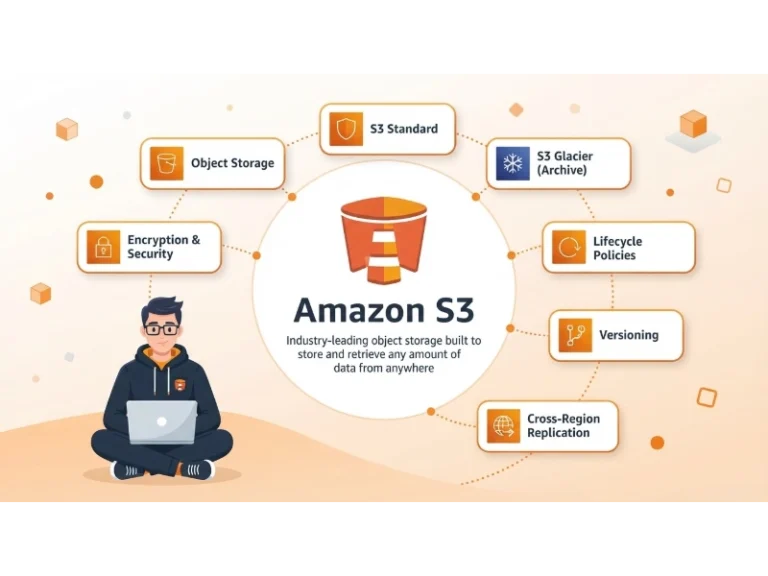
Amazon S3 provides Object Lock for immutable storage that prevents deletion or modification. Versioning keeps multiple variants of objects. MFA Delete requires multi-factor authentication before deleting objects. AWS Backup offers centralized backup management across AWS services.
Similar to how you need to understand best ways to secure your email, securing your cloud storage requires understanding provider-specific features and configuring them correctly.
Can Ransomware Affect Cloud Storage on Mobile Devices?
Yes, mobile devices can absolutely spread ransomware to your cloud storage. Many people forget their phones and tablets connect to the same cloud accounts as their computers. This creates another potential infection path.
Mobile-Specific Risks
- App permissions – Many mobile apps request access to your cloud storage. A malicious app could encrypt or delete files through these permissions.
- Public WiFi vulnerabilities – Connecting to unsecured networks exposes your device to man-in-the-middle attacks that could inject malware.
- Less robust security – Mobile devices typically have fewer security layers than desktop computers. Users often skip antivirus software on phones.
- Automatic syncing – Mobile photo backups and document syncing happen automatically in the background. Infected files could sync before you notice.
- Lost or stolen devices – If someone steals your unlocked phone, they have direct access to your cloud accounts and stored credentials.
Protecting Mobile Access to Cloud Storage
Install reputable security apps on your mobile devices. Enable biometric authentication for cloud storage apps. Regularly review which apps have cloud storage permissions. Use VPN services when connecting through public WiFi. Enable remote wipe capabilities in case your device gets lost or stolen.
The same security mindset you apply to protecting your WordPress site from hackers should extend to protecting your mobile devices and their cloud connections.
What Are the Best Cloud Backup Ransomware Protection Tools?
Specialized tools add extra protection layers beyond what cloud providers offer by default. We’ve tested many solutions and these consistently perform well.
Top Protection Solutions
- Acronis Cyber Protect – Combines backup, anti-malware, and endpoint protection in one solution. It actively defends against ransomware while creating secure backups. Works with multiple cloud platforms.
- Veeam Backup & Replication – Enterprise-grade backup solution with immutable backup storage. Includes ransomware detection and quick recovery options. Popular with businesses of all sizes.
- Carbonite Safe – Specifically designed for ransomware protection with automatic cloud backup. Monitors for encryption activity and alerts you immediately. Good for small businesses and individuals.
- Datto SIRIS – Provides instant virtualization of backups so you can continue working even during recovery. Includes screenshot verification to ensure backups are actually usable.
- Backblaze Computer Backup – Unlimited cloud backup with version history. Simple to use and affordable. Works continuously in the background to protect new and changed files.
Features to Look For
When choosing a protection tool, make sure it offers continuous monitoring that watches for ransomware behavior patterns. You need immutable backups that can’t be altered or deleted by attackers. Version control should keep multiple file versions spanning at least 30 days. Quick recovery options minimize downtime when you need to restore. The tool should support multiple devices and platforms your organization uses.
How Does Ransomware Protection Differ for Personal vs Business Cloud Storage?
The stakes and requirements differ significantly between personal and business cloud storage protection. Understanding these differences helps you implement appropriate security measures.
Personal Cloud Storage Protection
Individual users typically need simpler solutions that work automatically. Your focus should be on protecting family photos, personal documents, and financial records. The main threats come from phishing emails and compromised passwords. Recovery needs to be straightforward without IT support.
Most personal users do well with built-in cloud provider protections plus basic security hygiene. Enable two-factor authentication on all accounts. Use a password manager. Keep offline backups of truly irreplaceable items like family photos. Consider a simple backup service like Backblaze or Carbonite for continuous protection.
Business Cloud Storage Protection
Businesses face more sophisticated attacks and have compliance requirements. You’re protecting customer data, financial records, intellectual property, and operational systems. Attackers target businesses specifically because they can demand higher ransoms. Recovery must happen quickly to minimize business disruption and revenue loss.
Business protection requires enterprise-grade solutions with centralized management, detailed logging and monitoring, role-based access controls, and compliance reporting capabilities. You need formal security policies, regular employee training, incident response plans, and possibly cyber insurance. Consider solutions like Veeam, Acronis, or Datto that cater to business needs.
Organizations should implement acceptable use policies that clearly define how employees can use cloud storage and what security measures they must follow.
What Role Does Employee Training Play in Cloud Ransomware Prevention?
Technology alone can’t stop ransomware. Human behavior remains the weakest link in most security chains. We’ve seen organizations with excellent security tools get compromised because someone clicked a malicious link.
Why Training Matters
- Phishing remains the top infection vector – Over 90% of ransomware attacks start with a phishing email. Training helps people recognize and avoid these threats.
- Password hygiene prevents account takeovers – Teaching people to use strong, unique passwords and password managers prevents credential-based attacks.
- Quick reporting limits damage – When employees know how to recognize and quickly report suspicious activity, you can respond before ransomware spreads throughout your cloud storage.
- Cultural change reduces risk – Regular training creates a security-aware culture where people think about protection as part of their daily work.
Effective Training Topics
Cover how to identify phishing emails by looking for suspicious sender addresses, urgent language, and requests for credentials. Teach proper password creation and management using password managers. Explain safe browsing habits like avoiding suspicious downloads and checking website URLs. Show people how to verify requests for sensitive information or wire transfers. Practice incident reporting procedures so everyone knows who to contact and how quickly.
Make training ongoing rather than a one-time event. Run phishing simulations to test awareness and reinforce lessons. Share real-world examples of attacks that affected similar organizations. Keep sessions short and engaging rather than lengthy boring presentations.
How Often Should You Test Your Cloud Backup and Recovery Process?
Having backups means nothing if they don’t actually work when you need them. We’ve seen too many organizations discover their backups were incomplete or corrupted only after a ransomware attack.
Testing Best Practices
- Monthly testing minimum – Test your backup and recovery process at least once per month. More frequently if you handle critical data.
- Full restoration tests – Don’t just verify that backups exist. Actually restore files and verify they work correctly. Open documents, check databases, confirm nothing is corrupted.
- Test different scenarios – Practice recovering individual files, entire folders, and complete system restoration. Each scenario uses different processes.
- Time your recovery – Measure how long recovery takes. You need to know if you can meet your recovery time objectives during a real incident.
- Document the process – Create clear step-by-step instructions for recovery. When ransomware hits, you’ll be under stress and need clear guidance.
- Test offline backups separately – If you maintain air-gapped or offline backups, test those with a different schedule to ensure they remain viable.
Regular testing also reveals problems before they become critical. You might discover that certain file types aren’t backing up correctly. Or that backup storage is filling up faster than expected. Or that recovery takes much longer than your business can tolerate.
Following IT health check practices helps identify weaknesses in your backup and recovery procedures before you actually need them.
What Are the Legal and Compliance Considerations for Cloud Ransomware Protection?
Ransomware attacks trigger various legal and regulatory obligations. Failing to meet these requirements can result in fines, lawsuits, and reputational damage on top of the attack itself.
Regulatory Requirements
- Data breach notification laws – Most jurisdictions require you to notify affected individuals when their personal data is compromised. Timelines vary but often require notification within 72 hours of discovery.
- GDPR compliance – If you handle data of European Union residents, GDPR requires specific security measures and breach reporting. Fines can reach up to 4% of annual global revenue.
- HIPAA requirements – Healthcare organizations must protect patient data with specific safeguards. Ransomware attacks count as breaches requiring notification to affected patients and the Department of Health and Human Services.
- Financial regulations – Banks and financial institutions face strict requirements under regulations like GLBA and PCI DSS. These mandate specific security controls and incident response procedures.
- Industry-specific standards – Many industries have additional requirements. Educational institutions face FERPA. Government contractors must meet CMMC standards. Each adds compliance layers.
Documentation Requirements
Keep detailed records of your security measures, backup procedures, and testing results. Document all security incidents including how you discovered them, what you did in response, and lessons learned. Maintain logs of access to sensitive data and cloud storage systems. These records prove due diligence and help during regulatory investigations.
Consider cyber liability insurance that specifically covers ransomware incidents. Read policies carefully as coverage varies significantly. Some policies exclude certain types of attacks or require specific security measures.
Can Ransomware Encryption Be Reversed Without Paying?
Sometimes yes, but often no. Whether you can decrypt your files without paying the ransom depends on several factors.
When Free Decryption Is Possible
- Known ransomware variants – Security researchers have cracked some older ransomware strains and released free decryption tools. Check the No More Ransom project website for available decryptors.
- Flawed encryption implementation – Some ransomware uses weak encryption or makes coding mistakes that security experts can exploit to recover files without the key.
- Law enforcement actions – When authorities take down ransomware operations, they sometimes seize decryption keys and make them publicly available.
- Cloud provider recovery features – If you caught the attack early and your cloud provider has version history or backup features, you might restore from those without needing decryption.
Why Payment Often Doesn’t Work
Even if you pay the ransom, you face several problems. Criminals don’t always provide working decryption tools. Sometimes the decryption process itself corrupts files. You have no guarantee attackers will delete stolen data copies. Payment marks you as someone willing to pay, making you a target for future attacks.
Law enforcement agencies and security experts universally recommend against paying ransoms. Focus instead on prevention and maintaining clean backups that let you recover without negotiating with criminals.
What Future Ransomware Threats Should Cloud Storage Users Prepare For?
Ransomware continues evolving. Understanding emerging threats helps you stay ahead of attackers.
Emerging Threat Patterns
- AI-powered attacks – Criminals are using artificial intelligence to create more convincing phishing emails, identify valuable targets, and optimize attack timing. These attacks will become harder to detect.
- Supply chain targeting – Attackers increasingly target cloud service providers and third-party apps rather than individual users. One successful breach can affect thousands of downstream users.
- Triple extortion tactics – Beyond encrypting files and threatening to release data, criminals now threaten DDoS attacks against your services or contacting your customers directly if you don’t pay.
- Faster encryption speeds – New ransomware variants encrypt files much faster, giving victims less time to react and disconnect before damage occurs.
- Cloud-native ransomware – Attackers are developing ransomware specifically designed to exploit cloud infrastructure rather than adapting desktop malware for cloud environments.
- Automated attacks – Ransomware-as-a-Service platforms make launching attacks easier for less technical criminals, increasing attack frequency and variety.
Preparing for Future Threats
Stay informed about new ransomware developments through security news sources and vendor advisories. Regularly update your security tools and cloud service configurations as new features become available. Consider zero-trust security models that assume breach and verify every access request. Implement advanced threat detection that uses behavioral analysis rather than just signature-based detection.
The evolution of threats mirrors developments we see in other areas like AI in gaming, where technology advances create both opportunities and new security challenges.
Frequently Asked Questions About Ransomware and Cloud Storage
Can ransomware spread through shared cloud folders?
Yes, ransomware can definitely spread through shared cloud folders. When you share a folder with others, changes made by anyone sync to all users. If ransomware encrypts files in a shared folder, those encrypted files sync to everyone with access. This makes shared folders particularly dangerous because one infected user can affect multiple people. Always limit sharing permissions and monitor shared folders for suspicious activity.
Does using multiple cloud storage providers improve ransomware protection?
Yes, using multiple cloud storage providers adds protection through diversification. If ransomware compromises one cloud account, your other accounts remain safe. This strategy works best when you don’t sync the same files across multiple services simultaneously. Store different types of data in different locations. Keep your most critical backups in a completely separate service from your primary cloud storage.
Can free cloud storage services protect against ransomware as well as paid services?
No, free cloud storage services typically offer less ransomware protection than paid services. Free tiers usually provide shorter version history (often just 30 days), limited storage space, fewer security features, and no advanced threat detection. Paid plans offer extended version history, immutable backup options, advanced security monitoring, and dedicated support during security incidents. For critical data protection, paid services are worth the investment.
How long does it typically take to recover from a cloud ransomware attack?
Recovery time varies widely from a few hours to several weeks depending on multiple factors. If you have clean, tested backups, recovery might take just hours. Without proper backups, you’ll spend days or weeks trying alternative recovery methods. The amount of data affected matters significantly. Organizations with clear incident response plans and practiced recovery procedures recover much faster than those figuring things out during the crisis.
Should small businesses worry about cloud ransomware as much as large enterprises?
Yes, small businesses should actually worry more about cloud ransomware than large enterprises. Cybercriminals specifically target small businesses because they often lack dedicated IT security staff, use weaker security measures, and may not have sophisticated backup systems. Small businesses also typically can’t afford long downtimes or expensive recovery processes. Many small businesses never fully recover from ransomware attacks, with studies showing 60% closing within six months of a major attack.
Can antivirus software on my computer prevent cloud storage ransomware?
Partially yes, but antivirus alone isn’t enough. Good antivirus software can detect and block ransomware before it encrypts your local files. This prevents infected files from syncing to your cloud storage. However, antivirus can’t protect against attacks that bypass your computer entirely, like compromised cloud credentials or API exploits. You need multiple protection layers including antivirus, strong authentication, backup systems, and security monitoring to properly protect cloud storage.
What happens to ransomware-encrypted files in cloud version history?
Encrypted files appear in your cloud version history just like any other file change. The ransomware encryption creates a new version that replaces or appears alongside previous clean versions. Most cloud services retain previous versions for a specific period (typically 30-90 days depending on your plan). You can restore clean versions from before the encryption happened, which is one of your best recovery options. This only works if you act before the version history retention period expires.
Is cloud storage safer from ransomware than local storage?
Not necessarily safer, just different risks. Cloud storage offers advantages like version history and remote backups that local storage lacks. However, cloud storage faces unique risks like compromised credentials and synchronized infections across devices. The safest approach uses both: store data in the cloud for accessibility and version control, but maintain separate offline backups of critical data. This 3-2-1 backup strategy (three copies, two different media types, one offsite) provides the best protection against ransomware regardless of where it attacks.
Conclusion
Ransomware absolutely can affect your cloud storage, but you don’t have to become a victim. We’ve covered the real threats you face, from synchronized infections to compromised credentials. More importantly, you now know specific steps to protect yourself.
Start implementing these protections today. Enable two-factor authentication on all your cloud accounts right now. Review who has access to your shared folders this week. Set up a proper backup system that follows the 3-2-1 rule within the next month. Test your recovery process regularly to ensure it actually works when you need it.
Remember the shared responsibility model: your cloud provider secures the infrastructure, but you must secure your data and access. Don’t assume you’re automatically protected just because you’re using a major cloud service.
The ransomware threat continues evolving with AI-powered attacks and cloud-specific variants emerging constantly. Stay informed about new developments. Update your security measures as new threats appear. Train yourself and your team to recognize attacks before they succeed.
Your cloud data is valuable to both you and criminals. Protect it accordingly with multiple defense layers, tested backups, and security awareness. The time and effort you invest in protection now will save you from devastating losses later.
Take action today. Your files, your business, and your peace of mind depend on it.
You May Also Like
 Web Development
What Is API Rate Limiting? (A Practical, Simple Guide for Safer, Faster APIs)
 Web Development
REST API vs SOAP API: Differences, Pros & Cons, and Use Cases
 Cybersecurity
What Is Zero Trust Network Access (ZTNA)? How It Works, How It Differs From a VPN, and When to Use It
 Cybersecurity
What Is Netskope? Cloud Security, SASE, and Zero Trust Explained
 Cybersecurity
Is Fanatical Legit and Safe? My Honest Take on Buying Game Keys
 Data Security & Privacy
Is Gameflip Legit and Safe for Gift Cards? What Buyers Should Know
 Data Security & Privacy
Is Eldorado.gg Legit and Safe in 2026? My Investigation and What Buyers Should Know
 Web Development
Supabase vs Firebase: Which Backend Platform is Right for Your Project?
 Cloud Computing