Skip to content

What Does “Our Systems Have Detected Unusual Traffic from Your Computer Network” Mean? A Complete Guide

What Does This Error Message Really Mean

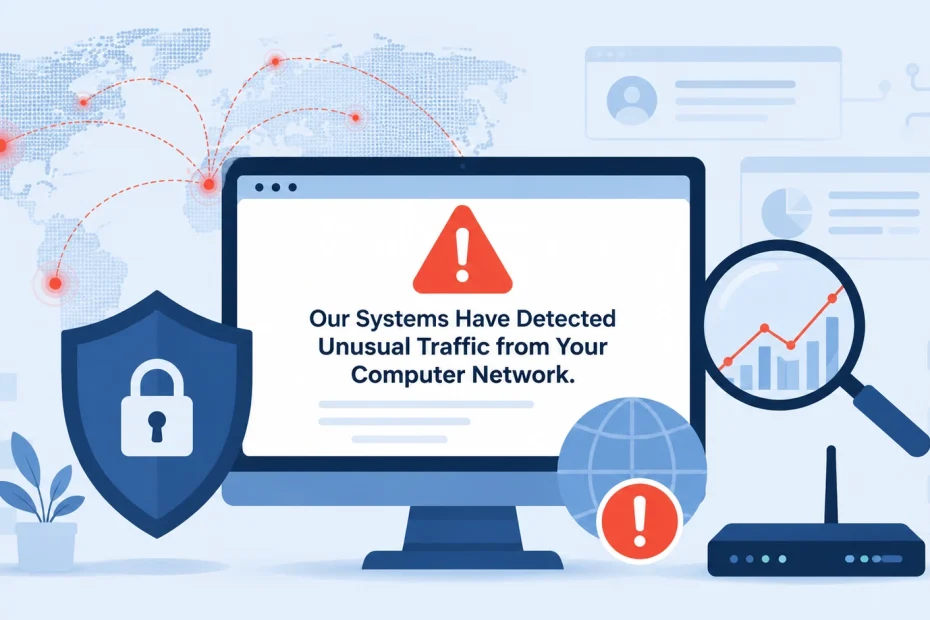
Have you ever searched something on Google and suddenly hit a wall? You see a message saying “Our systems have detected unusual traffic from your computer network.” It’s frustrating, right? You’re just trying to find information, and suddenly Google thinks you’re a robot.

Here’s the truth: This error means Google’s security system spotted something unusual about your internet activity and wants to make sure you’re human, not an automated program. It doesn’t mean you did anything wrong. It doesn’t mean your computer has a virus. It simply means the pattern of requests coming from your internet connection looked suspicious to Google’s protective systems.

This happens to millions of people every day. You click search, and instead of results, you get a CAPTCHA asking you to identify traffic lights or crosswalks. It’s annoying, but there’s a good reason behind it. In this guide, I’ll walk you through everything about this error message. You’ll understand why it happens, what triggers it, and most importantly, how to fix it and stop it from happening again.

Table of Contents

What Does This Error Message Really Mean?

The “unusual traffic detected” warning is Google’s way of protecting its servers from automated bots and suspicious activity that doesn’t look like normal human browsing. Think of it as a security guard checking if you’re supposed to be there when something seems off.

When this error pops up, you’ll typically see:

  • A warning about unusual traffic from your network
  • A CAPTCHA box (those image puzzles)
  • A request to prove you’re not a robot
  • Sometimes a note saying access is temporarily blocked

Breaking Down “Unusual Traffic”

So what exactly is unusual traffic? Let me make this simple for you. Unusual traffic is any internet activity that doesn’t match how real people normally browse websites. Here’s what I mean:

Automated software queries: Programs that send hundreds or thousands of search requests automatically. No human can type and click that fast. Bot programs operate at speeds impossible for manual browsing.

Excessive requests from one source: Imagine asking someone the same question 500 times in five minutes. That’s what it looks like to Google when too many searches come from one IP address too quickly.

Rapid-fire searches: Sending multiple searches within seconds. Humans need time to read results before searching again. Automated systems don’t pause.

Suspicious patterns: Search behaviors that match known bot signatures or attack methods that security systems have seen before.

Traffic from blacklisted locations: Requests coming from data centers, server farms, or IP addresses known for hosting malicious software.

Google processes billions of searches every single day. Their machine learning algorithms analyze hundreds of signals to tell the difference between you browsing normally and a bot trying to scrape data or attack their systems. These signals include how fast you search, your browser fingerprint, cookie behavior, and whether your location matches your browsing history.

Our Systems Have Detected Unusual Traffic from Your Computer Network

Why Do Websites Show This Warning?

Websites don’t show this message to annoy you. They have legitimate reasons for protecting their systems:

Server protection: Imagine thousands of bots hammering a website every second. The servers would crash, and nobody could use the service. By blocking suspicious traffic, websites keep their systems running smoothly for real users like us.

Service quality: When bots clog up a website, it slows down for everyone else. Picture trying to drive on a highway packed with automated vehicles all going to the same place. Regular drivers get stuck in the mess.

Preventing data scraping: Some bots try to steal website information for profit or competitive advantage. This violates terms of service and harms legitimate businesses.

Blocking malicious activities: DDoS attacks and hacking attempts often start with unusual traffic patterns. Early detection prevents serious security breaches.

Maintaining security standards: Companies must protect user data and maintain cybersecurity protocols. Traffic monitoring is essential for compliance.

Google handles over 8.5 billion searches daily. Without traffic filtering, automated bots would consume massive server resources and ruin the experience for real users.

What Causes the “Unusual Traffic from Your Computer Network” Message?

This error appears due to six primary causes: shared network IP addresses, VPN or proxy usage, malware or adware infections, automated software running on your device, browser extensions interfering with traffic, and legitimate high-volume searching. Let me break down each cause so you understand what’s happening.

1. Shared Public IP Addresses

Your IP address identifies your device on the internet. When multiple users share the same public IP address, their combined traffic triggers Google’s detection systems.

This happens in several common scenarios:

Public WiFi networks: Coffee shops, airports, libraries, and hotels share one IP address among hundreds of users. If someone on that network runs automated searches or uses bots, everyone connected gets flagged.

Corporate networks: Large companies route thousands of employees through the same external IP address. When your coworkers search heavily for work projects, it can look suspicious to Google’s algorithms.

University campuses: Educational institutions connect thousands of students through shared network infrastructure. Research activities, automated testing, and heavy search usage combine to trigger warnings.

Residential ISP setups: Some internet providers use carrier-grade NAT (Network Address Translation). This technology shares one public IP among multiple households to conserve IP addresses. Your neighbor’s activities can affect your Google access.

I’ve seen this happen constantly in coffee shops. Someone sitting next to you might be running web scraping tools, and suddenly everyone in the café can’t search Google without solving CAPTCHAs.

2. VPN or Proxy Usage

Virtual Private Networks and proxy servers route your traffic through different IP addresses to protect privacy. However, this creates problems with Google’s detection system.

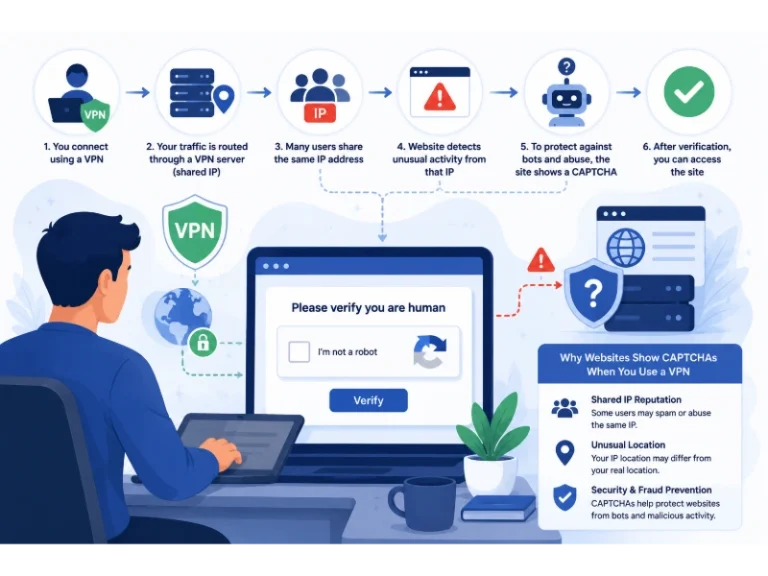
VPN issues: When you connect to a VPN, you share an IP address with thousands of other VPN users worldwide. VPN services concentrate massive amounts of traffic through limited IP addresses. Google sees this concentrated traffic and gets suspicious.

Proxy problems: Proxy servers work similarly to VPNs but often with less sophisticated technology. Free proxy services are particularly problematic because they’re frequently abused by spammers and bot operators.

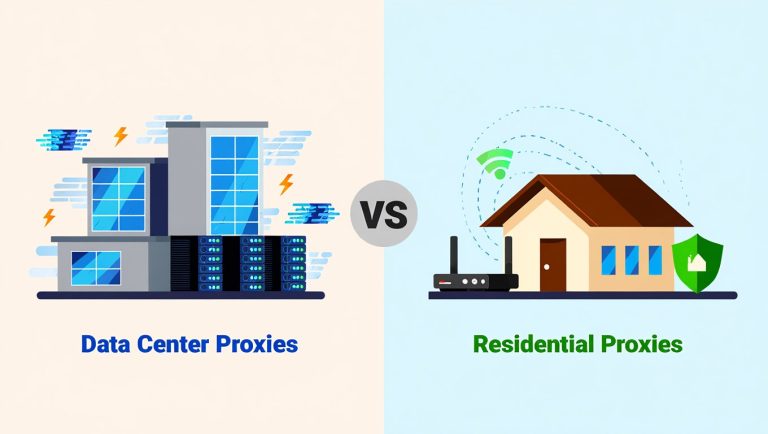
Datacenter IPs: Many VPN and proxy providers use datacenter IP addresses instead of residential ones. Google knows these IP ranges belong to hosting companies, not home users. Traffic from datacenter IPs automatically raises red flags.

Blacklisted IP addresses: When bad actors use VPN or proxy IPs for malicious activities, Google blacklists those addresses. If you connect to the same VPN server later, you inherit that bad reputation.

I recommend checking if your VPN provider uses residential IPs or has dedicated IP options. This reduces the chance of triggering unusual traffic warnings.

3. Malware or Adware Infections

Malicious software on your computer can generate automated traffic without your knowledge. This is scarier than other causes because it means your device is compromised.

Browser hijackers: These programs redirect your searches through suspicious servers. They generate extra traffic and modify your browsing behavior in ways that look automated to Google.

Adware infections: Adware displays unwanted advertisements by making background requests to advertising networks. These constant background connections create unusual traffic patterns.

Spyware activity: Some spyware programs search the internet automatically to gather information or communicate with command servers. This automated activity triggers security warnings.

Botnet participation: The worst scenario is when your computer becomes part of a botnet. Criminals use botnets to launch attacks or send spam. If your device participates in these activities, Google will definitely flag your IP.

Cryptocurrency miners: Some malware uses your computer to mine cryptocurrency. While this doesn’t directly cause Google errors, the network activity and system behavior changes can contribute to unusual traffic detection.

See also  How to Hide Your Real IP Address: Anonymous Browsing and Online Privacy Protection

Signs your computer might be infected include slow performance, unexpected pop-ups, browser settings changing on their own, and programs running without your permission. If you suspect malware, run a full system scan with reputable security software immediately.

4. Automated Software and Tools

Sometimes legitimate software on your computer generates automated traffic that triggers Google’s defenses. You might not realize certain programs are making internet requests in the background.

SEO tools: Search engine optimization software often checks search rankings automatically. These tools send hundreds of search queries to Google, which looks exactly like bot activity.

Research tools: Academic and market research applications sometimes automate Google searches to gather data. Even if you’re using them for legitimate purposes, Google doesn’t distinguish between your research and malicious scraping.

Browser automation: Tools like Selenium, Puppeteer, or Playwright automate browser tasks for testing purposes. Developers use these for legitimate software development, but they generate traffic patterns identical to malicious bots.

API testing software: When you’re testing APIs or web applications, the testing tools might send repeated requests that look suspicious.

Download managers: Some download managers and web scraping applications make multiple simultaneous connections to speed up downloads. This behavior can trigger traffic warnings.

I’ve worked with developers who forgot they had automation scripts running in the background. They couldn’t figure out why Google kept blocking them until they realized their testing software was hammering Google’s servers.

5. Browser Extensions and Add-ons

Your browser extensions might be causing the problem without you realizing it. Many extensions interact with websites in ways that create unusual traffic patterns.

Ad blockers: While ad blockers protect your privacy, some work by making extra requests to block tracking scripts. This additional traffic can look suspicious.

VPN extensions: Browser-based VPN tools route your traffic through shared servers, creating the same issues as full VPN applications.

Shopping comparison tools: Extensions that check prices across multiple sites generate automated searches and page requests. Price comparison features send traffic that Google might flag.

Auto-refresh extensions: Tools that automatically reload pages create repeated requests to the same URLs. This pattern matches bot behavior.

Translation extensions: Some translation tools send page content to external servers for translation. This creates additional traffic that might trigger warnings.

Search enhancers: Extensions that modify or enhance Google search results often inject scripts and make background requests that alter normal traffic patterns.

Try disabling your browser extensions one by one to identify which one might be causing the problem. Many people find their issues disappear after removing problematic extensions.

6. Legitimate High-Volume Searching

Sometimes you trigger the warning simply by searching too much, too fast. This happens during normal activities but at higher-than-usual intensity.

Research projects: When you’re doing deep research for school, work, or personal projects, you might search dozens of topics in quick succession. Google’s algorithms see this rapid searching and get suspicious.

Job hunting: Searching for job listings often means opening multiple search results quickly. You’re clicking through pages rapidly as you scan opportunities.

Online shopping: Comparing products means searching repeatedly with slight variations. “Best laptop 2024,” then “best laptop under $1000,” then “best laptop for students” looks like automated searching to Google’s systems.

Travel planning: Planning a trip involves countless searches for flights, hotels, activities, and restaurants. This concentrated searching period can trigger warnings.

Troubleshooting technical issues: When your computer or phone has a problem, you search multiple error messages and solutions rapidly. This problem-solving pattern can look suspicious.

The key difference between this cause and others is that you’re actually doing the searching yourself. You’re not running automated tools or sharing a problematic IP address. You’re just searching more intensely than average users, which makes Google’s algorithms pay attention.

How to Fix the “Unusual Traffic Detected” Error

You can fix this error through eight proven methods: completing the CAPTCHA verification, disconnecting from VPN or proxy services, scanning for malware, clearing browser data, switching networks, disabling problematic browser extensions, contacting your ISP, and waiting for the temporary block to expire. Let me walk you through each solution step by step.

Solution 1: Complete the CAPTCHA Verification

The fastest fix is simply completing the CAPTCHA challenge Google presents. This proves you’re human and usually grants immediate access.

How to complete CAPTCHAs effectively:

Click the “I’m not a robot” checkbox if that’s all that appears. Sometimes this simple action is enough.

For image CAPTCHAs, carefully select all squares that match the requested object. If it asks for traffic lights, include both the light box and the pole. Google tests whether you select images the way humans do.

If you make mistakes, don’t worry. Google gives you multiple attempts. Take your time and look carefully at each image.

After completing the CAPTCHA, you should regain normal access immediately. If the error keeps appearing after every search, the problem goes deeper than simple verification. You’ll need to try other solutions.

Pro tip: Audio CAPTCHAs are available if you struggle with visual puzzles. Click the headphone icon to switch to audio verification.

Solution 2: Disconnect from VPN or Proxy Services

If you’re using a VPN or proxy service, try disconnecting temporarily to see if that resolves the issue.

Steps to disconnect:

Close your VPN application completely. Don’t just pause it – fully disconnect and close the program.

Clear your browser cache after disconnecting. Your browser might still use cached data that includes the VPN’s IP address.

Restart your browser to ensure it connects directly through your regular internet connection.

Try searching Google again. If the error disappears, your VPN was the cause.

Alternative VPN solutions:

If you need VPN protection for privacy reasons or regional restrictions, switch to a different VPN server. Choose servers with residential IP addresses rather than datacenter IPs.

Consider using VPN services that offer dedicated IP addresses. You’ll be the only person using that IP, which eliminates the shared IP problem.

Try connecting to less popular server locations. Popular servers route more traffic and get flagged more frequently by Google.

Some VPN providers offer “stealth mode” or “obfuscation” features that make VPN traffic look like regular internet traffic. This can help avoid detection.

Solution 3: Scan for Malware and Remove Infections

If malware is causing automated traffic from your device, you need to remove it immediately. This protects both your Google access and your personal security.

Comprehensive scanning process:

Download and install reputable antivirus software if you don’t already have it. Free options like Windows Defender work well for basic protection.

Run a full system scan, not a quick scan. Full scans check every file on your computer and take longer but are more thorough.

Remove all detected threats immediately. Follow your antivirus software’s instructions for quarantine and removal.

Use a second-opinion scanner like Malwarebytes for additional protection. Sometimes one program catches threats another misses.

Additional security steps:

Check your browser homepage and default search engine. Malware often changes these settings. Reset them to your preferred options.

Review your installed programs. Uninstall anything you don’t recognize or didn’t intentionally install.

Check your browser extensions and remove suspicious ones. Malware frequently installs unwanted extensions.

Change your important passwords after removing malware. Some infections steal login credentials.

Update your operating system and all software. Many infections exploit known vulnerabilities that updates fix.

Consider using endpoint protection solutions for better overall security if you frequently encounter these issues.

Solution 4: Clear Browser Data and Cookies

Corrupted browser data or problematic cookies can cause Google to flag your traffic as unusual. Clearing this data often resolves the issue.

How to clear browser data in Chrome:

Click the three dots menu in the top-right corner.

Select “Settings” then “Privacy and security.”

Click “Clear browsing data.”

Choose “All time” as the time range.

Check boxes for “Cookies and other site data” and “Cached images and files.”

Click “Clear data” and wait for the process to complete.

For Firefox:

Click the menu button and select “Settings.”

Go to “Privacy & Security.”

Scroll to “Cookies and Site Data.”

Click “Clear Data.”

Select both options and click “Clear.”

For Safari:

Click “Safari” in the menu bar and select “Preferences.”

Go to the “Privacy” tab.

Click “Manage Website Data.”

Click “Remove All” and confirm.

After clearing data, restart your browser completely. Try searching Google again. This solution works particularly well when the error started suddenly without any other changes to your setup.

Important note: Clearing cookies will log you out of all websites. Make sure you know your passwords before doing this.

Solution 5: Switch to a Different Network

If you’re on a shared network that’s been flagged, switching to a different internet connection can solve the problem immediately.

Network switching options:

Switch from WiFi to mobile data on your phone or tablet. Mobile networks use different IP addresses that aren’t affected by your current network’s reputation.

Connect to a different WiFi network if available. Move from your office network to your home network, or vice versa.

Use your phone’s hotspot feature to create a temporary internet connection for your laptop. This gives you a clean IP address.

Visit a different location with different internet service. Coffee shops, libraries, or friends’ homes provide alternative network access.

When to use this solution:

This works best when you’re on public WiFi that serves many users. The problem likely comes from other users’ activities, not yours.

If the error follows you across different networks, the issue is with your device, not the network. In that case, focus on the malware scanning and browser extension solutions instead.

Solution 6: Disable Browser Extensions

Browser extensions can interfere with your traffic patterns and trigger Google’s security systems. Disabling them helps identify the culprit.

Step-by-step extension troubleshooting:

Open your browser’s extension management page. In Chrome, type “chrome://extensions” in the address bar. In Firefox, type “about:addons.”

Disable all extensions by toggling them off. Don’t uninstall yet – just disable temporarily.

Restart your browser and try searching Google.

If the error disappears, you know an extension caused it. Re-enable extensions one at a time, testing Google search after each one.

When the error returns, you’ve found the problematic extension.

Common problematic extension types:

VPN and proxy extensions that route traffic through shared servers.

See also  Is GameFabrique Safe and Legal To Download PC Games?

Automated tools that make background requests to websites.

Shopping comparison tools that scan multiple sites simultaneously.

SEO and marketing tools that check search rankings.

Auto-refresh extensions that reload pages repeatedly.

Once you identify the problematic extension, either keep it disabled when using Google or find an alternative that doesn’t trigger warnings.

Solution 7: Contact Your Internet Service Provider

If none of the above solutions work, your ISP might be routing your traffic in ways that trigger Google’s detection. This is less common but definitely happens.

When to contact your ISP:

The error persists across different devices on your home network.

You’ve tried all other solutions without success.

The problem started after your ISP made network changes or upgrades.

What to tell your ISP:

Explain that you’re receiving “unusual traffic” warnings from Google and other websites.

Ask if they use carrier-grade NAT or share IP addresses among multiple customers.

Request a different IP address assignment if possible.

Ask if they can route your traffic differently to avoid the flagging.

What your ISP might do:

Assign you a new IP address that doesn’t have a bad reputation.

Investigate whether other customers on the same network segment are causing issues.

Adjust their NAT configuration to reduce IP address sharing.

Provide information about why Google might be flagging your connection.

Some ISPs are more helpful than others with these issues. If your ISP can’t or won’t help, consider switching providers if the problem significantly impacts your internet usage.

Solution 8: Wait for the Temporary Block to Expire

Sometimes the simplest solution is just waiting. Google’s unusual traffic blocks are often temporary and expire automatically.

Understanding temporary blocks:

Most blocks last between 30 minutes and 24 hours.

The duration depends on how severe Google considers the suspicious activity.

During this time, you can still complete CAPTCHAs to access Google, but you’ll face them frequently.

What to do while waiting:

Stop searching Google intensively. Take a break from whatever activity triggered the warning.

Use alternative search engines like Bing, DuckDuckGo, or Yahoo temporarily.

If you need Google specifically, complete the CAPTCHA each time. It’s annoying but allows access.

Don’t try to bypass the block with VPNs or proxies. This often makes the situation worse and extends the block duration.

After the block expires:

Change your browsing behavior to avoid triggering future blocks. Search more slowly and naturally.

If you were using automated tools, adjust their settings to reduce request frequency.

Consider implementing the preventive measures I’ll discuss in the next section.

How to Prevent Future “Unusual Traffic” Warnings

You can prevent these warnings by modifying your search behavior, using residential VPNs, keeping your system secure, managing browser extensions carefully, and avoiding automation tools that violate Google’s terms. Let me share practical prevention strategies that actually work.

Prevention Strategy 1: Moderate Your Search Behavior

The simplest prevention method is adjusting how you search to match natural human patterns more closely.

Practical searching habits:

Slow down between searches. Take time to read results before searching again. Wait at least 10-15 seconds between separate searches.

Avoid opening too many search results in new tabs simultaneously. Click a few results, read them, then search more if needed.

Use more specific search terms instead of trying many variations rapidly. Think about what you really need before searching.

Take breaks during intensive research sessions. Step away every 30-45 minutes to let your search activity cool down.

Spread your research across multiple days if possible. Don’t try to complete everything in one marathon session.

For work-related searching:

If your job requires heavy search activity, explain the situation to your IT department. They might be able to implement solutions at the network level.

Consider using Google’s Custom Search API for legitimate business purposes. This provides programmatic access without triggering abuse detection.

Document your legitimate need for high-volume searching. This helps if you need to appeal to Google or explain the situation to your employer.

Prevention Strategy 2: Choose VPN Services Wisely

If you need VPN protection, selecting the right service and configuration prevents most unusual traffic warnings.

VPN selection criteria:

Choose providers offering residential IP addresses instead of datacenter IPs. Residential IPs look like regular home internet connections.

Consider dedicated IP services. You pay extra but get an IP address only you use, eliminating shared IP problems.

Select premium VPN services over free ones. Free VPNs often use overcrowded servers with poor IP reputations.

Look for VPN providers that rotate IP addresses less frequently. Consistent IP addresses build better reputations with Google.

VPN usage best practices:

Connect to less popular server locations. Major city servers handle more traffic and face more scrutiny.

Disconnect from VPN when you don’t need privacy protection. Use it selectively rather than constantly.

If you get warnings on one VPN server, switch to a different server location immediately.

Clear your browser cache after changing VPN servers to ensure your browser uses the new IP address.

Some people ask me whether VPNs are safe for online shopping or other activities. The answer is yes, but choose reputable providers to avoid triggering security warnings like this one.

Prevention Strategy 3: Maintain Strong Security Practices

Keeping your system clean prevents malware from generating automated traffic that triggers warnings.

Essential security measures:

Install and maintain reputable antivirus software. Keep it updated and run regular scans.

Enable automatic operating system updates. Security patches fix vulnerabilities that malware exploits.

Download software only from official sources. Avoid unofficial download sites that might bundle malware with legitimate programs.

Be cautious with email attachments and links. Phishing attacks often deliver malware that causes unusual traffic.

Use strong passwords and enable two-factor authentication on important accounts.

Regular maintenance tasks:

Review installed programs monthly and remove anything you don’t use or recognize.

Check your browser’s homepage and search engine settings regularly to catch unauthorized changes.

Monitor your network traffic with built-in tools or security software to spot unusual activity.

Keep your browser updated to the latest version. Updates include security improvements that protect against malicious extensions and scripts.

Prevention Strategy 4: Manage Browser Extensions Carefully

Your browser extensions significantly impact whether you trigger unusual traffic warnings. Managing them properly prevents problems.

Extension management guidelines:

Install only extensions you actually need. Each additional extension increases risk and complexity.

Review permissions before installing. If an extension requests more permissions than it needs for its stated purpose, be suspicious.

Download extensions only from official browser stores. Chrome Web Store and Firefox Add-ons are safer than downloading from random websites.

Update extensions regularly. Outdated extensions might have security vulnerabilities or bugs that cause unusual behavior.

Periodically audit your extensions. Remove ones you no longer use or that cause problems.

Identifying problematic extensions:

Extensions that modify Google search results might interfere with normal traffic patterns.

VPN and proxy extensions concentrate traffic through shared servers.

Shopping and price comparison tools make automated requests to multiple sites.

Privacy-focused extensions sometimes use techniques that Google’s systems find suspicious.

When you install a new extension, monitor whether unusual traffic warnings increase. If they do, that extension is likely problematic.

Prevention Strategy 5: Avoid Automated Tools on Personal Connections

If you use automation tools for legitimate purposes, configure them carefully to avoid triggering Google’s defenses.

Automation best practices:

Never run web scraping tools on your home IP address. Use dedicated servers or services designed for this purpose.

If you must automate searches for legitimate business reasons, use Google’s official APIs instead of scraping.

Implement delays between automated requests. Rate limiting makes your tool’s behavior look more human.

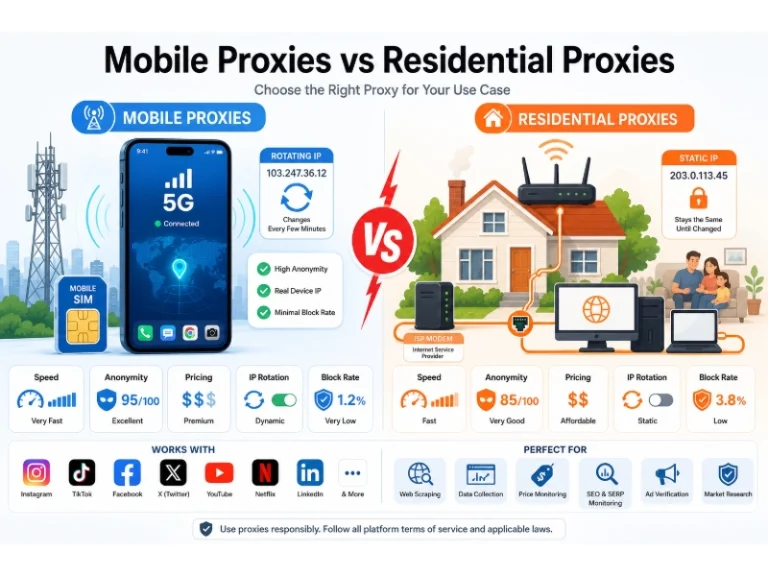
Use residential proxies or rotating proxies if you need to automate searches. This distributes requests across many IP addresses.

Consider anti-detect browsers if you work in digital marketing or similar fields requiring multiple accounts.

For developers and testers:

Run automated tests on separate testing infrastructure, not your personal computer.

Use mock servers and test environments instead of hitting production websites repeatedly.

When testing web applications, implement caching to reduce redundant requests.

Configure your testing tools to respect robots.txt and rate limits.

Understanding Google’s Traffic Detection Technology

Google uses machine learning algorithms, behavioral analysis, IP reputation systems, browser fingerprinting, and pattern recognition to detect unusual traffic. Understanding how these systems work helps you avoid triggering them.

How Detection Algorithms Work

Google’s detection systems analyze your traffic in real-time using multiple signals and sophisticated algorithms.

Key detection signals:

Request frequency: How many searches you perform per minute. Humans search much slower than automated bots.

Click patterns: Whether you click results like a human would. Bots often don’t click results or click them in unnaturally regular patterns.

Mouse movements: How your cursor moves across the screen. Humans move mice somewhat randomly while bots follow precise paths or don’t generate mouse movements at all.

Keyboard dynamics: How you type, including speed and rhythm. Each person has unique typing patterns.

Session duration: How long you spend on search results pages. Humans read results while bots move through pages instantly.

Browser fingerprints: Your browser configuration creates a unique fingerprint based on settings, plugins, screen resolution, fonts, and other factors.

IP Reputation Systems

Google maintains reputation scores for every IP address that accesses its services.

How IP reputation works:

New IP addresses start with neutral reputation. They haven’t proven themselves good or bad yet.

Reputation improves when traffic from an IP consistently looks human and causes no problems.

Reputation degrades when Google detects automated traffic, spam, or malicious activity from an IP.

Shared IPs inherit reputation from all users. One bad actor can ruin the reputation for everyone sharing that IP.

Datacenter IP addresses automatically start with lower trust because they’re associated with servers, not homes.

Once an IP develops a bad reputation, Google subjects it to extra scrutiny. You’ll face CAPTCHAs more frequently even if your individual behavior looks normal.

The Role of Machine Learning

Google employs advanced machine learning models trained on billions of search sessions to distinguish humans from bots.

What machine learning detects:

Subtle behavioral patterns that differentiate human and automated traffic.

New bot techniques that haven’t been seen before. The models adapt to evolving threats.

Anomalies in your browsing pattern compared to your historical behavior.

See also  How to Remove Tipz.io Hijacker from Chrome

Coordinated activity across multiple IP addresses that might indicate a distributed attack.

The fascinating thing about these systems is they’re constantly learning. Techniques that worked to avoid detection last year might trigger warnings today because the algorithms have adapted.

Common Misconceptions About This Error

Many people misunderstand what the “unusual traffic” error means, leading to unnecessary worry or ineffective solutions. Let me clear up the most common misconceptions.

Misconception 1: “My Computer Has a Virus”

No, this error doesn’t automatically mean you have malware. While malware can cause unusual traffic, most cases result from innocent causes like shared networks or VPN usage.

The error is a warning about traffic patterns, not a virus detection. Google isn’t scanning your computer for viruses. They’re only looking at how your network traffic behaves.

That said, malware is one possible cause worth investigating. If you’ve ruled out VPNs, shared networks, and browser extensions, then run a malware scan to be thorough.

Misconception 2: “Google Is Blocking Me Permanently”

No, these blocks are almost always temporary. Google doesn’t want to block legitimate users permanently. Their goal is protecting services from abuse while allowing real people access.

Most blocks last a few hours at most. Even if you’re seeing the error repeatedly, completing the CAPTCHA grants temporary access each time.

Permanent blocks only occur in extreme cases involving serious abuse or security threats. Normal users don’t face permanent blocks.

Misconception 3: “Using Incognito Mode Fixes This”

No, incognito mode doesn’t solve unusual traffic warnings. Incognito mode only prevents your browser from saving history and cookies locally. It doesn’t change your IP address or how your traffic appears to Google.

Google identifies you by your IP address and traffic patterns, not cookies. Incognito mode makes no difference to Google’s detection systems.

Some people think incognito mode provides privacy protection similar to VPNs. It doesn’t. Your ISP, network administrator, and websites you visit can still see your activity.

Misconception 4: “Only Bot Operators See This Error”

No, regular people encounter this error frequently for innocent reasons. You don’t need to be running malicious software to trigger it.

Situations where normal users see this error:

Using public WiFi where someone else on the network runs bots.

Researching intensively for school or work projects.

Shopping online and comparing many products quickly.

Using a VPN for legitimate privacy protection.

Having certain browser extensions installed.

I’ve helped many people resolve this issue, and the vast majority were doing nothing wrong. They simply fell into situations that looked suspicious to automated detection systems.

Misconception 5: “This Only Happens on Google”

No, many websites use similar traffic detection systems. Google is just the most visible because it’s the most-used search engine.

Other websites with similar protection:

Social media platforms that detect automated bots.

E-commerce sites protecting against price scraping.

Financial institutions monitoring for fraud patterns.

Content streaming services blocking VPN access.

The techniques these sites use are similar to Google’s. Understanding how Google’s system works helps you understand traffic detection across the internet.

What to Do If Problems Persist

If you’ve tried everything and still face unusual traffic warnings, you need advanced troubleshooting and possibly professional help. Here’s what to do when basic solutions don’t work.

Advanced Troubleshooting Steps

When standard fixes fail, dig deeper into technical issues:

Check your router configuration:

Some router settings can cause issues with how your traffic appears to websites. Log into your router’s admin panel and look for any unusual settings.

Ensure your router’s firewall isn’t too aggressive. Overly strict firewall rules might modify traffic in ways that look suspicious.

Update your router firmware. Outdated firmware can have bugs affecting traffic behavior.

Reset your router to factory settings if necessary. This clears any problematic configurations.

Investigate network-level issues:

Run network diagnostic tools to check for unusual traffic on your network. Windows users can use “netstat” command to see active connections.

Check if any devices on your network are compromised. Smart home devices sometimes get infected and generate unusual traffic.

Monitor your network traffic with tools like Wireshark to see what’s actually being sent from your computer.

Look for DNS issues that might be routing your traffic through unexpected servers.

Test with different devices:

Try accessing Google from a different computer or phone on the same network. If other devices work fine, the problem is device-specific.

If all devices on your network face the same issue, the problem is network-wide.

Test from a completely different location and network. This definitively tells you whether the issue follows your device or stays with your network.

When to Seek Professional Help

Some situations require expert assistance:

Contact a cybersecurity professional if:

You suspect malware infection but can’t remove it yourself.

Your network shows signs of compromise or unauthorized access.

The problem persists despite trying all solutions, suggesting deeper technical issues.

You need to use automation tools for work and must find compliant solutions.

Consult your IT department if:

This happens on your work network and affects productivity.

Multiple employees face the same issue.

Company software might be generating the unusual traffic.

You need approval for solutions that affect company infrastructure.

Consider hiring network specialists if:

Your home network has complex configuration issues.

Multiple devices show symptoms suggesting network-wide problems.

You’re a small business owner and this affects your operations.

You need network security assessment to identify vulnerabilities.

Contacting Google Support

In rare cases, you might need to contact Google directly:

When to contact Google:

You believe your IP address was incorrectly blacklisted.

The block persists for weeks despite changing networks and devices.

You’re a business using Google services legitimately but facing constant blocks.

You suspect a technical issue with Google’s detection system.

How to contact Google:

Visit Google’s Help Center and look for contact options for your specific service.

Use the “Send Feedback” option in Google Search to report the issue.

For business users, Google Workspace support can help with enterprise-level issues.

Document everything: when the problem started, what you’ve tried, error messages, and screenshots.

Be patient. Google receives millions of support requests and prioritizes based on severity.

The Bigger Picture: Internet Security and User Experience

This error represents the ongoing tension between security and convenience on the internet. Understanding this broader context helps you appreciate why these systems exist.

Why Traffic Monitoring Matters

Website traffic monitoring protects the internet ecosystem we all depend on:

Protecting infrastructure: DDoS attacks can take down major websites and services. Traffic monitoring helps prevent these attacks from succeeding.

Maintaining service quality: Without bot filtering, automated traffic would overwhelm servers. Real users would face slow loading times and service degradation.

Preventing data theft: Web scraping at scale can steal proprietary data, intellectual property, and competitive information. Companies must protect their assets.

Reducing fraud: Automated bots conduct credit card testing, account takeovers, and other fraudulent activities. Detection systems help prevent these crimes.

Fighting spam: Bot networks generate spam, spread misinformation, and manipulate online discussions. Traffic monitoring helps maintain content quality.

Recent major outages like the Cloudflare incident and AWS service disruptions demonstrate how critical internet infrastructure is. Traffic monitoring is part of keeping these systems stable.

Balancing Security and Accessibility

Website operators constantly balance security against user convenience:

Too strict: Overly aggressive filtering blocks legitimate users and creates frustration. People abandon services that make access too difficult.

Too lenient: Weak filtering allows bots through, degrading service quality and exposing security vulnerabilities.

Google and other major platforms invest billions in finding the right balance. They want security without making life miserable for real users.

The CAPTCHA system itself represents this balance. It’s annoying but usually takes only seconds to complete. This brief inconvenience protects everyone from much worse problems.

The Future of Traffic Detection

Traffic detection technology continues evolving:

Improved accuracy: Machine learning advances help systems better distinguish humans from bots with fewer false positives.

Invisible verification: Future systems might verify you’re human without CAPTCHAs through behavioral analysis you don’t even notice.

Privacy-preserving techniques: New methods verify legitimate users without tracking personal information or browsing habits.

Standardization: Industry standards are emerging for how websites should handle traffic detection and user verification.

As technology improves, you should encounter these warnings less frequently while still benefiting from protection against genuine threats.

Frequently Asked Questions

Does this error mean my computer has a virus?

No. The unusual traffic error usually doesn’t indicate malware infection. It means Google detected suspicious traffic patterns from your network, which often results from shared IP addresses, VPN usage, or legitimate heavy searching rather than viruses.

Will using incognito mode fix this problem?

No. Incognito mode doesn’t change your IP address or traffic patterns that Google monitors. It only prevents local history saving. Google identifies unusual traffic by IP address and behavior, not cookies that incognito mode blocks.

How long does the block last?

The block typically lasts 30 minutes to 24 hours. Duration depends on how suspicious the activity appeared to Google’s systems. You can still access Google by completing CAPTCHAs during this time.

Can I get permanently banned from Google?

No, permanent bans are extremely rare for regular users. Google wants legitimate users to access their services. Blocks are temporary security measures. Permanent restrictions only apply in cases of serious repeated abuse or malicious attacks.

Does this happen on other search engines too?

Yes. Bing, Yahoo, and other search engines use similar traffic detection. Google is simply most visible because it handles the majority of searches. Any major website protecting against bots implements comparable security measures.

Should I stop using VPNs completely?

No. VPNs provide important privacy protection. Choose quality VPN services with residential IPs or dedicated IP options. Disconnect temporarily when facing unusual traffic warnings, then reconnect after the issue resolves.

Can my browser extensions cause this error?

Yes. Extensions that modify traffic, make background requests, or route connections through proxies frequently trigger unusual traffic warnings. Disable extensions temporarily to identify problematic ones.

Will changing my IP address fix the problem?

Yes, often. Switching networks or restarting your router to get a new IP address can immediately resolve the issue if your current IP has bad reputation from shared user activity.

Is it safe to complete the CAPTCHA verification?

Yes. Completing Google’s CAPTCHA is completely safe. It simply proves you’re human and grants access. CAPTCHA verification doesn’t access your device or compromise security.

What if I’m doing legitimate research and searching a lot?

Slow down between searches and take breaks. For legitimate high-volume searching needs, consider Google’s Custom Search API which provides programmatic access without triggering abuse detection systems.

Conclusion

The “our systems have detected unusual traffic from your computer network” error frustrates millions of users, but now you understand exactly what it means and how to handle it. This security message protects Google’s infrastructure from automated bots and malicious traffic while occasionally catching legitimate users in its net.

Remember the key causes: shared network IP addresses, VPN or proxy services, malware infections, automated software, problematic browser extensions, and intensive searching patterns. When you encounter this error, start with simple solutions like completing the CAPTCHA, disconnecting from VPNs, clearing browser data, or switching networks. For persistent issues, scan for malware, audit your browser extensions, and consider contacting your ISP.

Prevention matters more than fixing recurring problems. Moderate your search behavior, choose quality VPN services with residential IPs, maintain strong security practices, manage browser extensions carefully, and avoid running automation tools on personal connections. These habits keep you off Google’s radar while maintaining your productivity and privacy.

The error represents the ongoing balance between security and accessibility on the internet. As detection systems improve through machine learning advances, you’ll encounter false positives less frequently while still benefiting from protection against genuine threats.

Take action today. If you’re currently facing this error, work through the solutions systematically. If you want to prevent future occurrences, implement the prevention strategies I’ve shared. Your browsing experience will improve dramatically when you understand and work with these security systems rather than fighting against them.

For more information about internet security, network protection, and safe browsing practices, visit Software Cosmos where you’ll find comprehensive guides on digital security topics.