


Canva is a free online tool that lets you create all kinds of designs, like social media posts, posters, presentations, PPT online, remove background, coloring pages, and logos, without needing any design skills. It’s easy to use, offers tons of templates, and works on your computer or smartphone. Whether you’re making something for fun, school, or work, Canva has features to help you get it done fast. In this guide, we’ll dive deep into what Canva is, how it works, and why millions of people use it every day.
What Is Canva and How Does It Work as a Graphic Design Platform?
What Is Canva?
Canva is an online graphic design tool that helps people create visual content easily. It lets you make things like flyers, invitations, and videos using a simple drag-and-drop system. You don’t need to be a pro designer because Canva provides templates and tools to guide you. It started in 2012 and now has over 30 million users every month. You can use it for free or pay for extra features with Canva Pro.
How Does Canva Work?
Canva works by letting you pick a design type, customize it, and share it—all from your browser or app. First, you sign up at www.canva.com with your email or Google account. Then, you choose what you want to make, like a poster or logo. Canva gives you templates to start with, or you can build your design from scratch. You add pictures, text, and colors by dragging them into place. When you’re done, you can download your design or share it with others online.
What Makes Canva Different?
Canva stands out because it’s simple, affordable, and works for everyone. Unlike other design tools that need training, Canva is made for beginners. It has over 250,000 templates and millions of pictures and fonts to use. Plus, it’s free to start, while tools like Adobe Photoshop cost money upfront. Canva also lets teams work together in real time, which is great for group projects.
How Did Canva Start and Grow Into a Popular Design Tool?

Who Created Canva?
Canva was founded by Melanie Perkins, Cliff Obrecht, and Cameron Adams in 2012. Melanie got the idea while she was a student in Australia. She noticed that design software was hard to use and wanted to make something simpler. With her team, she launched Canva in Sydney to help people design without stress. You can read Canva story here.
When Did Canva Launch?
Canva officially launched in 2013 after a year of testing. The team started small, but by 2014, they had over 600,000 users. They kept adding features like templates and team tools, which made it grow fast. By 2020, Canva had over 30 million monthly users, showing how much people liked it.
Why Did Canva Become So Popular?
Canva became popular because it’s easy, cheap, and useful for many things. Studies show that 85% of users feel confident designing with Canva, according to the University of Sydney. It’s free to use with lots of options, and the paid version is only $12.95 a month. People love that it works for school projects, business ads, and personal stuff like birthday cards.
What Are the Key Features of Canva That Make Designing Easy?
What Templates Does Canva Offer?
Canva offers over 250,000 templates to help you start designing fast. These include:
- Social media posts for Instagram, Facebook, and Twitter
- Presentations for school or work
- Logos for businesses or clubs
- Posters for events
- Flyers for ads
You can change these templates by adding your own text and pictures.
What Design Elements Can You Use in Canva?
Canva has millions of design elements like photos, icons, and fonts. Here’s what you get:
- Photos: Over 1 million stock images, some free, some paid
- Illustrations: Icons and shapes to make designs pop
- Fonts: Hundreds of styles, like bold or cursive
- Colors: Tools to pick or create color schemes
- Backgrounds: Solid colors or patterns
You can also upload your own pictures to mix in.
How Do Canva’s Collaboration Tools Work?
Canva lets you work with others on designs in real time. Features include:
- Team Spaces: Share designs with friends or coworkers
- Comments: Leave notes on designs for feedback
- Version History: Go back to older versions if you mess up
- Sharing: Send designs by email or link with edit or view options
This makes Canva great for group projects or teams.
What Apps Does Canva Connect With?
Canva connects with tools like Google Drive and Slack to make work easier. Some connections are:
- Google Drive: Save designs right to your Drive
- Dropbox: Store files in Dropbox
- Slack: Share designs in Slack chats
- HubSpot: Make marketing stuff for HubSpot
These links help you use Canva with tools you already have.
What AI Tools Does Canva Have?
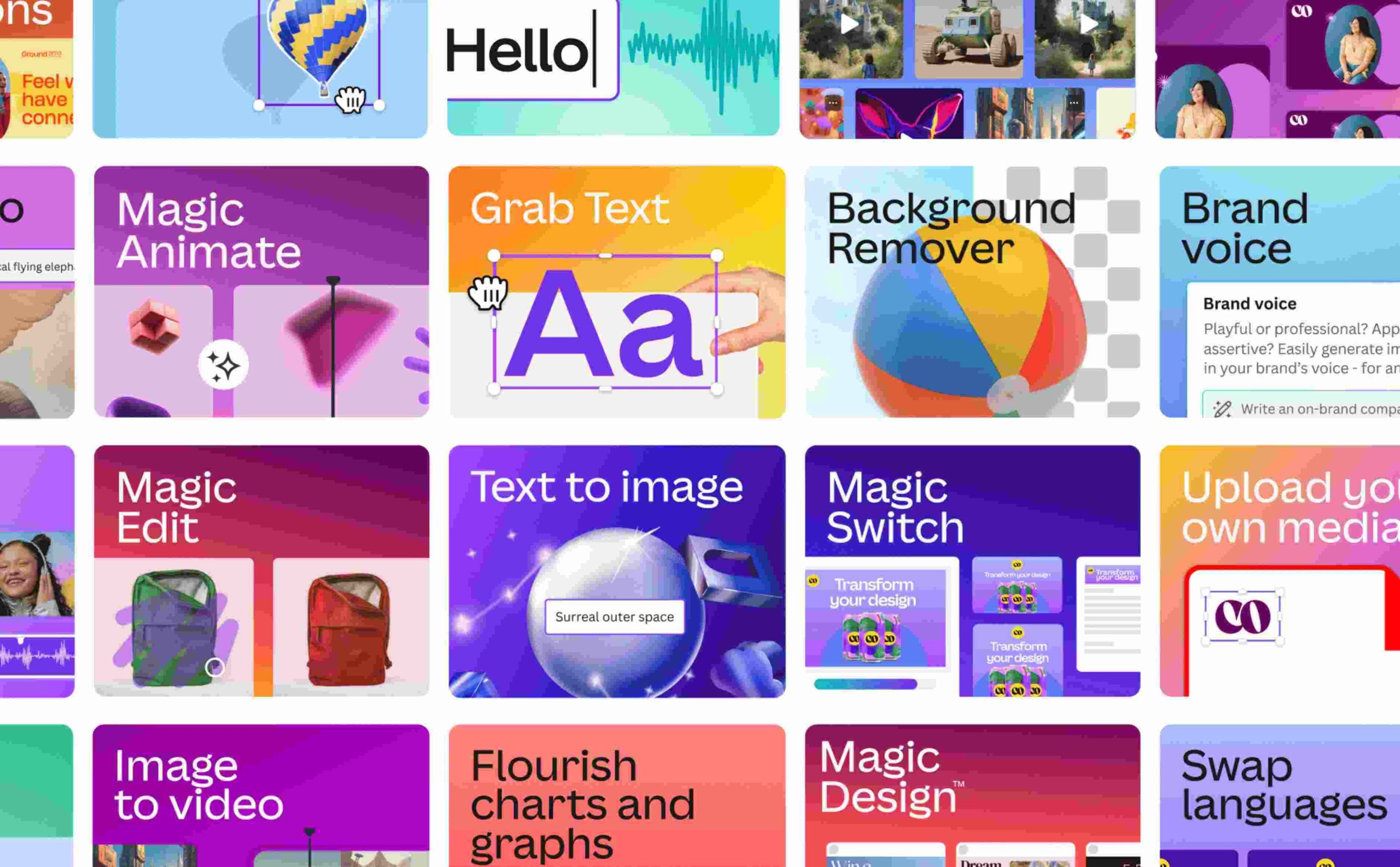
Canva uses AI to make designing faster and smarter. Examples include:
- Magic Write: Creates text for posts or captions
- Magic Edit: Removes backgrounds from photos with one click
- Magic Resize: Changes design sizes for different uses
- AI Suggestions: Picks templates based on what you like
These tools save time and help beginners design like pros.
How Can You Use Canva to Create Designs Step by Step?

How Do You Sign Up for Canva?
To sign up for Canva, go to www.canva.com and make an account. Here’s how:
- Click “Sign Up” on the homepage.
- Use your email, Google, or Facebook to join.
- Log in and start designing from the main page.
It takes less than a minute to get going.
How Do You Create a Design from Scratch in Canva?
To make a design from scratch, pick a size and start adding stuff. Follow these steps:
- Click “Create a design” on the top right.
- Choose something like “Poster” or “Logo.”
- Pick a size or use a preset one.
- Add text, pictures, and colors in the editor.
You control everything from the start.
How Do You Use Canva Templates?
To use a template, find one and tweak it. Here’s what to do:
- Click “Templates” on the homepage.
- Search for something like “Birthday Card.”
- Pick a template and open it.
- Change the text, colors, or pictures to fit your needs.
Templates make designing quick and easy.
How Do You Edit Designs in Canva?
To edit a design, use Canva’s tools to change things. You can:
- Add Text: Click “Text” and pick a style.
- Add Images: Use “Elements” or upload your own.
- Move Stuff: Drag items where you want them.
- Change Colors: Click an item and pick a new color.
- Add Filters: Make photos look better with effects.
Editing is simple and fun.
How Do You Share or Download Your Canva Designs?
To share or download, use the buttons at the top. Here’s how:
- Click “Share” to send a link or email it.
- Set who can view or edit it.
- Click “Download” and choose PNG, JPG, or PDF.
- Save it to your device.
You can share with friends or keep it for yourself.
What Are the Top Benefits of Using Canva for Designing?
Why Is Canva Easy to Use?
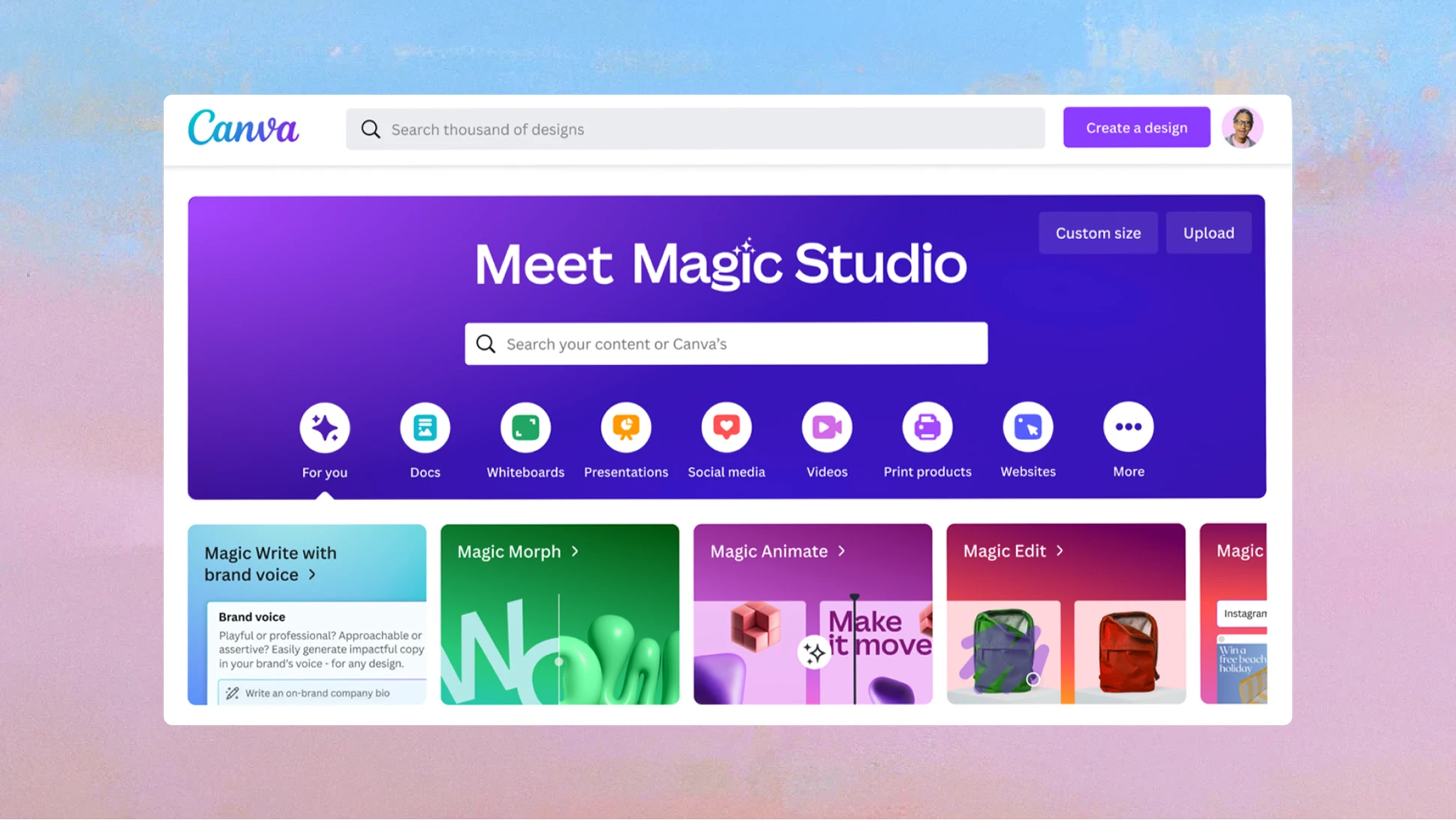
Canva is easy because it has a simple drag-and-drop setup. A University of Sydney study found that 85% of users feel good about designing with it. You just move things around like a puzzle—no hard skills needed.
How Is Canva Cost-Effective?
Canva saves money with a free version that has lots of features. You get templates and tools without paying. Canva Pro costs $12.95 a month for extras, which is cheaper than many design programs.
Why Is Canva Versatile?
Canva works for tons of projects, from cards to ads. It has over 250,000 templates and millions of elements. You can make school stuff, business graphics, or personal gifts all in one place.
How Is Canva Accessible?
Canva is easy to reach on any device with internet. Use it on a computer, tablet, or phone with apps for iOS and Android. Design anywhere, anytime.
What Support Does Canva Offer?
Canva has a big community and helpful resources. Users share tips online, and Canva gives tutorials and support. You’re never stuck with a question.
How Does Canva Help Different People Like Students, Businesses, and Teachers?
How Does Canva Help Individuals?
Individuals use Canva for personal projects like invites or resumes. It’s free and simple, so you can make:
- Social media posts
- Party invitations
- Job resumes
- Photo collages
Anyone can start designing right away.
How Does Canva Help Businesses?
Businesses create marketing stuff with Canva, like logos and flyers. Canva Pro adds brand kits and team tools. Companies use it for:
- Ads
- Business cards
- Presentations
- Social media graphics
It’s fast and looks professional.
How Does Canva Help Educators?
Teachers make lessons and visuals with Canva for Education. It’s free for schools and offers templates for:
- Lesson plans
- Worksheets
- Posters
- Slideshows
It makes learning more fun.
How Does Canva Help Nonprofits?
Nonprofits design on a budget with Canva’s free Pro program. Eligible groups get premium features to make:
- Event flyers
- Donation posts
- Newsletters
- Banners
It helps them spread their message cheap.
What Tips and Tricks Can You Use to Get Better at Canva?
What Keyboard Shortcuts Does Canva Have?
Canva shortcuts make designing faster. Try these:
- Ctrl + C: Copy something
- Ctrl + V: Paste it
- Ctrl + Z: Undo a mistake
- Ctrl + Shift + Z: Redo it
- Spacebar: Move around the design
They save you time.
What Are Canva’s Design Best Practices?
Good designs in Canva follow simple rules. Do this:
- Use clear images: Pick ones with 300 DPI for printing.
- Stay consistent: Use the same fonts and colors.
- Keep it clean: Don’t add too much stuff.
- Add space: Leave gaps for a neat look.
Your designs will look better.
What Hidden Features Does Canva Have?
Canva has cool tools you might miss. Check out:
- Magic Resize: Change sizes with one click.
- Brand Kit: Save your colors and logos.
- Content Planner: Post to social media from Canva.
These make designing easier.
What Productivity Hacks Work in Canva?
Get more done with these Canva hacks. Try:
- Start with templates: They’re quick bases.
- Use folders: Keep designs organized.
- Search fast: Find stuff with the search bar.
- Team up: Work with others live.
You’ll finish faster.
How Does Canva Compare to Other Design Tools Like Photoshop and Figma?
How Does Canva Compare to Adobe Photoshop?
Canva is easier and cheaper than Photoshop. Here’s a table:
| Feature | Canva | Adobe Photoshop |
|---|---|---|
| Ease of Use | Very easy | Hard to learn |
| Cost | Free version | $20.99/month |
| Features | Templates, simple tools | Advanced photo editing |
| Collaboration | Team work live | Limited team tools |
| Access | Web and apps | Desktop only |
Canva is better for quick, simple designs.
How Does Canva Compare to Adobe Illustrator?
Canva is simpler than Illustrator, which is for pros. See this:
| Feature | Canva | Adobe Illustrator |
|---|---|---|
| Ease of Use | Very easy | Takes time to learn |
| Cost | Free version | $20.99/month |
| Features | Templates, basic tools | Vector art, detailed work |
| Collaboration | Live teamwork | Less team options |
| Access | Web and apps | Desktop only |
Canva wins for beginners.
How Does Canva Compare to Figma?
Canva and Figma both help teams, but Figma is for app design. Look:
| Feature | Canva | Figma |
|---|---|---|
| Ease of Use | Very easy | Medium hard |
| Cost | Free version | Free version |
| Features | Templates, graphics | App design, prototyping |
| Collaboration | Live teamwork | Live teamwork |
| Access | Web and apps | Web and desktop |
Canva is more for general designs.
How Does Canva Compare to Sketch?
Canva is easier and works everywhere, unlike Sketch. Check this:
| Feature | Canva | Sketch |
|---|---|---|
| Ease of Use | Very easy | Medium hard |
| Cost | Free version | $99 one-time |
| Features | Templates, simple tools | App design, vectors |
| Collaboration | Live teamwork | Limited team tools |
| Access | Web and apps | Mac only |
Canva is more flexible.
Frequently Asked Questions (FAQ) About Canva
Is Canva Free to Use?
Yes, Canva has a free version with lots of tools. You get templates, images, and basic features without paying. Premium stuff needs Canva Pro.
Can I Use Canva Offline?
No, Canva needs the internet to work. It’s online-only, but you can save designs to use later offline.
Does Canva Have a Mobile App?
Yes, Canva has apps for iOS and Android. You can design on your phone or tablet anywhere.
How Do I Cancel My Canva Subscription?
Yes, you can cancel in your account settings. Go to “Billing & Teams” and click “Cancel Subscription” to stop it.
Can I Collaborate With Others on Canva?
Yes, Canva lets you work with others live. Share your design, and teammates can edit it at the same time.
Conclusion: Why Should You Try Canva for Your Next Design Project?
Canva is a top choice for designing because it’s easy, free, and packed with tools. It helps everyone—students, teachers, businesses, and nonprofits—make cool stuff like posters, slides, logos, coloring pages, infographics and ads. With over 250,000 templates, millions of images, and AI features, you can create fast without design skills. It’s cheaper than tools like Photoshop and works on any device. Plus, you can team up with others in real time.
You May Also Like
 Cloud Computing
8 Best AWS S3 Alternatives Compared: Pricing, Egress, and S3 Compatibility
 SaaS
SaaSWhat is Confluence Used For In Project Management?
 AI Technology
ChatGPT API Alternatives: 13 AI APIs and Platforms for Developers
 SaaS
SaaSCognito Forms to Jira Software Cloud Integration: Setup, Automation, Field Mapping, and Best Practices
 Web Development
Building Apps with Lovable and Supabase: A Step-by-Step Guide
 Web Development
Heroku vs. Netlify (2026): Pricing, Features, and Best Uses
 Software
When Fixing Bugs Is No Longer Enough: How to Rescue a Failing Software Project
 AI Tools
10 Best PDF Extraction APIs for Text, Tables, OCR, and Structured Data
 AI Tools