

Over 345 million people pay for Microsoft 365 commercial seats worldwide, making it one of the most widely used business platforms globally. Organizations store approximately 60% of their sensitive data in cloud applications like Office 365, yet many businesses lack adequate protection measures. The average cost of a data breach in cloud environments reaches $5.4 million, with 39% of businesses experiencing cloud-related security incidents in the past year.
Microsoft 365 environments face 300 million fraudulent sign-in attempts daily, with phishing attacks being the most common threat vector. Studies show that 78% of organizations experienced at least one cloud data breach in the past two years, and 43% of these breaches involved cloud-based email services. Despite these risks, only 32% of companies have comprehensive data protection strategies specifically for their Microsoft 365 environments. These statistics highlight why implementing robust data protection measures for Office 365 is no longer optional—it’s essential for business survival.
What is Office 365 Data Protection?
Office 365 data protection refers to the strategies, tools, and practices that safeguard your information stored in Microsoft’s cloud services. These measures prevent unauthorized access, data loss, and security breaches while ensuring compliance with regulations. Office 365 data protection combines Microsoft’s built-in security features with your organization’s policies to create a comprehensive defense for your digital assets.
Microsoft 365 (formerly Office 365) stores vast amounts of sensitive information, including emails, documents, and communications. Without proper protection, this data becomes vulnerable to cyber threats, accidental deletion, and compliance violations. Effective data protection in Office 365 requires understanding both Microsoft’s security capabilities and your responsibility as a customer to configure and manage these protections appropriately.
Why is Office 365 Data Protection Important?
Office 365 data protection matters because it prevents costly security incidents and ensures business continuity. Organizations store essential business information in Microsoft 365, making it a prime target for cybercriminals. A single breach can expose sensitive customer data, intellectual property, and financial information.
Statistics show that 43% of cyberattacks target small businesses, and the average cost of a data breach reaches $4.35 million. Microsoft 365 environments face specific threats like phishing attacks, ransomware, and insider threats. Without proper protection, organizations risk financial losses, reputational damage, and regulatory penalties. Implementing robust data protection measures helps mitigate these risks and maintains trust with customers and partners.
What Are the Built-in Data Protection Features in Office 365?
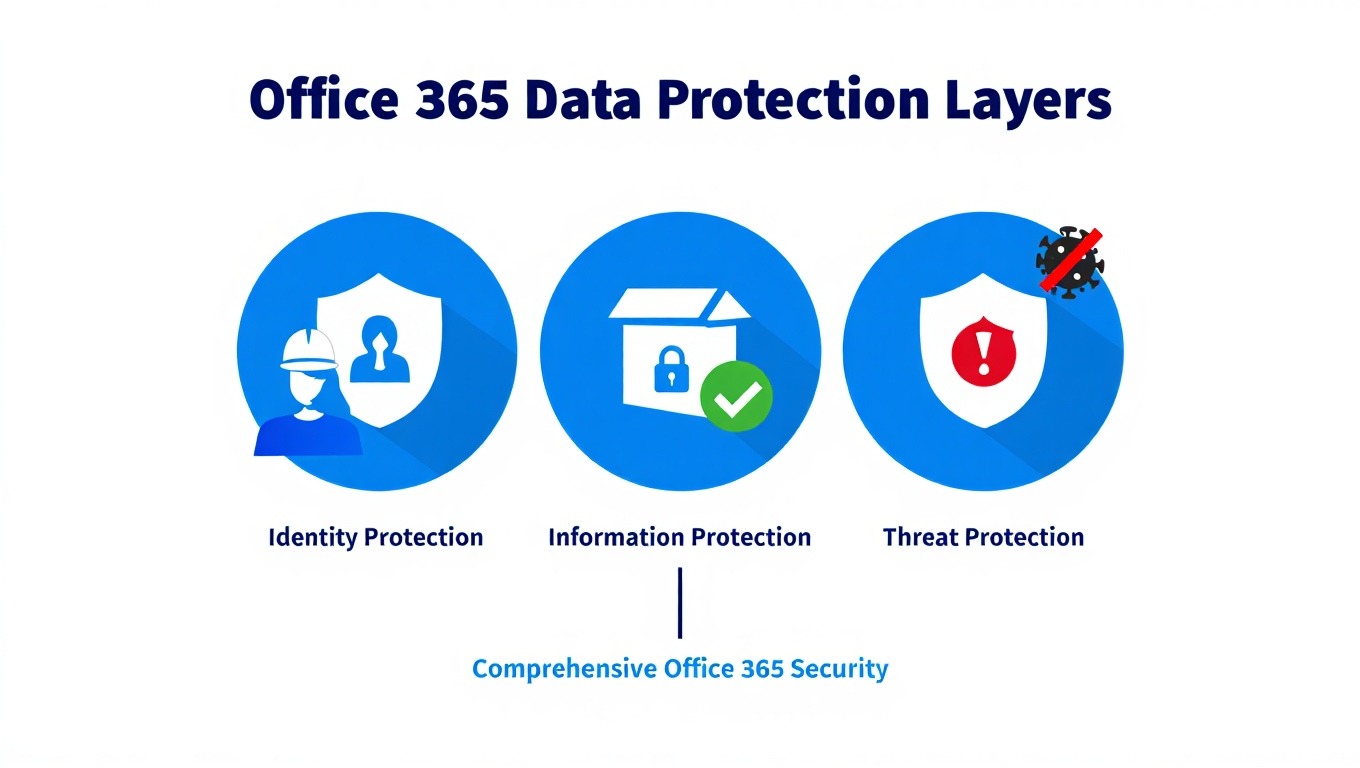
Microsoft 365 includes several built-in security features that help protect your data. These tools work together to create multiple layers of defense against various threats. Understanding these capabilities is essential for implementing effective data protection strategies.

Data Loss Prevention (DLP) in Office 365
Data Loss Prevention (DLP) helps prevent sensitive information from leaving your organization. DLP policies automatically detect, monitor, and block sensitive data such as credit card numbers, social security numbers, and health information. You can create custom DLP policies tailored to your organization’s specific compliance requirements.
DLP works across Exchange Online, SharePoint, OneDrive, and Teams. It uses deep content analysis to identify sensitive data even when it’s embedded in documents or emails. When DLP detects a policy violation, it can block the transmission, notify users, and generate alerts for administrators. This proactive approach helps prevent accidental data leaks and intentional exfiltration.
Encryption in Office 365
Encryption protects your data both when it’s stored and when it’s transmitted. Office 365 uses multiple encryption methods to secure your information. Service encryption encrypts data at rest in Microsoft’s data centers using BitLocker and Disk Encryption. Customer Key allows you to control your own encryption keys for added security.
For data in transit, Office 365 uses Transport Layer Security (TLS) to protect information moving between users and Microsoft services. Information Rights Management (IRM) applies encryption to emails and documents, restricting access even after sharing. Data encryption is fundamental to Office 365 security, ensuring that intercepted data remains unreadable to unauthorized parties.
Retention Policies and eDiscovery
Retention policies help you manage the lifecycle of your data in Office 365. These policies automatically retain or delete content based on specific criteria. You can apply retention policies to Exchange mailboxes, SharePoint sites, OneDrive accounts, and Teams messages. This ensures compliance with legal and regulatory requirements while reducing storage costs.
eDiscovery tools allow you to search, hold, and export content for legal cases or internal investigations. The Compliance Center provides a unified interface for managing retention policies and eDiscovery cases. Together, these features help organizations meet their legal obligations while maintaining control over their data.
Advanced Threat Protection (ATP)
Advanced Threat Protection (ATP) defends against sophisticated cyber threats targeting Office 365 users. ATP includes Safe Attachments, which scans email attachments in a virtual environment before delivery. Safe Links checks URLs in emails and documents for malicious content. ATP anti-phishing detects impersonation attacks and suspicious sender behavior.
ATP also includes threat investigation and response capabilities. Security teams can track threats across the organization, understand the attack timeline, and take remediation actions. Real-time dashboards provide visibility into the threat landscape, helping organizations stay ahead of emerging risks.
Information Rights Management (IRM)
Information Rights Management (IRM) applies persistent protection to emails and documents. IRM uses encryption and usage restrictions to control how recipients interact with your content. You can prevent forwarding, copying, printing, or screenshotting sensitive information. IRM protections travel with the document, maintaining security even when shared externally.
IRM integrates with Azure Active Directory Rights Management Services (AAD RMS). This allows organizations to define granular permissions based on user identity and context. IRM is particularly valuable for protecting intellectual property, confidential business information, and regulated data.
Multi-Factor Authentication (MFA)
Multi-Factor Authentication (MFA) adds an extra layer of security to user accounts. MFA requires users to provide two or more verification factors when signing in. This typically includes something they know (password), something they have (mobile device), or something they are (biometric verification).
MFA significantly reduces the risk of account compromise, even if passwords are stolen. Microsoft reports that MFA blocks 99.9% of automated attacks on accounts. Office 365 supports various MFA methods including mobile app notifications, text messages, and phone calls. Conditional Access policies can enforce MFA based on user, location, device, and application context.

How to Implement Data Protection in Office 365?
Implementing data protection in Office 365 requires a systematic approach. Organizations must assess their needs, configure security settings, and establish ongoing management processes. Following these steps helps ensure comprehensive protection for your Microsoft 365 environment.
Step 1: Assess Your Data Protection Needs
Start by identifying the types of data stored in Office 365 and their sensitivity levels. Classify data into categories such as public, internal, confidential, and regulated. This classification helps determine appropriate protection measures for each data type.
Consider your compliance requirements based on industry regulations like GDPR, HIPAA, or CCPA. Assess your organization’s risk tolerance and the potential impact of data breaches. This assessment forms the foundation for your data protection strategy and helps prioritize security investments.
Step 2: Configure Security Settings
Access the Microsoft 365 Defender portal to configure core security settings. Enable basic protections such as anti-spam and anti-malware filtering for Exchange Online. Configure Safe Attachments and Safe Links policies in Defender for Office 365 to protect against malicious content.
Set up mailbox auditing to track user activities and potential threats. Configure audit log retention for the required period based on your compliance needs. These basic configurations provide immediate security improvements and visibility into your environment.
Step 3: Set Up Data Loss Prevention
Create DLP policies in the Microsoft Purview compliance portal. Start with pre-configured policy templates for common regulations and data types. Customize these policies to match your organization’s specific requirements. Define sensitive information types using keywords, patterns, and validation checks.
Configure policy actions such as blocking access, showing user notifications, and sending alerts to administrators. Test policies in audit mode before enforcing them to avoid disrupting business operations. Monitor DLP alerts and refine policies based on false positives and changing threats.
Step 4: Implement Retention Policies
Create retention labels and policies in the Microsoft Purview compliance portal. Define retention periods based on business needs and legal requirements. Apply labels automatically using sensitive information types or keywords. Allow users to manually apply labels when appropriate.
Configure retention policies for different workloads such as Exchange, SharePoint, OneDrive, and Teams. Set up litigation holds for legal cases and investigations. Regularly review and update retention policies to ensure they remain effective and compliant.
Step 5: Enable Encryption
Activate encryption features across your Office 365 environment. Ensure TLS is enabled for all data transmissions. Configure Information Rights Management (IRM) policies for sensitive documents and emails. Consider implementing Customer Key for organizations with strict data sovereignty requirements.
Train users on how to apply encryption when sharing sensitive information. Establish procedures for managing encryption keys and certificates. Regularly review encryption settings to ensure they meet your security requirements.
Step 6: Train Your Users
Develop a comprehensive security awareness training program for all Office 365 users. Cover topics such as phishing recognition, secure file sharing, and password management. Conduct regular phishing simulations to test and improve user awareness.
Provide role-specific training for employees who handle sensitive data. Establish clear guidelines for acceptable use of Office 365 services. Create a culture of security where employees understand their role in protecting organizational data.
What Are the Best Practices for Office 365 Data Protection?
Best practices for Office 365 data protection help organizations maximize security while maintaining productivity. These proven strategies address common vulnerabilities and emerging threats. Implementing these practices significantly reduces the risk of data breaches and compliance violations.
Implement Least Privilege Access
Grant users only the permissions they need to perform their jobs. Use role-based access control (RBAC) in Microsoft 365 to assign appropriate roles and permissions. Regularly review user access rights and remove unnecessary privileges. This limits the potential damage from compromised accounts or insider threats.
Enable Unified Audit Logging
Unified audit logging captures user and administrator activities across Microsoft 365 services. Enable this feature to maintain a comprehensive record of events. Use audit logs for security investigations, compliance reporting, and threat detection. Ensure logs are retained for the required period based on your compliance needs.
Regularly Update and Patch
Keep your Microsoft 365 environment updated with the latest security patches. Microsoft regularly releases updates to address vulnerabilities and improve security features. Enable automatic updates where possible. Monitor the Microsoft 365 Message Center for notifications about upcoming changes and required actions.
Backup Essential Data
While Microsoft provides robust infrastructure protection, you remain responsible for backing up your data. Implement third-party backup solutions for Exchange Online, SharePoint, and OneDrive. Regularly test backup and recovery procedures to ensure they work effectively. 10 ways to prevent a data security breach includes backup as a vital protection measure.
Monitor and Respond to Threats
Establish continuous monitoring of your Microsoft 365 environment. Use Microsoft 365 Defender’s threat detection capabilities to identify suspicious activities. Set up alerts for major security events. Develop an incident response plan that outlines procedures for handling security incidents. Conduct regular drills to test your response capabilities.
Secure Mobile Access
Implement security measures for mobile devices accessing Office 365. Use Mobile Application Management (MAM) policies to control how data is used on mobile devices. Require device enrollment and compliance checks before granting access. Implement Conditional Access policies that restrict access based on device security posture.
How to Recover Data in Office 365?
Data recovery in Office 365 involves several built-in tools and procedures. Microsoft provides multiple options for restoring deleted items and recovering from data loss incidents. Understanding these recovery methods helps minimize downtime and data loss.
Recovering Deleted Items in Outlook
Outlook provides a straightforward way to recover deleted emails. Users can restore items from the Deleted Items folder within 30 days. For items deleted from Deleted Items, the Recoverable Items folder offers additional recovery time. Administrators can extend this period using retention policies.
To recover deleted items, users right-click the Deleted Items folder and select “Recover Deleted Items.” This opens a dialog showing items available for recovery. Users can select items and click “Recover” to restore them to their original location.
Restoring SharePoint and OneDrive Data
SharePoint and OneDrive include a recycle bin for deleted files and folders. Items remain in the first-stage recycle bin for 93 days. After that, they move to the second-stage recycle bin for another 93 days. Site collection administrators can restore items from either stage.
For more extensive recovery, SharePoint Version History allows restoring previous versions of documents. This feature helps recover from accidental changes or corruption. Administrators can also restore entire sites from the recycle bin or using backup solutions.
Recovering from Ransomware Attacks
Ransomware attacks require specialized recovery procedures. If your organization falls victim to ransomware, immediately isolate affected systems. What to do if you’re infected by ransomware provides detailed guidance for handling such incidents.
Microsoft 365 offers several recovery options for ransomware attacks. Use file versioning in SharePoint and OneDrive to restore unencrypted versions. Recover emails from mailboxes using the Recoverable Items folder. For widespread attacks, consider restoring from backups or engaging Microsoft support services.
Using eDiscovery for Legal Holds
eDiscovery tools help preserve and recover data for legal cases. Administrators can place legal holds on mailboxes, sites, and Teams communications. This prevents data deletion even if users attempt to remove it. Legal holds ensure data remains available for investigations and litigation.
To create a legal hold, navigate to the Microsoft Purview compliance portal and create a new case. Add custodians and locations to the hold. Define search criteria to scope the preserved data. Monitor hold status and ensure compliance with legal requirements.
What Are the Common Challenges in Office 365 Data Protection?
Organizations face several challenges when implementing data protection in Office 365. Understanding these challenges helps prepare effective strategies to overcome them. Addressing these issues is fundamental for maintaining robust security and compliance.
Shared Responsibility Model
Microsoft operates under a shared responsibility model for cloud services. Microsoft secures the infrastructure, while customers are responsible for protecting their data and configuring security settings. Many organizations misunderstand this division, leading to gaps in protection.
To address this challenge, clearly define your responsibilities versus Microsoft’s. Regularly review Microsoft’s documentation to understand your obligations. Implement the necessary security controls and configurations to protect your data effectively.
Complexity of Configuration
Office 365 offers numerous security features with complex configuration options. Many organizations struggle to properly configure these settings, leaving vulnerabilities in their environment. Misconfigurations are a leading cause of security incidents in cloud services.
Overcome this challenge by starting with basic security configurations and gradually implementing advanced features. Use Microsoft’s Secure Score to track your security posture and receive recommendations. Consider engaging Microsoft consultants or specialized partners for complex implementations.
User Resistance to Security Measures
Users often resist security measures that impact productivity. Features like MFA, IRM, and DLP can create friction in daily workflows. Without proper training and communication, users may find workarounds that bypass security controls.
Address user resistance through comprehensive training and clear communication. Explain the importance of security measures and how they protect both the organization and individual users. Provide user-friendly tools and clear guidelines for following security policies. Regularly gather feedback and adjust policies to balance security and usability.
Keeping Up with Changing Threats
Cyber threats constantly change, targeting new vulnerabilities in Office 365. Organizations struggle to keep pace with these changes and update their protection strategies accordingly. Outdated security measures quickly become ineffective against new attack techniques.
Stay current with threat intelligence by subscribing to security bulletins and participating in industry forums. Regularly update your security policies and configurations based on new threats. Conduct periodic security assessments to identify and address new vulnerabilities in your environment.
Compliance with Multiple Regulations
Organizations often operate under multiple regulatory frameworks with different requirements. Navigating these complex compliance obligations in Office 365 can be challenging, especially for multinational companies.
Develop a compliance framework that addresses all relevant regulations. Use Microsoft’s compliance manager to assess your compliance posture and implement required controls. Regularly review and update your compliance program to accommodate regulatory changes and new requirements.
FAQ
What is the difference between Microsoft 365 and Office 365 data protection?
Microsoft 365 includes all Office 365 data protection features plus additional security and management capabilities. Office 365 focuses on productivity apps with basic security, while Microsoft 365 adds advanced threat protection, device management, and information governance tools. Microsoft 365 provides a more comprehensive security solution for organizations with stringent protection requirements.
Does Microsoft backup my Office 365 data?
Microsoft provides infrastructure protection but does not backup customer data in the traditional sense. Microsoft ensures service availability and protects against hardware failures, but customers are responsible for backing up their data. You need third-party backup solutions to protect against accidental deletion, malicious activity, and ransomware attacks in Office 365.
How long does Microsoft retain deleted data in Office 365?
Retention periods vary by service and configuration. Deleted emails remain recoverable for 14 days by default, extendable to 30 days. SharePoint and OneDrive items stay in recycle bins for up to 186 days. Retention policies can extend these periods based on business needs and compliance requirements. Legal holds preserve data indefinitely until the hold is removed.
Can I recover data if a user deletes their mailbox?
Yes, administrators can recover deleted mailboxes within 30 days of deletion. After 30 days, the mailbox is permanently removed. During the recovery period, administrators can restore the mailbox with all its contents. For longer retention, implement retention policies or legal holds before deletion occurs.
What is the best way to secure Office 365 admin accounts?
Admin accounts require special protection due to their elevated privileges. Implement strict security measures including MFA, Conditional Access policies, and privileged access workstations. Limit the number of global administrators and use least privilege access. Regularly review admin permissions and monitor account activity for suspicious behavior.
How does Office 365 protect against phishing attacks?
Office 365 uses multiple layers of phishing protection. Exchange Online Protection filters malicious emails, while Advanced Threat Protection provides deeper analysis of links and attachments. Anti-phishing policies detect impersonation attacks and suspicious sender behavior. Safe Links and Safe Attachments protect users even after initial delivery.
What should I do if I suspect a data breach in Office 365?
If you suspect a data breach, immediately contain the incident by isolating affected accounts. Enable additional logging and preserve evidence. Use Microsoft 365’s investigation tools to assess the scope and impact. Notify affected parties and authorities as required by law. Implement remediation measures and review your security controls to prevent recurrence.
How often should I review my Office 365 security settings?
Review essential security settings monthly and conduct comprehensive assessments quarterly. Monitor Microsoft 365 Secure Score weekly to track improvements. Stay informed about new features and threat landscapes through Microsoft’s security communications. Adjust your security posture based on assessment findings and new threats.
Conclusion
Office 365 data protection requires a comprehensive approach that combines Microsoft’s security features with your organization’s policies and procedures. Understanding the shared responsibility model is crucial for implementing effective protection. By leveraging built-in tools like DLP, encryption, retention policies, and ATP, you can create multiple layers of defense for your Microsoft 365 environment.
Regular assessment and configuration of security settings form the foundation of Office 365 data protection. Implementing best practices such as least privilege access, unified audit logging, and user training significantly enhances your security posture. Preparing for data recovery scenarios ensures business continuity even when incidents occur.
Organizations must stay vigilant against new threats and changing compliance requirements. Continuous monitoring, regular updates, and ongoing user education are key components of a robust data protection strategy. By taking a proactive approach to Office 365 security, you can protect your valuable data while maintaining productivity and meeting compliance obligations.
You May Also Like
 Cybersecurity
Is Fanatical Legit and Safe? My Honest Take on Buying Game Keys
 Data Security & Privacy
Is Gameflip Legit and Safe for Gift Cards? What Buyers Should Know
 Data Security & Privacy
Is Eldorado.gg Legit and Safe in 2026? My Investigation and What Buyers Should Know
 Web Development
Supabase vs Firebase: Which Backend Platform is Right for Your Project?
 Web Development
REST API vs SOAP API: Differences, Pros & Cons, and Use Cases
 Web Development
What Is API Rate Limiting? (A Practical, Simple Guide for Safer, Faster APIs)
 Cybersecurity
Is Groupon Legit? An Honest Review In 2026
 Cloud Computing
What Is Hybrid Cloud Computing? A Complete Guide
 Cybersecurity