

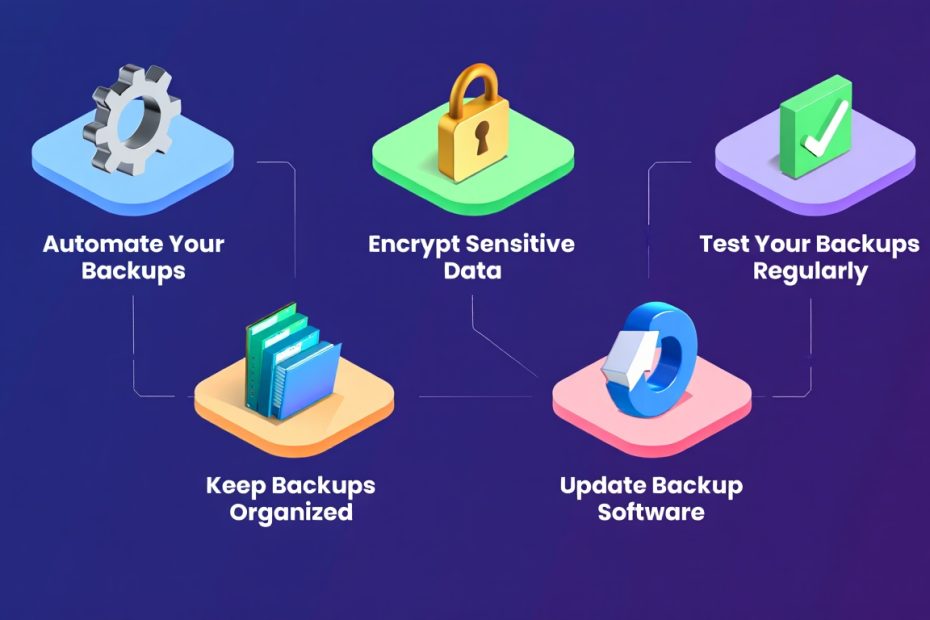
I lost three years of photography work in one afternoon. My hard drive failed with zero warning — no sounds, no error messages, nothing. One minute everything was fine. The next, my computer would not even power on. I had no backup. Every single file was gone. That moment taught me something I carry with me every single day: losing your files does not send a warning. It just happens, and it happens fast.
If you have never backed up your files before, I completely understand — it feels like something you will “get to later.” But later always shows up at the worst possible moment. Right now, your photos, documents, work files, and memories are sitting on a single device, and that device will fail someday. This guide is going to walk you through exactly how to protect everything you care about, step by step, without any confusing tech talk getting in the way.
What Does It Actually Mean to Backup Your Files?
Backing up your files means making a copy of your data and saving it somewhere completely separate from your original device. So if your laptop breaks, gets stolen, or gets hit with a ransomware virus, you still have a clean, safe copy of everything stored somewhere else.
Think of it like making a photocopy of an important document before you mail the original. If the letter gets lost in the mail, you still have your copy tucked away safely. File backups work exactly the same way — just for your digital life.
There are three main backup types worth knowing before you get started:
- Full Backup — This saves a complete copy of every file and folder on your system. It takes the most time and storage space, but it is the simplest to restore from because everything is captured in one place. I run a full backup on my main computer once every week. It is my safety net — my “if everything goes wrong” copy.
- Incremental Backup — This only saves the files that changed since your last backup. If you backed up on Monday and edited two documents by Thursday, only those two files get saved. It is fast, light on storage space, and great for daily use. The one downside is that restoring takes a few more steps because it has to pull from multiple backup points.
- Differential Backup — This saves everything that changed since your last full backup. It sits right in the middle — bigger than incremental but much easier and faster to restore. A lot of small businesses use this method on weekdays between their full weekly backups to strike a balance between speed and simplicity.
You do not need all three running at once right away. Start simple — run a full backup first. Once you feel comfortable, you can layer in incremental backups to save time and storage down the road.
What Is the 3-2-1 Backup Rule and Why Does Every IT Expert Recommend It?
The 3-2-1 backup rule is the most trusted, field-tested data protection strategy used by IT professionals, security experts, and regular people who have learned from painful experience. Photographer Peter Krogh developed it originally for managing digital negatives, and the cybersecurity world adopted it because it works in almost every real-world situation.
Here is what each number in the rule stands for:
- 3 total copies of your data — That means the original file on your main device plus two separate backup copies stored elsewhere. Depending on just one copy is the single biggest mistake I see people make. Drives fail, cloud accounts get locked, and accidents happen. Three copies means you always have options.
- 2 different storage types — Store your backups on two completely different kinds of media. For example, one copy on an external hard drive and one copy in cloud storage like pCloud. If one storage type develops a problem — a physical drive breaking, for instance — the other is completely unaffected and ready to go.
- 1 copy stored offsite — At least one backup needs to live in a completely different physical location from your original device. Your home could flood. Your office could catch fire. A cloud-based backup stored on remote servers survives those disasters because it is not in the same building as you. This is exactly why cloud storage like pCloud is such a critical part of a solid backup plan.
I set this exact system up for my own files and for every client I have ever helped with data protection. Once it is running, it takes care of itself. You set it up once, and it quietly protects you in the background every single day.
How to Backup Files to an External Hard Drive
Backing up to an external hard drive is the fastest and most affordable way to create a reliable local backup of your most important files. You get full control over your data, no monthly fees, and instant access even when your internet is down.
A solid 1TB external hard drive runs around $45 to $60 at most electronics retailers. That is enough room for hundreds of thousands of documents, thousands of high-resolution photos, and hours of video footage.
How Do You Backup Files on Windows Using File History?
Windows comes with a completely free built-in backup tool called File History, and once you set it up, it runs automatically without you having to think about it.
- Plug in your external hard drive using a USB cable. Before you start, check that the drive has enough free space — a good rule is to make sure your backup drive has at least twice the storage capacity of the files you plan to back up.
- Open Settings on your Windows PC by pressing the Windows key + I at the same time. This pulls up the main Settings panel where all your system options live.
- Navigate to “Update and Security,” then click “Backup” in the left-hand menu. If you are on Windows 11, head to “System” and then click “Storage” to find the backup settings.
- Click “Add a drive” and choose your external hard drive from the list that appears. Windows will detect the drive automatically as soon as it is plugged in and recognized.
- Turn on “Automatically back up my files.” File History will now save copies of your Documents, Pictures, Music, Videos, and Desktop folders on a regular schedule. You can set it to back up as frequently as every hour, which I personally recommend for active work files.
- Click “More options” to fine-tune your settings. Here you can choose how often it backs up and how long older backup versions are kept. I keep my settings at every 3 hours with versions saved for 3 months. That way, if I overwrite a file by accident, I can always pull back an older version from days or even weeks ago.
How Do You Backup Files on a Mac Using Time Machine?
Mac users have Time Machine built directly into macOS, and it is honestly one of the most seamless and reliable free backup tools available on any operating system.
- Connect your external hard drive to your Mac using a USB or Thunderbolt cable. If your drive is brand new, your Mac may immediately ask if you want to use it as a backup disk. Go ahead and click “Use as Backup Disk” to confirm right then and there.
- If the prompt does not appear automatically, click the Apple logo in the top-left corner of your screen, go to System Settings, and look for “Time Machine” in the left-hand sidebar.
- Click “Add Backup Disk” and select your external drive from the list. At this point, you will also see an option to encrypt your backup. I always enable encryption — if your external drive ever gets lost or stolen, nobody can access your files without the password.
- Time Machine will start its first full backup right away. Depending on how many files you have, this first backup can take anywhere from one to several hours. Every backup after that is much faster because Time Machine only saves what changed since the last run.
- To restore any file at any time, open Time Machine from your menu bar, travel back to the date you need, find the file you want, and click “Restore.” The file comes back exactly as it was on that date. I have used this to recover accidentally deleted project files more times than I would like to admit — it is a genuine lifesaver.
How to Backup Files to the Cloud
Cloud backup stores your files on remote servers managed by a company, making them accessible from any device, anywhere, at any time. This is your offsite backup — the third leg of your 3-2-1 plan — and it protects everything you own from physical disasters like fire, flood, or hardware theft.
Here are the most reliable cloud backup options available right now:
| Cloud Service | Free Storage | Best For | Paid Plans Start At |
|---|---|---|---|
| pCloud | 10 GB | Privacy-focused users, lifetime plans | $4.99/month or $199 lifetime |
| Google Drive | 15 GB | Documents, photos, personal files | $2.99/month (100GB) |
| Microsoft OneDrive | 5 GB | Windows users, Office documents | $1.99/month (100GB) |
| iCloud Drive | 5 GB | Mac and iPhone users | $0.99/month (50GB) |
| Backblaze | None | Full computer backup, unlimited storage | $9/month (unlimited) |
| Dropbox | 2 GB | Team collaboration, shared folders | $11.99/month (2TB) |
Why Is pCloud One of the Best Cloud Backup Options Right Now?
pCloud stands out from other cloud services because it is one of the only providers that offers a lifetime plan — meaning you pay once and own the storage forever, with no recurring monthly bill.
I have personally used pCloud for over two years now, and it is become my go-to recommendation for anyone who wants a long-term, cost-effective cloud backup solution. Here is what makes it worth your attention:
- Lifetime Storage Plans — pCloud offers a one-time payment option starting at $199 for 500GB of permanent storage. If you do the math, that breaks down to roughly $10 per year over 20 years. Most cloud services charge $3 to $10 every single month, which adds up to hundreds of dollars over time. The lifetime plan just makes financial sense for most users.
- Client-Side Encryption with pCloud Crypto — pCloud offers an optional add-on called pCloud Crypto, which encrypts your files directly on your device before they even upload to the server. This means even pCloud employees cannot see your files. For sensitive documents, financial records, or anything personal, this level of privacy is genuinely hard to find elsewhere.
- File Versioning Up to 365 Days — pCloud keeps previous versions of your files for up to 365 days on premium plans. So if you accidentally overwrite an important document or need to recover something from months ago, you can go back and pull up any saved version. This feature alone has saved me significant time on multiple occasions.
- Automatic Camera Backup — pCloud connects directly to your smartphone and automatically backs up every photo and video you take in real time. Your camera roll gets mirrored to pCloud the moment you take a picture, without you having to do anything manually. For anyone who uses their phone as their primary camera, this is a must-have feature.
- Works on Every Device and Platform — pCloud has apps for Windows, Mac, Linux, iOS, and Android. It also works in your web browser without any installation. No matter what device you are using, your files are always accessible. That cross-platform support is something I rely on daily when switching between my laptop and phone.
- Servers Based in Europe and the US — pCloud is a Swiss-based company, which means your data is subject to strict European privacy laws. You can also choose whether to store your data on US servers or European servers during account setup — a level of transparency that most cloud providers simply do not offer.
How Do You Set Up pCloud Backup on Your Computer?
Setting up pCloud takes less than 10 minutes and your files start backing up automatically right after installation.
- Go to pcloud.com and create a free account using your email address. You get 10GB of free storage right away with no credit card required. If you need more space, you can upgrade to a paid or lifetime plan at any point.
- Download the pCloud Drive desktop app for your operating system — Windows, Mac, or Linux. Install it just like any regular app. Once installed, pCloud creates a virtual drive on your computer that acts just like a regular folder.
- Sign in to the desktop app with the account you just created. The pCloud Drive folder will appear in your file explorer or Finder, and anything you drag into that folder will automatically sync to the cloud.
- Enable Automatic Backup for specific folders. Open the pCloud app settings and look for the “Backup” tab. From there, you can select folders on your computer — like Documents, Desktop, or Pictures — and pCloud will continuously monitor and back them up without you having to do anything manually.
- Install the pCloud mobile app on your iPhone or Android phone and turn on Camera Backup in the app settings. From that point on, every photo and video you take gets quietly backed up to your pCloud account in the background, over both Wi-Fi and mobile data.
- Test your backup by logging into pcloud.com in your web browser. Check that your files and photos are showing up correctly. It is a good habit to verify your backup is actually working once a month — do not assume it is running if you have not checked it recently.
External Hard Drive vs. Cloud Backup: Which One Should You Use?
The real answer is that you should use both. They protect you from completely different types of problems, and relying on just one leaves a serious gap in your protection.
| Feature | External Hard Drive | Cloud Backup (e.g., pCloud) |
|---|---|---|
| Cost | One-time $45–$100 purchase | Free tier or monthly/lifetime subscription |
| Internet Required | No — works completely offline | Yes — requires internet to backup and sync |
| Access From Anywhere | No — need physical drive with you | Yes — accessible from any device globally |
| Protects Against Physical Disaster | No — could be lost in same fire or flood | Yes — servers are in remote data centers |
| Protects Against Ransomware | Partially — if disconnected when attacked | Yes — cloud versions are isolated from attack |
| Setup Difficulty | Easy — plug in and configure | Easy — download app and sign in |
| File Versioning | Depends on software | Yes — pCloud keeps versions up to 365 days |
| Privacy Control | Full control — no third party involved | High — especially with pCloud Crypto enabled |
The bottom line is simple. Your external hard drive gives you speed and offline access. pCloud gives you offsite protection and file versioning. Together, they cover every major data loss scenario you are realistically going to face.
How to Set Up an Automatic Backup Schedule
Setting up an automatic backup schedule means your files get backed up on a fixed timetable without you having to remember to do it manually. This is the most important step most people skip — and it is the reason backups fail when they are needed most.
Here is the backup schedule I personally recommend for most users:
- Daily incremental backup to the cloud (pCloud or Google Drive) — This runs quietly in the background every day and saves any file that changed since yesterday. You barely notice it happening, and your most recent work is always protected. I have this running on every device I own.
- Weekly full backup to an external hard drive — Pick one day a week — Sunday evening works well for most people — and run a complete full backup using Windows File History or Mac Time Machine. It takes a bit longer, but it gives you a clean, complete snapshot of your entire system.
- Monthly verification check — Once a month, actually open your backup and confirm it is working. Try restoring a test file. Check that your cloud storage is syncing correctly. Backups fail silently sometimes, and the only way to know yours is working is to verify it yourself.
What Files Should You Backup First?
Not all files carry the same weight, and when storage space is limited, you should prioritize the files that are hardest or impossible to replace. Here is a practical breakdown of what to protect first:
- Personal photos and videos — These are irreplaceable. You cannot re-take your wedding photos or your child’s first steps. Back these up first, back them up to at least two places, and make sure one of those places is cloud storage like pCloud with automatic camera backup turned on.
- Work and school documents — Contracts, reports, projects, spreadsheets, presentations — anything related to your work or education needs to be backed up. Losing a work project the night before a deadline is one of the most stressful experiences in modern professional life, and it is completely preventable.
- Financial records and tax documents — Receipts, bank statements, tax returns, invoices — keep backup copies of all of these. If you are ever audited or need to prove a transaction, you will be very glad you saved them somewhere safe.
- Passwords and account credentials — If you use a password manager like Bitwarden or 1Password, make sure you export and back up your vault regularly. Losing access to your passwords can lock you out of dozens of important accounts at once.
- Creative work — music, writing, design files — Original creative files like Photoshop PSDs, Illustrator files, audio recordings, or manuscript drafts took real time and real effort to create. They deserve strong protection. Many creative professionals I know keep these in pCloud specifically because of the 365-day versioning feature.
Common Backup Mistakes You Need to Avoid
Even people who do back up their files make errors that leave them exposed. Here are the most common mistakes I see — and how to fix each one:
- Backing up to only one location — One backup is better than zero, but it is still not enough. If your single backup drive fails at the same time as your main drive — which actually happens — you lose everything. Always have at least two separate backup destinations.
- Never testing your backups — A backup you have never tested is a backup you cannot trust. I have seen people go to restore files after a disaster only to find their backup was corrupted or had stopped running months earlier. Test your backups by actually restoring a file at least once a month.
- Leaving your backup drive plugged in at all times — If your computer gets hit with ransomware while your external drive is connected, the ransomware can encrypt your backup drive too. Unplug your external drive after each backup session. Cloud backups like pCloud are not affected by this because they are stored on separate remote servers.
- Forgetting to back up your phone — Most people focus on their computer and completely forget that their phone holds thousands of photos, contacts, and important messages. Turn on automatic camera backup in pCloud or Google Photos on your phone today — it takes less than two minutes to set up.
- Using a USB flash drive as a long-term backup — USB flash drives are great for moving files between devices, but they are not built for long-term reliable storage. They wear out faster than external hard drives, are easy to lose, and are more prone to data corruption over time. Stick with external HDDs or SSDs for local backup and cloud storage for offsite backup.
Conclusion: Your Data Deserves to Be Protected
Backing up your files is one of the most practical, most impactful things you can do for your digital life. I know from personal experience what it feels like to lose files you cannot get back. It is genuinely awful — and it is 100% preventable.
Start with the 3-2-1 rule. Three copies of your data, two different storage types, one stored offsite. Set up pCloud for your cloud backup — especially if the lifetime plan fits your budget, because it is one of the smartest long-term investments in data protection you can make. Pair that with Windows File History or Mac Time Machine for your local backup, and you will have a system that protects you from virtually every realistic threat.
You do not have to do everything at once. Start with one step today — even if that is just downloading the pCloud app and turning on camera backup on your phone. Every copy you make is one less thing you can lose. Your files, your photos, your work — they are worth protecting. Do not wait for a hard drive failure to learn that the hard way.
Frequently Asked Questions
Is pCloud safe enough to store sensitive personal files?
Yes — pCloud is a highly secure cloud storage provider based in Switzerland and subject to strict European data protection laws. It uses TLS encryption for all file transfers and AES-256 encryption for stored files. For even stronger protection, pCloud Crypto adds client-side encryption so your files are encrypted on your device before they ever reach pCloud’s servers. Even pCloud itself cannot access them in that case.
Is a free Google Drive or pCloud account enough for most personal backups?
Yes, for basic personal use — Google Drive offers 15GB free and pCloud offers 10GB free, which is enough to back up essential documents, contacts, and a reasonable number of photos. However, if you have large photo libraries, video files, or extensive work documents, you will likely need a paid plan. pCloud’s lifetime plan is worth the one-time cost for anyone with more than a few gigabytes of important data.
Is it possible to backup files automatically without doing anything manually?
Yes — Both pCloud and Google Drive have desktop apps that monitor selected folders and back them up automatically whenever a file changes. On Windows, File History runs in the background on a schedule you set. On Mac, Time Machine does the same. Once configured, all of these tools run silently without any manual effort on your part.
Is an external hard drive alone enough to fully protect my files?
No — An external hard drive is a strong local backup, but it does not protect you from physical disasters like fire, flood, or theft — especially if the drive is stored in the same building as your computer. You need at least one offsite backup, such as a cloud service like pCloud, to be fully protected against every major data loss scenario.
Is backing up files expensive?
No — Backing up files does not have to cost much at all. Both pCloud and Google Drive offer free storage tiers. An external hard drive costs as little as $45. pCloud’s lifetime plan starts at $199 for 500GB, which breaks down to pennies per day over several years. The real cost is losing your data — and that price is far higher.
Is it necessary to back up my smartphone separately from my computer?
Yes — Your smartphone holds a completely separate set of photos, videos, contacts, messages, and app data that your computer backup does not automatically capture. Turn on pCloud’s automatic camera backup or use Google Photos on your phone to make sure your mobile files are protected independently from your computer.
Is cloud backup secure against ransomware attacks?
Yes — Cloud backups like pCloud are significantly more resistant to ransomware than local backups because they are stored on separate, remote servers. Ransomware can only encrypt files it can directly access on your connected devices and drives. pCloud’s file versioning feature also means that even if a synced file gets encrypted by ransomware, you can restore a clean version from before the attack occurred.
You May Also Like
 Cloud Computing
8 Best AWS S3 Alternatives Compared: Pricing, Egress, and S3 Compatibility
 Cloud Computing
What Is Hybrid Cloud Computing? A Complete Guide
 Data Security & Privacy
How Can Companies Protect Customer Data? Essential Security Strategies and Compliance Guide
 Cybersecurity
Can Ransomware Affect Cloud Storage? Your Complete Protection Guide
 E-Commerce
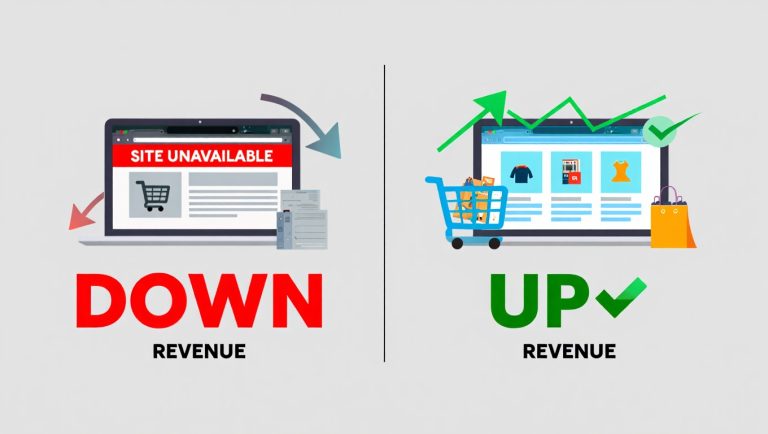
Incident Management for E-commerce Websites: Reducing Downtime and Keeping Your Business Running
 Backup Software
How to Sign In to Sync Your Browsing Data Across Devices
 Backup Software
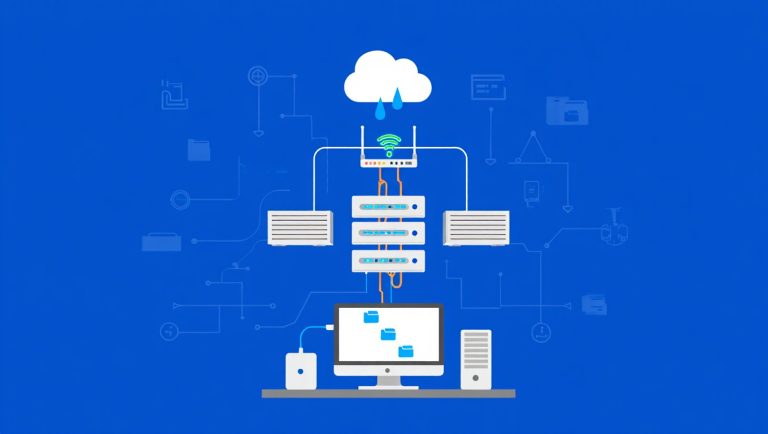
Understanding Data Storage Types: A Complete Guide to Storage Systems and Solutions
 Data Security & Privacy
What is a DDoS Attack? A Strategic Guide to Detection, Defense, and Business Continuity
 Software