

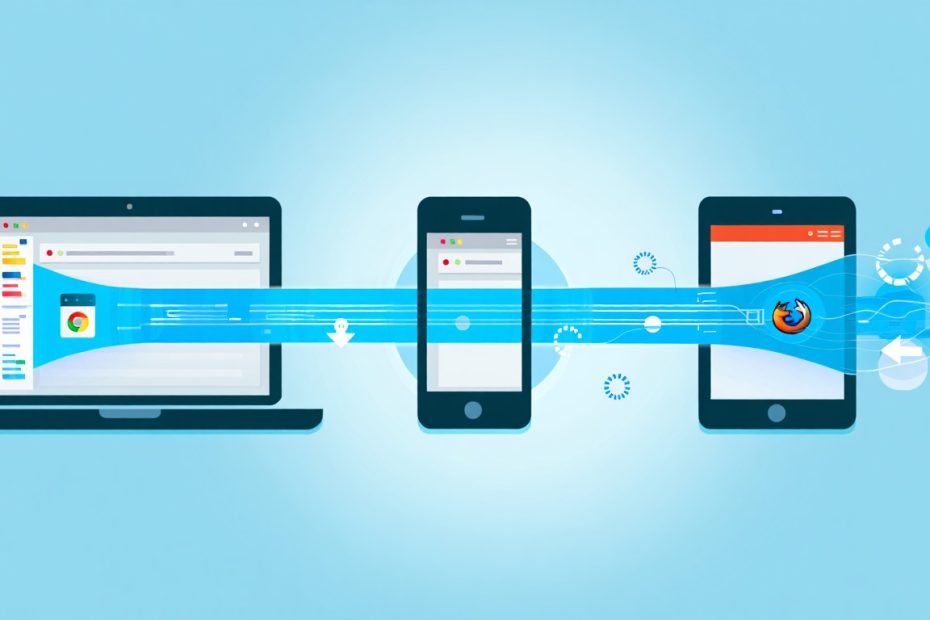
We live in a world where most of us jump between our phones, laptops, tablets, and desktops throughout the day. If you’ve ever searched for something on your phone and wanted to continue reading on your computer, you know how frustrating it can be when your bookmarks and history aren’t there. That’s where browser sync comes in – it’s like having a bridge that connects all your devices so your browsing experience stays smooth no matter what device you’re using.
When you sign in to sync your browsing data across devices, you’re essentially creating a personal cloud for all your browser information. Your bookmarks, passwords, browsing history, and even open tabs can follow you from device to device. It’s not just convenient – for many people, it has become essential for staying productive and organized in our multi-device world.
What Does Browser Sync Actually Do?
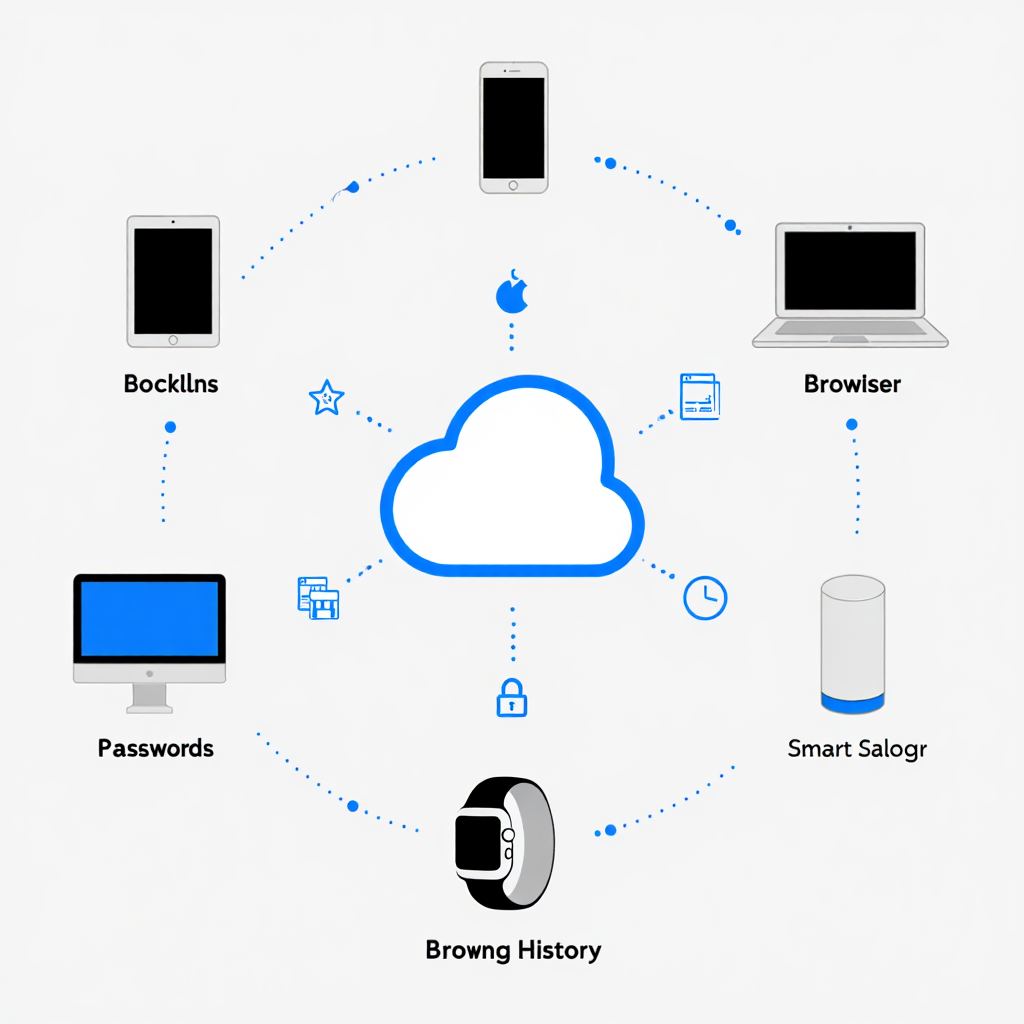
Browser sync takes all the important stuff from your web browser and stores it safely in the cloud. Think of it as your digital assistant that remembers everything about how you use the internet. When you bookmark a recipe on your phone during lunch, it shows up on your laptop when you get home to cook dinner. When you save a password on your work computer, you can use it on your personal tablet later.
Here’s what typically gets synced across your devices:
- Bookmarks and favorites
- Saved passwords and login information
- Browsing history
- Open tabs
- Browser settings and preferences
- Autofill information like addresses and credit cards
- Browser extensions and add-ons
- Search engine preferences
The magic happens through your browser account – whether that’s a Google account for Chrome, Microsoft account for Edge, Mozilla account for Firefox, or Apple ID for Safari. Once you sign in, your browser starts quietly backing up your data and sharing it with your other signed-in devices.
Why Should You Care About Syncing Your Browser Data?
Let’s be honest – we’re all using multiple devices these days. The average person switches between at least three different devices every day. Without sync, you’d have to manually recreate your bookmarks, remember all your passwords, and lose track of interesting articles you were reading.
Here are the real benefits you’ll notice:
Time Savings: No more typing the same passwords over and over or searching for that website you bookmarked on another device. Everything just works.
Better Security: Modern browser sync uses strong encryption to protect your data. It’s actually safer than writing passwords on sticky notes or using the same simple password everywhere.
Seamless Experience: Start reading an article on your phone during your commute and finish it on your laptop at home. Your open tabs can sync too.
Automatic Backups: If your device crashes or gets lost, all your browser data is safely stored in the cloud. You won’t lose years of bookmarks and saved passwords.
Cross-Platform Access: You can access your synced data whether you’re using Windows, Mac, iPhone, Android, or even Linux.
How to Set Up Browser Sync in Chrome
Chrome makes sync pretty straightforward since it’s built around your Google account. If you already use Gmail or any Google service, you’re halfway there.
Step 1: Sign In to Chrome Open Chrome and look for the profile icon in the top-right corner – it might show your initial or a generic person icon. Click on it and select “Turn on sync” or “Sign in to Chrome.”
Step 2: Enter Your Google Account Type in your Gmail address and password. If you don’t have a Google account, you’ll need to create one first. Don’t worry – it’s free and takes just a few minutes.
Step 3: Choose What to Sync Chrome will ask what you want to sync. You can choose everything or pick specific items. Most people find it easier to sync everything, but if you’re privacy-conscious, you might want to skip history or passwords.
Step 4: Confirm on Other Devices Open Chrome on your other devices – phone, tablet, work computer – and sign in with the same Google account. Chrome will start syncing your data automatically.
Security Note: Chrome uses end-to-end encryption for your passwords and payment information. Even Google can’t see your actual passwords – they’re encrypted with a key only you have.
Setting Up Firefox Sync
Firefox takes privacy seriously, and their sync system reflects that philosophy. They use a Mozilla account that’s separate from big tech companies.
Step 1: Create a Mozilla Account In Firefox, click the menu button (three horizontal lines) in the top-right corner. Look for “Sign in to Sync” and click it. You’ll need to create a Mozilla account if you don’t have one.
Step 2: Verify Your Email Mozilla will send you a verification email. Click the link in that email to confirm your account. This extra step helps keep your account secure.
Step 3: Set Up Sync Preferences Once verified, go back to Firefox and sign in. You can choose what to sync from the settings menu. Firefox lets you sync bookmarks, history, passwords, add-ons, preferences, and open tabs.
Step 4: Add Other Devices Install Firefox on your other devices and sign in with your Mozilla account. Your data will start syncing within minutes.
Firefox encrypts all your sync data before it leaves your device. They use a system where even Mozilla can’t read your personal information – it’s all encrypted with keys only you control.
Microsoft Edge Sync Setup
If you’re using Windows, Edge might already be connected to your Microsoft account. But let’s make sure everything is set up correctly.
Step 1: Access Sync Settings Click the three dots menu in the top-right corner of Edge. Go to Settings, then look for “Profiles” in the left sidebar. Click on “Sync.”
Step 2: Sign In with Microsoft Account If you’re not already signed in, click “Sign in to sync data.” Use your Microsoft account – the same one you might use for Windows, Outlook, or Xbox.
Step 3: Configure Sync Options Edge lets you choose exactly what to sync. You can turn on or off bookmarks, passwords, history, extensions, settings, and even which tabs you have open.
Step 4: Manage Sync Across Devices Download Edge on your phone or other computers and sign in with the same Microsoft account. Your data will sync automatically.
Microsoft uses enterprise-grade encryption to protect your sync data. If you use Edge for work, your personal browsing stays separate from your work profile.
Safari Sync Through iCloud
Safari sync works differently because it’s tied to Apple’s ecosystem. It’s incredibly smooth if you use Apple devices, but it only works within that ecosystem.
Step 1: Enable iCloud On your Mac, go to System Settings > Apple ID > iCloud. Make sure Safari is turned on. On your iPhone or iPad, go to Settings > [Your Name] > iCloud and toggle Safari on.
Step 2: Configure Safari Sync In Safari preferences on Mac, you can choose what to sync. Typically, this includes bookmarks, reading list, tabs, history, and passwords through iCloud Keychain.
Step 3: Set Up Keychain iCloud Keychain is Apple’s password manager that syncs across all your Apple devices. It’s automatically enabled when you turn on Safari sync, but you can manage it separately in iCloud settings.
Safari sync happens automatically in the background. Apple uses end-to-end encryption for your passwords and browsing data. Even Apple can’t see your synced information.
What Are the Security Risks We Should Know About?
While browser sync is generally safe, you should understand the potential risks so you can make informed decisions about your data protection and privacy.
Public Computer Risks Never sign into browser sync on public computers at libraries, internet cafes, or hotels. If you forget to sign out, the next person could access all your synced data. Always use guest mode or incognito browsing on shared computers.
Account Compromise If someone gets access to your Google, Microsoft, Mozilla, or Apple account, they can see all your synced browser data. That’s why using strong passwords are important and enabling two-factor authentication is crucial.
Data Breaches While browser companies use strong encryption, no system is perfect. That’s why many security experts recommend using a separate password manager instead of relying solely on browser sync for passwords.
Malicious Extensions Some browser extensions can access your synced data. Only install extensions from official stores and regularly review what extensions you have installed.
Privacy Considerations You Should Think About
Different browsers handle your privacy differently when it comes to sync. Understanding these differences helps you choose what’s right for you.
Data Collection Practices Chrome ties your sync data to your Google profile, which Google uses to improve their services and show you relevant ads. Firefox and Safari are more privacy-focused and don’t use your sync data for advertising.
Data Location Your synced data gets stored on servers owned by the browser company. Chrome data goes to Google servers, Edge data to Microsoft Azure, Firefox to Mozilla servers, and Safari to Apple’s iCloud.
Government Access Browser companies might be required to provide data to governments under certain circumstances. The level of encryption and company policies determine how much they can actually provide.
Third-Party Sharing Read the privacy policies to understand if and how your browser company shares data with third parties. This varies significantly between companies.
Troubleshooting Common Sync Problems
Sometimes sync doesn’t work as expected. Here are the most common issues and how to fix them.
Sync Not Working at All First, check your internet connection. Then make sure you’re signed into the same account on all devices. Sometimes signing out and back in fixes sync issues.
Missing Data If bookmarks or passwords aren’t syncing, check your sync settings. You might have accidentally turned off certain data types. Also, some browsers have limits on how much data they’ll sync.
Slow Syncing Large amounts of data can take time to sync, especially over slow internet connections. Be patient – it might take several hours for everything to appear on all devices.
Duplicate Bookmarks This happens when you import bookmarks from another browser while sync is enabled. Most browsers have tools to remove duplicates in their bookmark managers.
Password Conflicts If you have different passwords saved for the same site on different devices, browsers usually keep the most recently used one. You might need to manually update passwords that get overwritten.
Advanced Sync Features in 2025
Browser sync has gotten much more sophisticated in recent years. Here are some advanced features you might not know about.
Smart Tab Groups Chrome and Edge can now sync tab groups across devices. Start organizing tabs on your desktop and continue on your mobile device with the same groups.
Cross-Device Handoff Safari pioneered this, but other browsers are catching up. You can literally hand off what you’re doing from one device to another with just a few clicks.
Contextual Sync Some browsers now sync based on context. Work-related tabs and bookmarks stay separate from personal browsing, even within the same browser.
AI-Powered Suggestions Modern browsers use machine learning to suggest bookmarks, predict what you want to type, and even recommend articles based on your synced browsing history.
Enhanced Security Monitoring Browsers now monitor your synced passwords for data breaches and automatically suggest changing compromised passwords across all your devices.
How Browser Sync Affects Your Digital Security
Browser sync plays a big role in your overall cybersecurity strategy. When configured properly, it can actually make you more secure.
Password Management Benefits Having strong, unique passwords synced across all your devices makes you less likely to reuse weak passwords. This is especially important for protecting backup data from ransomware attacks.
Two-Factor Authentication Most browser accounts now support two-factor authentication. This adds an extra layer of security to all your synced data. Even if someone gets your password, they can’t access your synced information without your phone or authentication app.
Automatic Security Updates When your browser settings sync, security preferences and updates get applied across all your devices automatically. This helps ensure you’re always using the latest security features.
Breach Notifications Modern browsers monitor your synced passwords against databases of known breaches. If one of your passwords appears in a data breach, you’ll get notified on all your devices.
Best Practices for Safe Browser Syncing
To get the most benefit from browser sync while staying secure, follow these practical tips.
Use Strong Account Security Your browser account is the key to all your synced data. Use a strong, unique password and enable two-factor authentication. Consider this as important as your banking password.
Regular Security Checkups Most browsers offer security checkups that scan your synced passwords, check for breaches, and suggest improvements. Run these monthly.
Review Sync Settings Periodically Your needs might change over time. Maybe you want to stop syncing history for privacy reasons, or start syncing extensions for convenience. Review your settings every few months.
Monitor Connected Devices Check which devices are connected to your browser account. Remove old devices you no longer use. If you see devices you don’t recognize, change your password immediately.
Keep Browsers Updated Browser updates often include security improvements for sync features. Enable automatic updates or check for updates regularly.
The Future of Browser Sync Technology
Browser sync continues to evolve rapidly. Here’s what we can expect in the coming years.
Better Privacy Controls Future browsers will likely offer more granular privacy controls, letting you choose exactly what data gets synced where and for how long.
Cross-Browser Sync We might see standards that allow syncing data between different browsers – imagine using your Chrome bookmarks in Firefox seamlessly.
AI Integration Artificial intelligence will make sync smarter, automatically organizing your bookmarks, predicting what you need, and even cleaning up old data you no longer use.
Enhanced Encryption Encryption technology keeps improving. Future browsers might use quantum-resistant encryption to protect synced data from even more advanced threats.
Decentralized Sync Some browsers are exploring peer-to-peer sync that doesn’t rely on company servers, giving you complete control over your data.
Comparing Browser Sync Features
| Feature | Chrome | Firefox | Edge | Safari |
|---|---|---|---|---|
| Bookmarks | Yes | Yes | Yes | Yes |
| Passwords | Yes | Yes | Yes | Yes |
| History | Yes | Yes | Yes | Yes |
| Open Tabs | Yes | Yes | Yes | Yes |
| Extensions | Yes | Yes | Yes | No |
| Payment Info | Yes | No | Yes | Yes |
| End-to-End Encryption | Passwords only | All data | Passwords only | All data |
| Cross-Platform | Yes | Yes | Yes | Apple only |
| Free | Yes | Yes | Yes | Yes |
Making the Right Choice for Your Needs
Choosing the right browser sync depends on your specific situation and priorities.
For Privacy-Focused Users Firefox offers the strongest privacy protections with full end-to-end encryption and no data mining for advertising. Mozilla’s nonprofit status means they’re not trying to monetize your data.
For Apple Users Safari sync is incredibly smooth within the Apple ecosystem. If all your devices are Apple products, Safari provides the most seamless experience with strong security.
for Windows Users Edge integrates perfectly with Windows and Microsoft services. If you’re already invested in the Microsoft ecosystem, Edge sync makes everything work together smoothly.
For Cross-Platform Users Chrome works everywhere and has the most features. If you use a mix of different devices and operating systems, Chrome sync is probably your best bet.
For Business Users All major browsers offer business versions with additional security and management features. Consider your company’s IT policies when choosing which browser to sync.
Frequently Asked Questions
Does browser sync work without internet? No, browser sync requires an internet connection to upload and download your data. However, your local bookmarks and passwords will still work offline until you can reconnect.
Can I sync data between different browsers? No, each browser has its own sync system. You can’t directly sync Chrome data to Firefox, for example. However, you can export and import data manually when switching browsers.
Is browser sync the same as cloud storage? No, browser sync is specifically for browser data like bookmarks and passwords. It’s not for storing documents, photos, or other files like traditional cloud storage services.
What happens if I delete something on one device? Yes, deletions sync too. If you delete a bookmark on your phone, it will disappear from all your synced devices. Some browsers keep deleted items in a trash folder for a while.
Can I sync only certain types of data? Yes, all major browsers let you choose what to sync. You might want to sync bookmarks but not history, or passwords but not autofill information.
How much data can I sync? Most browsers don’t have strict limits, but extremely large amounts of data might sync slowly. If you have thousands of bookmarks or a very long history, syncing might take time.
Is browser sync secure on public Wi-Fi? Yes, browser sync uses encrypted connections (HTTPS) to transfer data, so it’s safe even on public Wi-Fi. However, avoid signing into your accounts on public computers.
What happens if my browser account gets hacked? Change your password immediately and sign out of all devices. Most browsers let you remotely sign out of all devices from your account settings. Enable two-factor authentication to prevent future breaches.
Can employers see my synced browser data? If you’re using a work device or work account, your employer might have access to some data. Check your company’s IT policies and consider using personal devices for personal browsing.
Does browser sync slow down my computer? No, browser sync happens in the background and uses minimal resources. You shouldn’t notice any performance impact from having sync enabled.
Conclusion
Browser sync has become an essential tool for anyone who uses multiple devices. While there are some security considerations to keep in mind, the benefits far outweigh the risks when you set it up properly. Whether you choose Chrome, Firefox, Edge, or Safari, the key is understanding how each system works and configuring it to match your privacy and security needs.
Remember that browser sync is just one part of a good digital security strategy. Combine it with strong passwords, regular security updates, and smart browsing habits for the best protection. As technology continues to evolve, browser sync will only get more useful and more secure, making our multi-device lives even more seamless.
The future of browsing is connected, and with the right setup, you can enjoy that connectivity safely and efficiently across all your devices.
You May Also Like
 Web Development
What Is API Rate Limiting? (A Practical, Simple Guide for Safer, Faster APIs)
 Web Development
REST API vs SOAP API: Differences, Pros & Cons, and Use Cases
 Cybersecurity
What Is Zero Trust Network Access (ZTNA)? How It Works, How It Differs From a VPN, and When to Use It
 Cybersecurity
What Is Netskope? Cloud Security, SASE, and Zero Trust Explained
 Cybersecurity
Is Fanatical Legit and Safe? My Honest Take on Buying Game Keys
 Data Security & Privacy
Is Gameflip Legit and Safe for Gift Cards? What Buyers Should Know
 Data Security & Privacy
Is Eldorado.gg Legit and Safe in 2026? My Investigation and What Buyers Should Know
 Web Development
Supabase vs Firebase: Which Backend Platform is Right for Your Project?
 Cloud Computing