

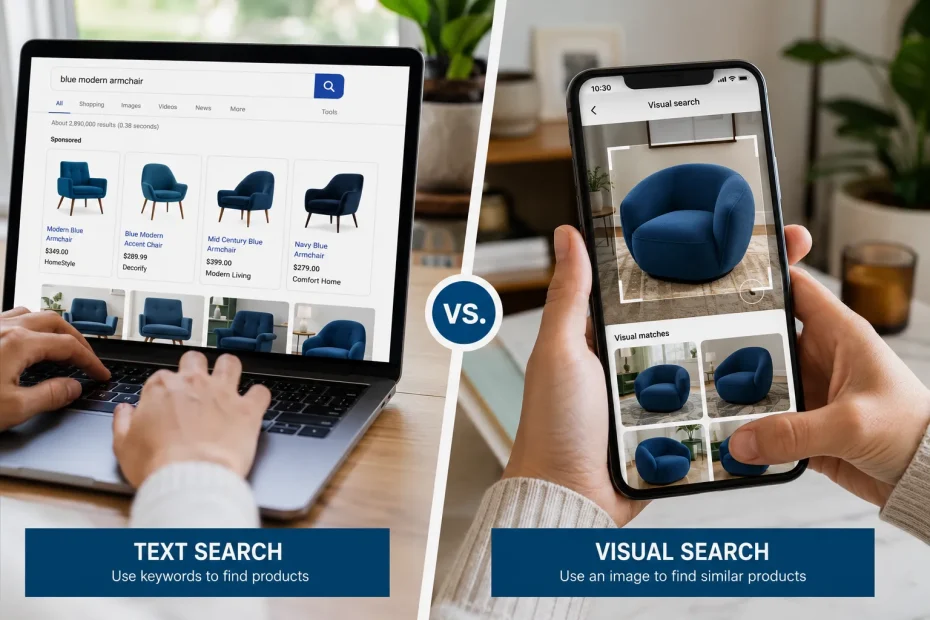
Reverse image search is a method that uses an image as the query to find its source, similar images, or information about its contents online. Instead of typing keywords, you provide a picture to a visual search engine, which analyzes its pixels, colors, and shapes to find matching or related visual content across the web. This technique is invaluable for verifying sources, identifying objects, and exploring visual information.
Key Takeaways
- Reverse Image Search Explained: It’s the process of using an image (instead of text) as your search query to find its origin, other instances of it online, and visually similar pictures.
- How It Works: Visual search engines like Google Images, Bing Visual Search, and Yandex analyze the input image’s “fingerprint”, colors, patterns, and objects, to find matches.
- Top Tools: The most powerful and popular image search tools include Google Images (with Google Lens), Bing Visual Search, Yandex, and specialized tools like TinEye.
- AI is a Game-Changer: AI image search, particularly with tools like Google Lens, allows for more sophisticated queries, including identifying multiple objects in a scene, translating text, and now searching with short videos and spoken questions.
- Practical Uses: Common applications include fact-checking news photos, finding the source of a meme, identifying plants or animals, finding products to buy, and discovering copyright infringement.
- Advanced Techniques: You can refine your search for better results by using filters for size, color, usage rights, and file type.
- Mobile vs. Desktop: The process differs slightly. Mobile searching is often easier with features like Google Lens integrated into the camera, while desktop is great for searching with saved image files.
I still remember the first time a reverse image search felt like pure magic. I was trying to identify a strange, beautiful flower I’d photographed on a hike. Typing descriptions like “purple spiky flower with yellow center” into a text search bar was getting me nowhere. On a whim, I uploaded the photo itself to Google Images. Instantly, I had a name: Echinacea purpurea, or the purple coneflower. It wasn’t just a name; I found articles on its medicinal properties, growing zones, and look-alikes. That was my lightbulb moment. Searching with words is powerful, but searching with pictures opens up an entirely new way to understand the world.
This guide is the culmination of years of using these tools as a content creator and researcher. We’re going to move beyond basic text queries and dive deep into the world of visual search. I’ll show you the best image search techniques, from simple reverse image lookup to advanced AI image search methods. Whether you’re a student trying to find an image source for a paper, a shopper looking for a specific product, or just a curious person wanting to identify something you’ve seen, this guide will equip you with the skills to become an expert image finder. We’ll cover everything from Google Images search and Google Lens search to alternatives like Bing Visual Search and Yandex, giving you a complete toolkit for your online image search needs.
What Is Reverse Image Search and How Does It Work?
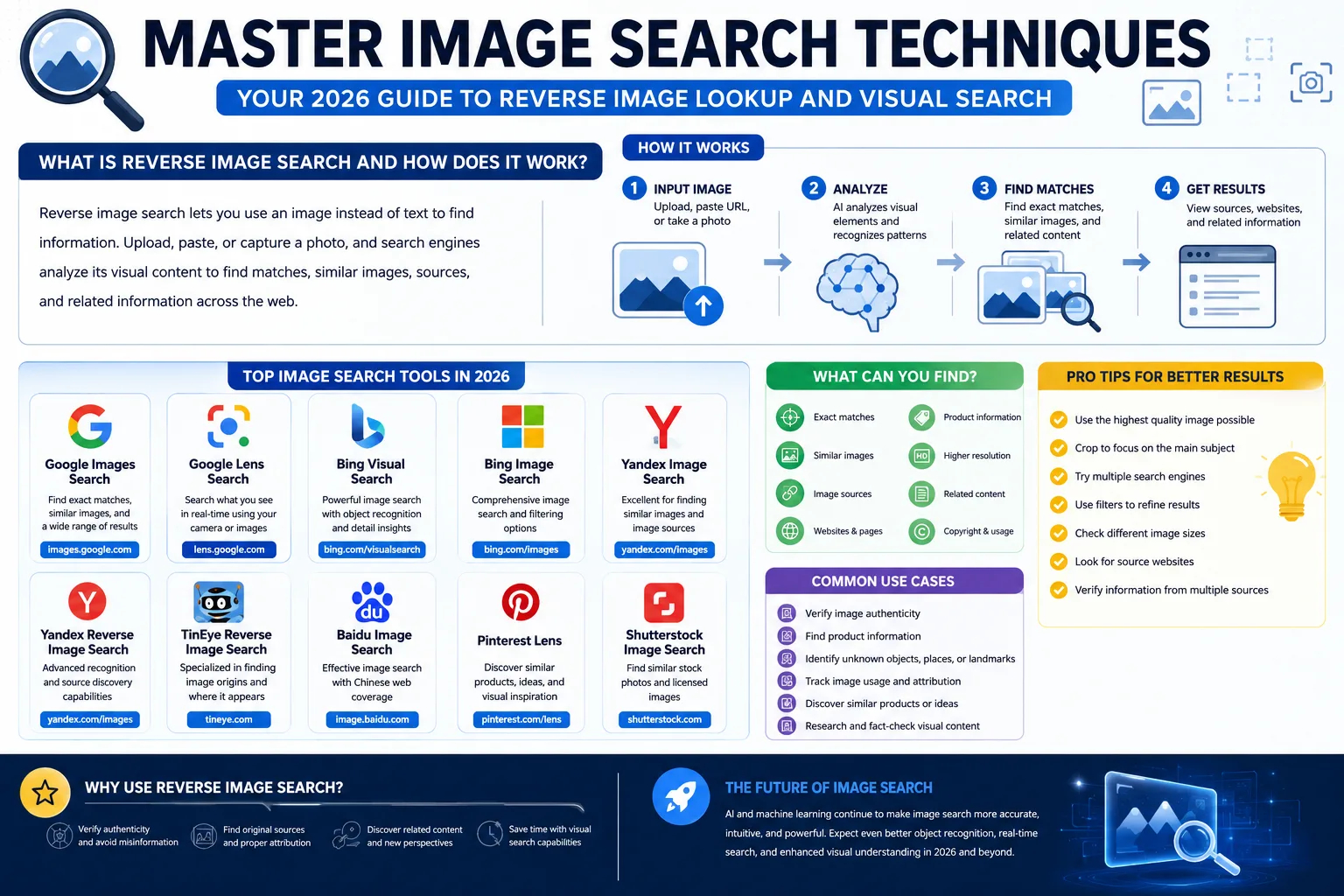
A reverse image search is a technique where you use an image as your search query instead of text. Basically, you upload a photo or paste an image URL into a search engine, and it scours the web for that image, finding websites where it appears, locating similar-looking photos, and identifying the objects or people within it.
Think of it like a digital fingerprint scanner for pictures. When you upload an image, the visual search engine doesn’t “see” it like a human does. Instead, it creates a unique mathematical model, sometimes called an embedding or “fingerprint”, of the image. It analyzes key features like colors, shapes, textures, and patterns. Then, it compares this against the billions of images in its database to find others with matching or similar signatures. This allows it to find exact copies of your image, even if they’ve been resized, cropped, or slightly edited.
Key Differences: Text Search vs. Visual Search
| Feature | Text-Based Image Search | Reverse Image Search (Visual Search) |
|---|---|---|
| Query Type | You type keywords (e.g., “cute cat”) | You upload an image or provide a URL |
| Goal | To find images that match your description | To find the source/context of a specific image |
| How it Works | Matches your keywords to image filenames, alt text, and surrounding text | Analyzes the visual data of the image itself to find matches |
| Best For | Finding general types of images | Identifying an unknown object, person, or place; fact-checking; finding higher-quality versions of an image |
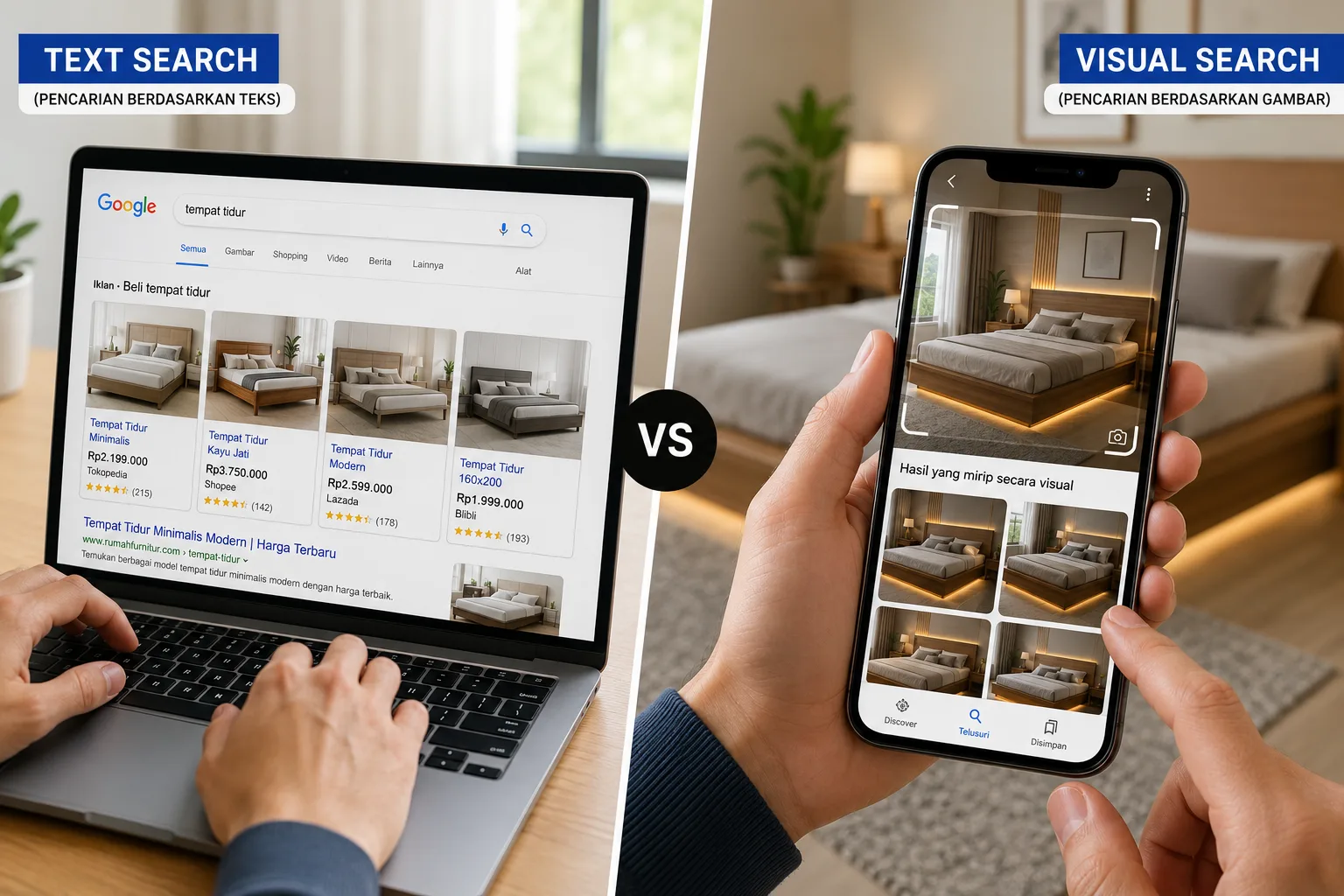
In other words, you use a text search when you have an idea in your head and need to find a picture of it. You use a reverse image search when you already have a picture and need to find information about it.
How to Search by Image: A Step-by-Step Guide
Learning how to search by image is a fundamental digital literacy skill in 2026. The good news is that the major search engines have made this process straightforward. Here’s a breakdown of the most popular image lookup tools.
1. Google Images Search and Google Lens
Google’s visual search engine is second to none. It offers two primary methods: the classic desktop reverse image search and the more powerful, AI-driven Google Lens.
On a Desktop Computer:
- Navigate: Go to images.google.com.
- Click the Camera Icon: Look for the camera icon in the search bar. This is the “Search by image” button.
- Upload or Paste: You’ll see two options:
- Paste image link: Copy the URL of an image you found online and paste it here.
- Upload a file: Click this to upload an image directly from your computer.
- Review Results: Google will show you a results page with a link to the likely source, visually similar images, and websites that contain your image.
On a Mobile Device (Using Google Lens):
Google Lens has largely replaced the classic reverse image search on mobile because it’s so much more powerful.
- From Your Photos: Open the Google Photos app, select an image, and tap the “Lens” icon at the bottom.
- With Your Camera: Open the Google app or the dedicated Lens app and tap the camera icon. Point your camera at any object in the real world.
- From a Website: In the Chrome app, press and hold on any image and select “Search image with Google Lens.”
What makes Lens so special is its AI image search capability. It doesn’t just find copies of the image; it identifies what’s in the image. You can use it to identify a dog’s breed, solve a math problem, translate a menu, or find a chair you saw in a magazine. Google began rolling video and voice search into Lens in late 2024, letting you record a short clip and ask a spoken question about what’s happening in it, an aquarium fish, a museum painting, anything you can point a camera at. Voice-based questioning expanded to a global rollout for English queries in 2026, and Lens now leans on Google’s Gemini models to interpret both the footage and the question together.
2. Bing Visual Search
Microsoft’s Bing image search has a powerful Bing Visual Search feature that is a strong competitor to Google’s.
- Navigate: Go to bing.com/images.
- Click the Visual Search Icon: It looks like a camera with a magnifying glass inside the search bar.
- Upload, Paste, or Take a Photo: Bing gives you three options:
- Drag an image into the box.
- Browse your computer for a file.
- Paste an image or URL.
- Explore the Results: Bing’s results page is quite intuitive. It will show you pages with the image, other resolutions of the photo, and visually similar content. It often excels at identifying products within an image and providing shopping links.
3. Yandex Reverse Image Search
Though less known in the US, the Russian search engine Yandex has a Yandex image search that specialists (journalists, OSINT researchers, and people vetting online dating profiles) often reach for specifically because its facial-matching is more aggressive than Google’s or Bing’s, and it indexes Russian, Eastern European, and Asian sites more thoroughly than Western engines do.
- Navigate: Go to yandex.com/images.
- Click the Camera Icon: It’s located on the right side of the search bar.
- Select or Upload: You can either upload an image file or paste an image URL.
- Analyze the Results: Yandex will show you different sizes of the image it found and a list of sites where it appears.
One thing worth knowing before you use it: Yandex is a Russian company, and images you upload are processed on Russian servers. If you’re searching something sensitive, that’s a real privacy tradeoff to weigh, not just a technical footnote.
4. TinEye Reverse Image Search
TinEye is a specialized reverse image lookup tool. It doesn’t find visually similar images; its one and only job is to find exact and modified copies of an image to tell you where it came from. This makes it one of the best image search tools for journalists, photographers, and anyone needing to track down the original source of a picture.
- Navigate: Go to tineye.com.
- Upload or Paste: You have the simple choice to upload an image or paste an image URL.
- Check the Results: TinEye will present a list of every website where it found that exact image. It’s excellent for seeing how an image has spread across the web and is particularly useful for finding out if your own photography has been used without permission.
Advanced Image Search Tips for Better Results
Once you’ve mastered the basics, you can use advanced image search tips and filters to narrow down your results and find exactly what you’re looking for. These techniques transform a simple search into a precision tool.
Most search engines like Google and Bing have a “Tools” button that appears after you perform an initial search. Clicking this reveals a set of powerful filters.
1. Filter by Usage Rights
This is arguably the most important advanced filter for any content creator, marketer, or web developer. You can’t just grab any image from the web and use it on your site; that’s a recipe for a copyright infringement dispute.
- Creative Commons licenses: These are images that creators have allowed the public to use under certain conditions (e.g., you might need to give attribution).
- Commercial & other licenses: This category includes stock photos that you may need to purchase or images that are free to use for commercial projects.
How to Use It: On the Google Images results page, click Tools > Usage Rights and select the appropriate license for your needs. This is the safest way to find images for your blog, presentation, or business website.
2. Filter by Size
Are you looking for a high-resolution wallpaper for your 4K monitor or a small icon for a website? The size filter is your best friend.
- Large: Best for prints, desktop backgrounds, or high-quality design work.
- Medium: Good for blog posts, articles, and web content.
- Small/Icon: Useful for favicons, bullets, or small web elements.
How to Use It: Go to Tools > Size and select from the options. This simple step can save you from downloading a pixelated, unusable image.
3. Filter by Color
This is a fantastic tool for graphic designers and marketers who need to find images that match their brand’s color palette.
- Full color: The default option.
- Black and white: Filters for monochrome images.
- Transparent: Incredibly useful for finding logos, icons, and other graphics with a transparent background (.png files) that you can easily place over other content.
- Specific Color: You can choose a specific color (e.g., blue), and the search engine will return images where that color is dominant.
How to Use It: Click Tools > Color and make your selection. I use the “Transparent” filter almost daily to find logos or icons without a pesky white box around them.
4. Filter by Type
This filter helps you find specific kinds of images.
- Clip Art: Simple, cartoon-like drawings.
- Line Drawing: Black and white sketches.
- GIF: Animated images.
How to Use It: Go to Tools > Type. This is perfect when you need a specific artistic style.
5. Use Search Operators
Just like with text search, you can use operators to refine your query. For example, in Google Images, you can use:
site:[website.com]: Add this to your text query to find images only from a specific website. For example,modern architecture site:pinterest.com.filetype:png: To find PNG files, which often have transparent backgrounds. For example,arrow icon filetype:png.
Practical Applications: Why Master Image Search?
These photo search techniques aren’t just for fun; they have real-world applications across many professions and daily tasks. Fact-checkers rely on them constantly, since an image search can reveal in seconds whether a “breaking” photo is actually years old or from an unrelated event.
For Fact-Checkers and Journalists
In an age of misinformation, image identification is crucial. Journalists use reverse image search to:
- Verify the source of a photo: Is that dramatic photo from a protest happening now, or is it from a different event five years ago? A quick search can expose fake news.
- Debunk memes and viral images: Find out where an image originated before it was turned into a meme with a false caption.
- Find the original context: See the story that an image was originally published with.
For Shoppers and eCommerce
Visual content search is changing how we shop.
- “Search what you see”: See a pair of shoes you love on the street? Snap a photo and use Google Lens to find where to buy them online.
- Find similar products: Upload a picture of a piece of furniture you like to find similar styles at different price points.
- Price comparison: Find if other retailers are selling the same product for less.
For Content Creators and Photographers
- Discover copyright infringement: Photographers can use tools like TinEye to see if their work is being used without permission or payment.
- Find inspiration: See how other creators have visualized a concept.
- Source attribution: Find the original creator of an image to give them proper credit.
Conclusion
The ability to search with an image has fundamentally changed how we interact with visual information online. What started as a simple tool to find copies of a photo has evolved, thanks to AI, into a sophisticated visual search engine that can identify, translate, and connect the world around us. Mastering these image search techniques, from a basic Google Images search to a nuanced Google Lens search or a specialized TinEye reverse image search, is no longer just a neat trick. It’s an essential skill for navigating the digital world responsibly and efficiently.
So the next time you encounter an image and wonder about its story, don’t just guess. Use the image search methods outlined in this guide. Upload it, search it, and unlock the wealth of information hidden within its pixels. You’ll be amazed at what you can find.
You May Also Like
 SaaS
SaaSWhat Is No-Code Automation? How It Works, Benefits, and Risks
 Web Scraping
TinyFish.ai Review: Is It the Best AI Agent for Web Scraping
 AI Technology
ChatGPT API Alternatives: 13 AI APIs and Platforms for Developers
 Web Development
Building Apps with Lovable and Supabase: A Step-by-Step Guide
 AI Tools
10 Best PDF Extraction APIs for Text, Tables, OCR, and Structured Data
 Web Scraping
What Is AI Web Scraping? A Complete Guide to AI-Powered Data Extraction
 Web Scraping
Scrapy in Python: A Practical Guide to Web Scraping
 AI Tools
15 Best Free AI APIs for Developers: Free Tiers, Credits, and Limits Explained
 AI Technology