


If you play GameCube or Wii games on Dolphin, you’ve probably run into RVZ files. They’re small, they load fast, and Dolphin loves them. But sometimes you need the game in ISO format instead — maybe for a USB loader on a real Wii, or for a tool that doesn’t know what RVZ even is.
The good news: converting RVZ to ISO is simple once you know the right tool. The bad news: a lot of guides online get the steps wrong, telling you to “extract” the RVZ file with WinRAR or 7-Zip first. You don’t need to do that, and it won’t actually work — RVZ isn’t a zip-style archive, so archive tools can’t open it. The only tool that can reliably read and convert an RVZ file is Dolphin itself.
This guide walks through what RVZ and ISO files actually are, why you’d want to convert between them, and the correct step-by-step process using Dolphin’s built-in converter.
What Is an RVZ File?
RVZ is a compressed disc image format built specifically for the Dolphin emulator. The Dolphin team created it in 2020 to replace older compressed formats like GCZ, giving players a way to store GameCube and Wii games using much less hard drive space.
Here’s what makes RVZ smart: GameCube and Wii discs contain a lot of “junk data” — padding and filler that doesn’t affect the actual game. RVZ compresses that junk data heavily while keeping the real game data intact. The result is a smaller file that still plays exactly like the original disc, with no loss in quality.
The tradeoff is that RVZ only works with Dolphin. You can’t mount it as a virtual disc, open it with 7-Zip, or use it on a modded Wii console. If you need the file to work anywhere other than Dolphin, you’ll need to convert it.
What Is an ISO File?
An ISO file is a plain, uncompressed copy of a game disc. Think of it as a digital clone of the original CD or DVD — every byte in the same place it would be on the physical disc.
GameCube ISO files are usually around 1.4 GB. Wii ISO files are typically about 4.7 GB, though some larger, dual-layer Wii games can reach up to 8.5 GB. Because nothing is compressed, ISO files take up more space than RVZ files of the same game — sometimes quite a bit more.
What ISO gives up in file size, it makes up for in compatibility. ISO is a standard format that works with:
- USB loaders on modded Wii consoles
- Other emulators besides Dolphin
- Disc-burning software, if you want a physical backup
- Older tools and hardware that were never built to understand RVZ
RVZ vs. ISO: Which One Do You Actually Need?
Most of the time, you don’t need to choose — just keep your games in RVZ if you’re only ever playing them in Dolphin. It’s smaller, loads just as well, and Dolphin was built around it.
Convert to ISO only when you have a specific reason, such as:
- You want to play the game on a real Wii through a USB loader.
- You’re using a different emulator or tool that doesn’t support RVZ.
- Another program you’re using (a save editor, a disc-verification tool, and so on) expects a standard ISO.
If none of those apply to you, there’s no real benefit to converting — you’d just be using more storage space for the same game.
What You Need Before You Start
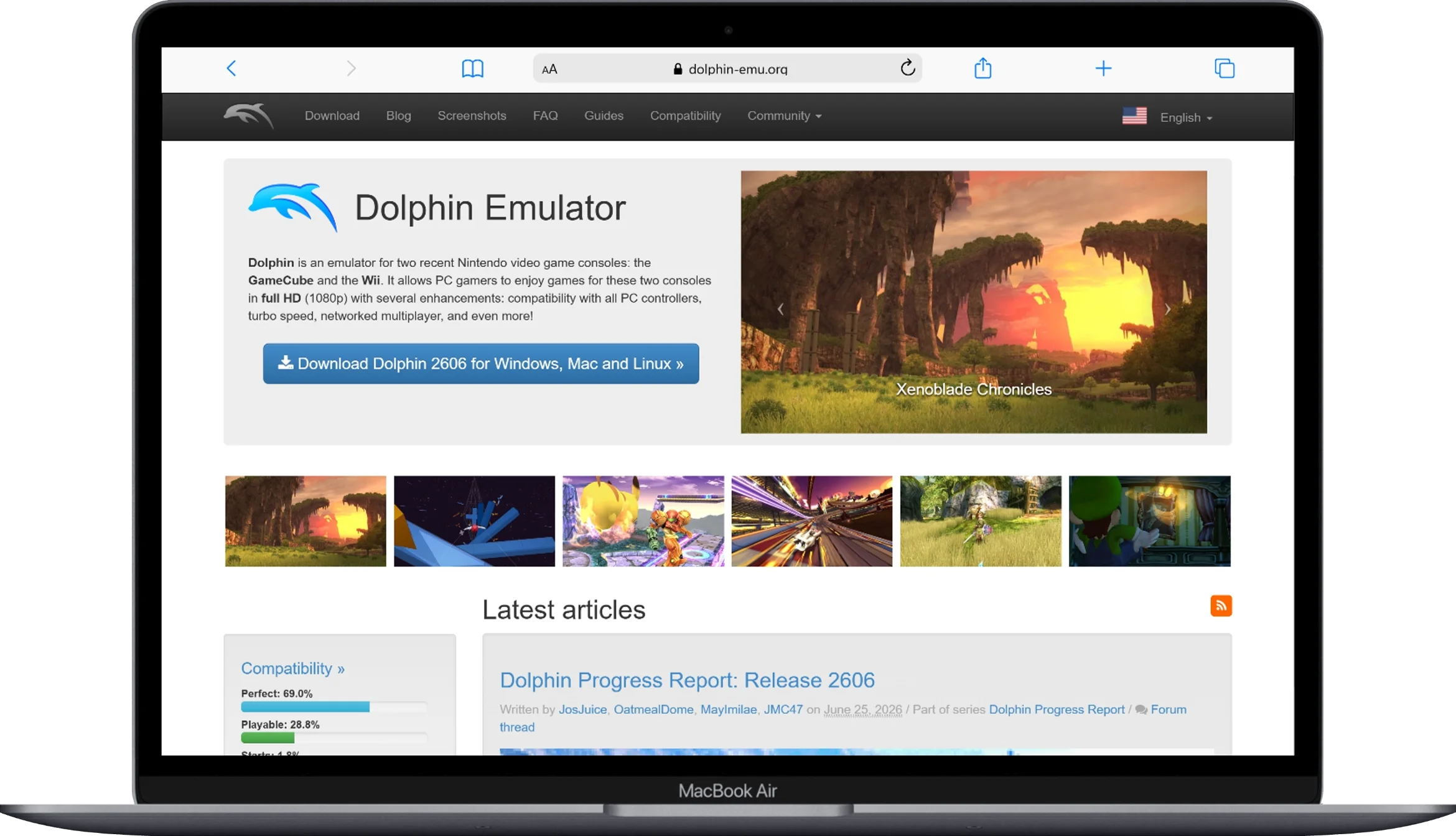
You only need one thing: the Dolphin Emulator, downloaded from the official Dolphin website. Don’t use random “RVZ to ISO converter” tools you find online — RVZ’s compression is specifically built around Nintendo’s disc structure, and most third-party tools can’t process it correctly. Dolphin’s own converter is the safest and most reliable option.
You do not need WinRAR, 7-Zip, or any other archive tool. RVZ files cannot be opened or extracted by archive software, even though the name sounds like it might work that way.
How to Convert RVZ to ISO Using Dolphin (Step-by-Step)
Here’s the actual process, matching how Dolphin’s converter works:
- Open Dolphin and make sure the folder containing your RVZ file is added to your game list. (In Dolphin, go to Config → Paths and add the folder if it isn’t already listed.)
- Your RVZ game should now show up in Dolphin’s main game list.
- Right-click the game in the list.
- Select “Convert File…” from the menu that appears.
- In the conversion window, set the Format dropdown to ISO.
- Choose where you want the new file saved.
- Click Convert and wait for Dolphin to finish. Larger Wii games can take a few minutes.
Once it’s done, you’ll have a standard ISO file sitting alongside (or replacing) your original RVZ file, depending on the option you chose during conversion.

Common Problems and How to Fix Them
The RVZ File Doesn’t Show Up in Dolphin’s Game List
This is almost always a folder path problem, not a file problem. Try this:
- Open Dolphin’s settings and check that the folder holding your RVZ file is listed under Config → Paths.
- Turn on “Search Subfolders” if your RVZ files are stored inside subfolders.
- Double-check the file actually ends in
.rvzand wasn’t renamed or corrupted during download.
“Convert File” Option Is Missing or Greyed Out
Make sure you’re right-clicking on the game itself in Dolphin’s main list, not a shortcut or a folder. If the game isn’t recognized by Dolphin at all, it won’t show the conversion option — which usually points back to the path issue above.
The Conversion Fails or Freezes
A few common causes:
- The RVZ file is incomplete or corrupted. This can happen if a download was interrupted. Try re-downloading the file from its original source.
- You’re running an outdated version of Dolphin. RVZ support has improved a lot since it was introduced, so an old build may struggle with newer RVZ files. Update to the latest Dolphin release and try again.
- You’re low on disk space. Remember, ISO files are bigger than RVZ files, so make sure you have enough free space before converting.
Frequently Asked Questions
Do I lose any quality when I convert RVZ to ISO?
No. RVZ is a lossless format, meaning converting it to ISO and back doesn’t lose or change any game data. You’re just changing how the same data is stored.
Why is my ISO file so much bigger than the RVZ file?
Because RVZ compresses the disc’s junk data, while ISO stores everything uncompressed. Depending on the game, RVZ can shrink a file significantly compared to its ISO version — that gap is exactly what you’re giving up when you convert.
Can I convert an ISO back to RVZ later?
Yes. Dolphin’s “Convert File” option works both directions — you can go from ISO to RVZ using the same menu, just by choosing RVZ as the output format instead.
Do I need to convert my whole game library to ISO?
No, and it’s usually not a good idea. Only convert the specific games you need in ISO format for a particular use — like loading onto a real Wii. Keep the rest in RVZ to save space.
Can I use an online converter instead of Dolphin?
It’s not recommended. RVZ uses compression built specifically around Nintendo disc structures, so most generic online converters either fail outright or produce a broken file. Dolphin’s built-in converter is the tool actually designed to do this correctly.
Conclusion
Converting RVZ to ISO isn’t complicated — the confusion mostly comes from outdated guides that add unnecessary steps like archive extraction. In reality, Dolphin handles the entire conversion by itself: right-click the game, choose Convert File, select ISO, and you’re done.
The bigger question is whether you need to convert at all. If you’re only playing on Dolphin, RVZ is the better choice — smaller file size, same game, no downsides. Save the conversion to ISO for the times you genuinely need it, like using a USB loader on real hardware or working with software that doesn’t support RVZ.
You May Also Like
 Online Services
What’s an RVZ File and How Do You Open It?
 Online Services
USB Loader GX RVZ Support Guide & Tips
 Online Services
WBFS vs RVZ: Which is Safer for Game Storage?
 Online Services
Converting WBFS to RVZ in Dolphin: Is It Worth It?
 Online Services
Is Romspedia Safe And Legal? Beware Before Using it!
 Online Services
Winlator 7.1: Seamless PC Gaming on Android
 Online Services
Is G2A Legit And Safe? A Deep Look at the Game Key Marketplace
 Online Services
The Spark Shop: Stylish Kids Clothes for Baby Boys & Girls
 Online Services