

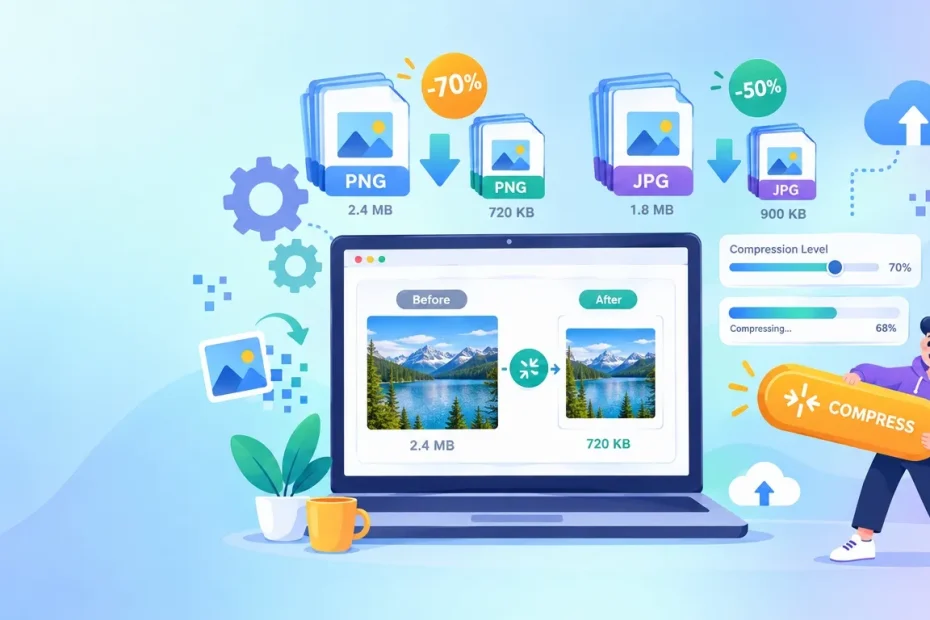
Large image files can slow down websites, consume storage, and make uploads frustrating—especially on mobile connections. A reliable image compressor reduces file size while preserving enough visual quality for websites, email, social media, online forms, and everyday sharing.
For most people, TinyPNG is the best free image compressor overall because it is fast, easy to use, and supports batch compression. Squoosh is better when you want precise control over quality and modern formats such as WebP or AVIF. Mac users who prefer local processing should consider ImageOptim, while Compress2Go is useful when you need to reach a specific file size.
Quick recommendations
- Best overall: TinyPNG
- Best for advanced quality control: Squoosh
- Best offline compressor for Mac: ImageOptim
- Best for target file sizes: Compress2Go
- Best for private, browser-based compression: Optimizilla
- Best for lossy and lossless modes: Kraken.io
- Best for large batches: ShortPixel
- Best compressor with editing tools: PicResize
- Best for converting images: Online-Convert
- Best for animated GIFs: iLoveIMG or Optimizilla
Last verified: September 17, 2026. Free limits, supported formats, and pricing can change. Check the provider’s website before processing a large batch.
The best free image compressors compared
| Image compressor | Best for | Supported formats* | Batch processing | Where processing occurs | Main free limitation |
|---|---|---|---|---|---|
| TinyPNG | Fast, beginner-friendly compression | WebP, JPEG, PNG | Up to 20 files | Cloud | 5 MB per file |
| ImageOptim | Mac users and local workflows | Common web image formats | Yes | On your Mac | macOS only |
| Compress JPEG | JPG photos and manual quality control | JPEG | Up to 20 files | In your browser | JPEG-focused |
| CompressNow | Simple percentage-based compression | JPG, JPEG, PNG, GIF | Up to 10 files | Cloud | 9 MB per file |
| Kraken.io | Lossy, lossless, and expert modes | Multiple web formats | Up to 20 files | Cloud | 1 MB per file |
| Squoosh | Detailed visual comparison | JPEG, PNG, WebP, AVIF, and more | Primarily one at a time | In your browser | Not ideal for large batches |
| Optimizilla | Private browser-based compression | JPEG, PNG, WebP, GIF, SVG | Yes | In your browser | Limited workflow automation |
| Compress2Go | Compressing to a target size | JPG, PNG, GIF, WebP, BMP, TIFF | Up to 5 without an account | Cloud | 50 MB per file |
| iLoveIMG | Convenient bulk compression | JPG, PNG, GIF, SVG | Yes | Cloud | Free-plan processing limits |
| JPEG Optimizer | JPEG resizing and target-size compression | JPEG; separate tools for PNG and GIF | Up to 20 JPEGs | Online | Main compressor is JPEG-focused |
| PicResize | Compression plus basic editing | Common image formats | Batch resizing available | Cloud | Fewer advanced codec controls |
| Compressor.io | Quick multi-format compression | JPG, PNG, GIF, SVG, WebP | Limited | Cloud | 10 MB per file |
| ShortPixel | Large batches and WebP/AVIF output | JPG, PNG, GIF, WebP, AVIF | Up to 50 files | Cloud | 10 MB per file without login |
| FreeConvert | Large files and flexible settings | JPG, PNG, GIF | Yes | Cloud | Free usage restrictions may apply |
| Online-Convert | Format conversion and image settings | Many image formats | Yes | Cloud | 100 MB free upload limit |
*Format availability may depend on whether you are compressing, converting, or exporting an image.
How we evaluated these image compressors
This list prioritizes tools that offer a genuinely useful free option rather than only a short trial. We reviewed each service using the following criteria:
- Compression options: Lossy, lossless, quality-based, or target-size compression.
- Image format support: Including JPG, JPEG, PNG, WebP, AVIF, GIF, and SVG where available.
- Batch processing: Whether multiple images can be compressed in one job.
- Ease of use: Upload workflow, previews, downloads, and account requirements.
- Privacy: Whether files are uploaded to a server or processed locally.
- Free-plan limits: File size, number of images, and feature restrictions.
- Additional features: Resizing, format conversion, metadata removal, and cloud imports.
- Technical transparency: Whether the provider clearly explains its limits and processing method.
Compression results vary considerably by image content. A detailed photograph, flat-color logo, transparent PNG, and animated GIF will not achieve the same reduction. For that reason, we do not treat provider claims such as “up to 80% smaller” as guaranteed results.
Why should you compress images?
Image compression is not only about saving storage. It can improve how quickly people access and interact with your content.
Faster page loading
Images are often among the largest resources on a webpage. Reducing unnecessary image bytes can shorten download times, particularly for visitors using mobile data or slower connections.
Compression can also help improve loading metrics when an image is the page’s Largest Contentful Paint element. However, compression alone does not guarantee better rankings or Core Web Vitals. Image dimensions, responsive delivery, caching, lazy loading, server response time, and rendering behavior also matter.
Lower bandwidth and storage use
Compressed photos and graphics take up less space on:
- Websites and content management systems
- Cloud storage accounts
- Smartphones and computers
- Email servers
- Backup systems
- E-commerce platforms
The savings become more meaningful when a site contains hundreds or thousands of product photos, screenshots, or blog images.
Easier uploads and sharing
Smaller images generally upload and download faster. Compression can help when submitting:
- Profile pictures
- Job or university applications
- Government forms
- Email attachments
- Marketplace listings
- Social media posts
- Client previews
Some compressors can target a specific output size, such as 50 KB, 100 KB, or 1 MB.
Better website performance
Properly optimized images can reduce page weight and improve the experience for visitors. For the best result, combine compression with:
- Correct image dimensions
- Responsive
srcsetattributes - WebP or AVIF delivery where appropriate
- Descriptive file names
- Useful alt text
- Browser caching
- A content delivery network
- Lazy loading for below-the-fold images
1. TinyPNG — Best Free Image Compressor Overall
TinyPNG is one of the easiest options for compressing images online. Despite its name, the service supports WebP, JPEG, and PNG files.
The free web interface currently accepts up to 20 images per batch, with a maximum size of 5 MB per file. Upload your files, wait for optimization to finish, and download them individually or together.
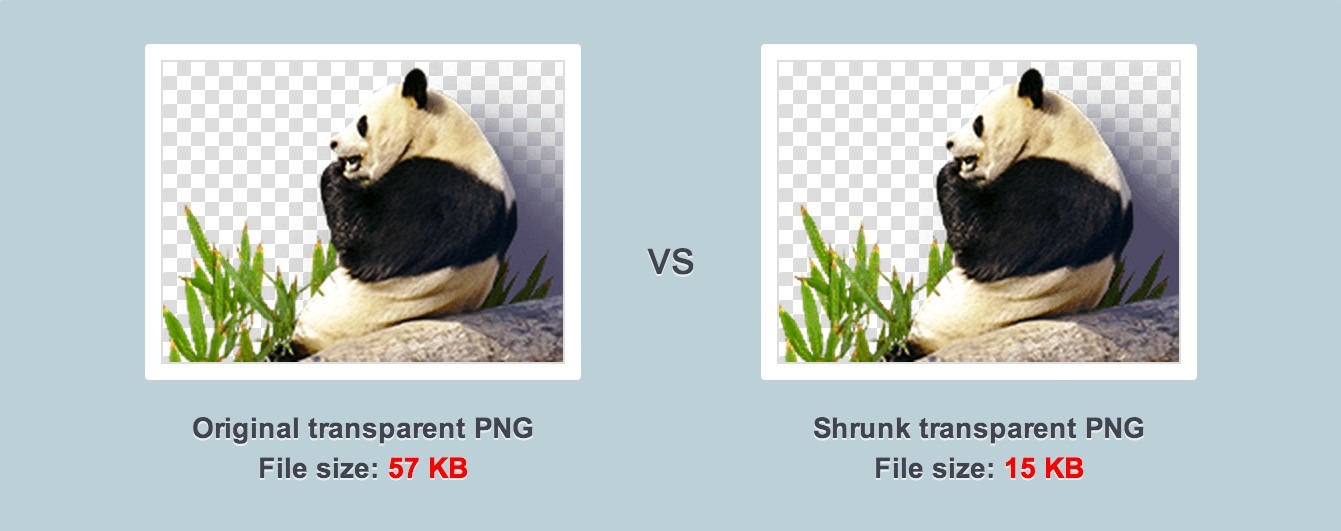
TinyPNG uses lossy optimization designed to remove image data that is unlikely to produce an obvious visual difference. It is particularly convenient for blog images, product photos, social media graphics, and routine website optimization.
Key features
- Compresses WebP, JPEG, and PNG files
- Processes up to 20 images in one batch
- Accepts files up to 5 MB each on the free web interface
- Requires no account for basic compression
- Offers plugins and an API for automated workflows
Pros
- Very easy for beginners
- Fast batch workflow
- Consistently simple interface
- Good balance between file size and visual quality
Cons
- The 5 MB limit may be restrictive for high-resolution photos
- It does not provide the detailed codec controls found in Squoosh
- Images are uploaded to TinyPNG’s servers
Privacy note
TinyPNG’s terms state that submitted images may be stored temporarily and are deleted within a maximum of 48 hours. Avoid uploading confidential or sensitive images unless that retention policy meets your requirements.
Best for
Bloggers, students, marketers, and website owners who want quick compression without adjusting technical settings.
2. ImageOptim — Best Free Image Compressor for Mac
ImageOptim is a free, open-source desktop application for macOS. Unlike cloud-based compressors, it processes images on your Mac, making it a practical option for private files and repeat workflows.
The app combines established optimization tools such as MozJPEG, pngquant, Pngcrush, SVGO, and Google Zopfli. It can also remove unnecessary metadata, embedded thumbnails, comments, and selected color-profile information.
ImageOptim uses lossless optimization by default, although users can enable more aggressive lossy settings when smaller files are more important than preserving every pixel.

Key features
- Processes files locally
- Supports drag-and-drop optimization
- Removes optional EXIF data and other metadata
- Combines several open-source compression engines
- Supports lossless and optional lossy optimization
- Requires macOS 11 or later
Pros
- Free and open source
- Suitable for sensitive images because files stay on your computer
- Convenient for compressing folders or repeated batches
- No browser upload limit
Cons
- Available only for macOS
- Default lossless compression may produce smaller savings than lossy tools
- Some settings may be unfamiliar to first-time users
Best for
Mac users, developers, designers, and publishers who want local image optimization without uploading files to a third-party server.
3. Compress JPEG — Best for JPG Photos
Compress JPEG is a browser-based JPEG optimizer designed for photos and other JPG images. It accepts up to 20 JPEG files at once and provides a quality slider for adjusting each result.
The current version processes images locally in the browser using WebAssembly. That means the files do not need to leave your device, which is a meaningful privacy advantage over server-based compression services.

Key features
- Accepts up to 20 JPEG images
- Offers adjustable image quality
- Provides before-and-after file-size information
- Processes files in the browser
- Supports individual and combined downloads
Pros
- Focused, uncluttered JPEG workflow
- No registration required
- Local browser processing
- Useful manual quality controls
Cons
- The main tool is limited to JPEG
- Not the best option for PNG, SVG, or animated GIF files
- Lower quality settings can introduce blocking or blurring
Best for
Photographs, email attachments, social media images, and users who want to adjust JPEG quality manually.
4. CompressNow — Best for Percentage-Based Compression
CompressNow lets you apply one compression percentage to a small batch of images. It supports JPG, JPEG, PNG, and GIF files.
The service currently accepts up to 10 images at once, with a maximum size of 9 MB per image. After selecting a compression level, you can download files individually or as a ZIP archive.
Key features
- Compresses JPG, JPEG, PNG, and GIF
- Accepts up to 10 files per batch
- Supports files up to 9 MB each
- Offers a percentage-based compression control
- Deletes uploaded images after 30 minutes, according to the provider
Pros
- Simple compression control
- No account required
- ZIP downloads are convenient for batches
- Clear published deletion period
Cons
- One compression setting applies broadly rather than using detailed codec controls
- The 9 MB limit may exclude large camera images
- Files are processed on a remote server
Best for
Users who want a basic slider and do not need advanced format conversion or quality analysis.
5. Kraken.io — Best for Lossy and Lossless Compression Modes
Kraken.io provides three optimization modes: Lossy, Lossless, and Expert. This makes it more flexible than one-click compressors, particularly when you need to preserve image data or fine-tune JPEG and PNG output.
The free web interface allows up to 20 files per batch, but each file is limited to 1 MB. Paid plans raise the limit and add features such as resizing, format conversion, ZIP uploads, and priority processing.
Key features
- Lossy, lossless, and expert compression modes
- Up to 20 files per free batch
- Free file-size limit of 1 MB
- Optional metadata and orientation controls
- Advanced resizing and conversion on paid plans
Pros
- Clear distinction between lossy and lossless optimization
- Detailed settings for experienced users
- Supports batch processing
- Suitable for careful brand-image workflows
Cons
- The 1 MB free limit is restrictive
- Several useful features require a paid plan
- More complex than one-click tools
Best for
Designers, developers, and website owners who understand compression modes and need more control than a basic optimizer provides.
6. Squoosh — Best for Advanced Quality Control
Squoosh is a free, open-source image optimization app originally developed by GoogleChromeLabs. It processes images locally in your browser and provides a side-by-side comparison of the original and compressed versions.
Its strongest feature is control. You can adjust quality, resize the image, change the color palette, and export to formats such as WebP or AVIF. The preview helps you inspect whether text, edges, gradients, and fine details remain acceptable before downloading the file.
Key features
- Local browser-based image processing
- Real-time before-and-after comparison
- Support for modern codecs such as WebP and AVIF
- Resize, quality, palette, and codec controls
- No account required
- Open-source codebase
Pros
- Excellent visual feedback
- Strong privacy because processing occurs locally
- Useful for learning how compression settings affect an image
- Supports modern web-image formats
- Free and ad-free
Cons
- Primarily designed for one image at a time
- The number of settings may overwhelm beginners
- Not suitable for preserving animated GIFs
- Large images may process slowly on older devices
Best for
Developers, designers, photographers, and anyone who wants precise control over image quality and output format.
7. Optimizilla — Best Free Browser-Based Batch Compressor
Optimizilla, available through ImageCompressor.com, supports JPEG, PNG, WebP, GIF, and SVG images. Processing occurs locally in the browser, so uploaded images do not need to be transferred to a remote server.
The tool includes quality controls and previews. Its PNG workflow can reduce the color palette, while animated GIF optimization preserves animation frames.
Key features
- Supports JPEG, PNG, WebP, GIF, and SVG
- Processes files locally with WebAssembly
- Includes quality and color-palette controls
- Preserves GIF animation
- Removes EXIF and GPS metadata from compressed output
- No account, watermark, or daily limit advertised
Pros
- Strong privacy for a web-based tool
- Supports more formats than many competitors
- Useful previews and manual controls
- Works with animated GIF files
- No software installation required
Cons
- Palette reduction may not suit PNG photographs or complex gradients
- It does not provide workflow automation or a desktop app
- Aggressive settings can cause color banding or visible artifacts
Best for
Users who want free, local browser processing across several image formats—including animated GIFs.
8. Compress2Go — Best for Compressing to a Specific File Size
Compress2Go is especially useful when a website or application requires an image below a fixed limit, such as 50 KB, 100 KB, 200 KB, or 1 MB.
You can choose a preset compression level, enter a percentage of the original size, set custom quality, or request a target file size. It supports JPG, PNG, GIF, WebP, BMP, and TIFF uploads.
Key features
- Target-size compression in KB or MB
- Supports JPG, PNG, GIF, WebP, BMP, and TIFF
- Accepts up to 5 images without an account
- Accepts up to 10 images with a free account
- Allows files up to 50 MB on the free service
- Can remove EXIF, GPS, and camera metadata
- Imports files from cloud storage
Pros
- Excellent for forms with strict upload limits
- Multiple compression methods
- Broad image-format support
- Works on phones, tablets, and computers
Cons
- Processing occurs on a server
- Larger batches require an account or paid plan
- A target-size result may not always match the requested number exactly
- One setting applies to every image in a batch
Best for
Application forms, email attachments, profile images, and portals that impose a specific maximum file size.
9. iLoveIMG — Best for Convenient Bulk Compression
iLoveIMG combines image compression with resizing, cropping, rotation, watermarking, format conversion, and other editing tools.
Its compressor supports JPG, PNG, GIF, and SVG files. The free plan currently allows up to 30 files per compression task and up to 200 MB per task, according to the provider’s pricing table. Paid plans increase processing capacity and remove advertising.
Key features
- Compresses JPG, PNG, GIF, and SVG
- Up to 30 files per free compression task
- Up to 200 MB per free compression task
- Drag-and-drop uploads
- Cloud-storage integrations
- Additional resize, crop, conversion, and watermark tools
Pros
- Good batch-processing capacity
- Easy to use
- Useful collection of related image tools
- Supports animated GIF compression
- No account required for basic tasks
Cons
- Free processing limits apply
- The interface promotes several additional tools and premium options
- Files are uploaded to a remote service
- It provides less manual compression control than Squoosh
Best for
Users who regularly compress, resize, crop, and convert multiple images from one web platform.
10. JPEG Optimizer — Best for Resizing JPEGs While Compressing
JPEG Optimizer combines JPEG compression, resizing, format conversion, and target-size controls.
The main JPEG tool accepts up to 20 images at once. You can set output quality from 1 to 99, define a maximum output size, resize by maximum width or height, and download the results individually or as a ZIP archive.
Key features
- Compresses up to 20 JPEG files
- Adjustable quality from 1 to 99
- Optional maximum output size
- Resize by maximum width or height
- Output-format conversion
- ZIP download for batch results
- Separate bulk tools for PNG and GIF
Pros
- More flexible than a basic JPEG compressor
- Useful target-size control
- Combines resizing and compression
- Supports batch downloads
- No specialist software required
Cons
- The primary tool is centered on JPEG files
- The interface contains more settings than beginner-focused tools
- Very low quality values can create obvious JPEG artifacts
Best for
People who need to reduce both the dimensions and file size of JPG photos in one workflow.
11. PicResize — Best Compressor with Basic Editing Tools
PicResize is an online photo editor with tools for resizing, cropping, rotating, converting, and compressing images.
You can reduce a picture to a chosen quality level or target disk size in kilobytes or megabytes. PicResize also offers a separate batch-resizing feature that can handle up to 100 images, although its batch-resize workflow should not be confused with advanced batch codec optimization.
Key features
- Compresses to a selected quality or file size
- Resizes, crops, rotates, and flips images
- Applies basic effects
- Converts between common image formats
- Offers batch resizing for up to 100 images
- Works directly in a browser
Pros
- Compression and editing in one place
- Useful for social media dimensions
- Beginner-friendly controls
- No desktop installation needed
Cons
- Compression controls are less advanced than Squoosh or Kraken.io
- Batch resizing and batch compression are not identical workflows
- The interface may display advertising
Best for
Social media users, students, and casual editors who want to resize or crop an image before reducing its file size.
12. Compressor.io — Best for Quick Multi-Format Compression
Compressor.io is a straightforward online image compressor supporting JPG, PNG, GIF, SVG, and WebP files.
The free interface accepts images up to 10 MB. Its minimal upload workflow makes it suitable for occasional compression when you do not need detailed codec controls or a large batch-processing system.
Key features
- Supports JPG, PNG, GIF, SVG, and WebP
- Accepts files up to 10 MB
- Simple drag-and-drop interface
- Requires no software installation
- Provides downloadable optimized files
Pros
- Clean and easy to understand
- Supports raster and vector image formats
- Suitable for quick, occasional tasks
- No technical configuration required
Cons
- Less control than Squoosh or Kraken.io
- Not the strongest option for large batches
- Files are processed by an online service
- The free file-size limit may exclude high-resolution source images
Best for
Anyone who wants a simple image optimizer for a small number of JPG, PNG, GIF, SVG, or WebP files.
13. ShortPixel — Best for Compressing Up to 50 Images
ShortPixel offers lossy, glossy, and lossless compression through its online image optimizer.
The tool accepts up to 50 files per batch. Without logging in, each file can be up to 10 MB. It can compress JPG, PNG, and GIF images and create WebP or AVIF versions for modern websites.
Key features
- Up to 50 files per batch
- 10 MB maximum per file without login
- Lossy, glossy, and lossless modes
- JPG, PNG, and GIF optimization
- WebP and AVIF conversion
- Optional image resizing
Pros
- One of the largest free batch allowances in this list
- Multiple compression modes
- Modern image-format conversion
- Useful for WordPress and website workflows
Cons
- Some higher-volume features require an account or paid service
- Files are uploaded for processing
- The differences between lossy, glossy, and lossless may not be obvious to beginners
Best for
Bloggers, WordPress users, and website managers who want to optimize many images and generate WebP or AVIF files.
14. FreeConvert — Best for Large Image Files
FreeConvert combines image compression with a broad collection of conversion tools. Its image compressor supports JPG, PNG, and GIF and advertises a maximum file size of 1 GB.
That high upload ceiling makes it useful for unusually large images, although free usage, queue, and processing restrictions may still apply. The platform also offers options for resizing and converting files into other formats.
Key features
- Supports JPG, PNG, and GIF compression
- Maximum advertised file size of 1 GB
- Batch processing
- Quality and compression controls
- Format conversion and resizing tools
- Browser-based workflow
Pros
- High maximum file size
- Broad media-conversion ecosystem
- Useful customization options
- Basic use does not always require an account
Cons
- Free usage restrictions may vary
- Files are processed in the cloud
- The number of available settings and related tools can feel busy
- Avoid uploading confidential images without reviewing the current privacy terms
Best for
Large images, occasional media conversion, and users who need more flexibility than a small one-purpose compressor offers.
15. Online-Convert — Best for Image Conversion and Advanced Settings
Online-Convert is primarily a file-conversion platform, but its image tools can also resize, adjust, and optimize files during conversion.
You can convert images into formats such as JPG, PNG, GIF, WebP, and others while changing dimensions, color settings, quality, or DPI where supported. The service’s help center currently lists a 100 MB free upload limit.
Key features
- Converts between many image formats
- Supports optional quality and size settings
- Can adjust dimensions, color, and DPI
- Accepts local, URL, and cloud-based input
- Free upload limit of 100 MB
- Works without desktop software
Pros
- Extensive format support
- More output controls than simple compressors
- Useful for conversion and optimization in one process
- Step-by-step workflow
Cons
- More complicated than one-click image compressors
- Some features and higher limits require a paid plan
- Compression is not always the primary purpose of each converter
- Files are processed on remote servers
Best for
Users who need to change an image’s format, dimensions, quality, or resolution as part of the same workflow.
How to Choose the Best Image Compressor
There is no single image compressor that is best for every file. Your ideal choice depends on the image format, desired quality, privacy requirements, and number of files.
Choose based on image format
For JPG and JPEG photos
JPEG works well for photographs and images containing many colors or smooth gradients. Good options include:
- TinyPNG
- Compress JPEG
- Squoosh
- JPEG Optimizer
- ShortPixel
For PNG screenshots and graphics
PNG is useful for transparency, interface screenshots, logos, and graphics with sharp edges. Consider:
- TinyPNG
- ImageOptim
- Squoosh
- Optimizilla
- iLoveIMG
Be careful with palette-based PNG compression. Reducing an image to 256 colors can work well for icons and illustrations but may create banding in photographs or complex gradients.
For WebP and AVIF
WebP and AVIF can deliver smaller files than older formats in many situations, but the result depends on the encoder and image content.
Use:
- Squoosh for detailed codec control
- ShortPixel for batch conversion
- TinyPNG for a simpler workflow
- Online-Convert for broader format conversion
For animated GIFs
Choose a compressor that explicitly preserves animation:
- Optimizilla
- iLoveIMG
- ShortPixel
Squoosh is better suited to still images and should not be your first choice for animated GIF compression.
Choose between lossy and lossless compression
Lossless compression
Lossless compression reduces file size without discarding the image data required to reconstruct the original.
It is suitable for:
- Archival images
- Brand assets
- Technical diagrams
- Files that may need further editing
- Situations where pixel-level preservation matters
The tradeoff is that file-size savings are often smaller.
Lossy compression
Lossy compression removes some image data to create a smaller file. At moderate settings, the visual difference may be difficult to notice. At aggressive settings, you may see:
- Blurring
- Block artifacts
- Color banding
- Reduced edge clarity
- Loss of fine texture
Lossy compression is often appropriate for website photographs, blog images, product thumbnails, and social media posts.
Consider privacy
Some tools process files locally, while others upload them to a remote server.
Local or in-browser processing
- ImageOptim
- Squoosh
- Compress JPEG
- Optimizilla
These options are generally preferable for private files because the image does not need to leave your device.
Cloud processing
- TinyPNG
- CompressNow
- Kraken.io
- Compress2Go
- iLoveIMG
- ShortPixel
- FreeConvert
- Online-Convert
Before uploading confidential material, check:
- How long files are retained
- Whether download links are private
- Where files are processed
- Whether metadata is removed
- Whether files are used for analytics or AI training
- Whether the service meets your organization’s compliance requirements
Do not upload identification documents, medical records, private client assets, or unreleased product images unless you have reviewed and accepted the provider’s current terms.
Look for batch processing
Batch compression saves time when optimizing:
- Product catalogs
- Photo galleries
- Blog archives
- Presentation images
- Social media campaigns
- Client deliverables
ShortPixel supports up to 50 files in its online interface, while iLoveIMG currently allows up to 30 files per free compression task. TinyPNG, Compress JPEG, Kraken.io, and JPEG Optimizer support up to 20 files under their stated free limits.
Decide how much control you need
Choose a simple compressor if you only want a smaller file:
- TinyPNG
- Compressor.io
- iLoveIMG
Choose a configurable tool if you want to compare output quality or select a codec:
- Squoosh
- Kraken.io
- Optimizilla
- JPEG Optimizer
Choose target-size compression if a platform has a strict upload limit:
- Compress2Go
- JPEG Optimizer
- PicResize
How to Compress an Image Without Making It Look Bad
Follow these practical steps for a better balance between image quality and file size.
1. Resize the image first
Do not upload a 5000-pixel photograph if your website displays it at 1200 pixels. Reducing dimensions before or during compression usually saves more data than compression alone.
2. Choose the correct format
- Use JPEG for photographs when broad compatibility matters.
- Use PNG for transparency, logos, diagrams, and sharp interface graphics.
- Use WebP for smaller modern web images with broad browser support.
- Consider AVIF when maximum compression efficiency is important and your publishing workflow supports it.
- Use SVG for suitable vector logos and icons.
- Avoid animated GIF when an efficient animated WebP or video format is practical.
3. Start with moderate quality
For JPEG, WebP, or AVIF, begin with a moderate-to-high quality setting. Inspect the output at the size visitors will actually see—not only at extreme zoom.
Pay attention to:
- Faces and skin texture
- Text inside screenshots
- Product edges
- Gradients
- Shadows
- Fine patterns
- Transparent areas
4. Keep the original file
Compression may be irreversible. Keep an untouched master copy, especially for photography, client work, or brand assets.
5. Avoid repeatedly saving a JPEG
Repeatedly editing and re-exporting the same JPEG can introduce additional compression artifacts. Return to the original file when creating a new version.
Frequently Asked Questions
What is the best free image compressor?
TinyPNG is the best free image compressor for most people because it supports batch uploads and offers a simple workflow for WebP, JPEG, and PNG images.
Choose Squoosh if you need precise quality controls, ImageOptim if you use a Mac and want local processing, or Compress2Go if you need to reach a specific file size.
Can I compress images without losing quality?
Yes, if you use lossless compression. Lossless optimization reduces file size without discarding the data needed to reconstruct the original image, although the savings may be modest.
Lossy compression can create much smaller files by removing some image data. Moderate settings may produce little visible difference, but aggressive compression can create artifacts.
Does compression reduce image resolution?
Not necessarily. Compression and resizing are different processes:
- Compression changes how image data is encoded.
- Resizing changes pixel dimensions, such as reducing an image from 4000 × 3000 to 1200 × 900.
Some tools can perform both operations, so review the selected settings before downloading the result.
Are free online image compressors safe?
Well-known services are generally suitable for ordinary website graphics and personal photos, but no cloud upload should automatically be considered appropriate for confidential material.
For sensitive files, use local tools such as ImageOptim or browser-based processors such as Squoosh, Compress JPEG, or Optimizilla.
What is the best image compressor for PNG files?
TinyPNG is a convenient default for quick PNG compression. Squoosh provides more detailed controls, while ImageOptim is a strong choice for Mac users who want local processing.
For a PNG with limited colors—such as an icon, logo, or screenshot—palette reduction can produce substantial savings. For a photographic PNG, converting to WebP or JPEG may be more efficient if transparency is not required.
What is the best image compressor for JPG files?
Compress JPEG is a strong choice for privacy and manual quality adjustment because it processes files in the browser. TinyPNG is easier for quick batch compression, while JPEG Optimizer is better when you also need resizing or a target file size.
Can I compress multiple images at once?
Yes. Many free image compressors support batch processing:
- ShortPixel: up to 50 files
- iLoveIMG: up to 30 files per free compression task
- TinyPNG: up to 20 files
- Compress JPEG: up to 20 files
- Kraken.io: up to 20 files
- JPEG Optimizer: up to 20 JPEGs
- CompressNow: up to 10 files
Limits can change, so confirm them on the provider’s website before processing a large project.
Which image compressor is best for privacy?
ImageOptim is one of the strongest choices for Mac because it processes files locally. Squoosh, Compress JPEG, and Optimizilla also perform image processing in the browser rather than uploading the image to a compression server.
Local processing reduces exposure, but you should still use a trusted browser, device, and network.
Does compressing images improve SEO?
Image compression can reduce page weight and improve loading performance, which may contribute to a better user experience. However, it does not automatically improve search rankings.
For stronger image SEO, also use:
- Accurate alt text
- Descriptive file names
- Responsive image sizes
- Proper width and height attributes
- Relevant surrounding text
- Modern formats where appropriate
- Lazy loading below the fold
- A fast server or CDN
Is WebP better than JPG and PNG?
WebP often produces smaller files than JPEG or PNG at comparable visual quality, but “better” depends on the image and workflow.
JPEG remains practical for photographs and compatibility. PNG remains useful for lossless graphics and transparency. WebP supports both lossy and lossless compression, while AVIF can be even smaller in some cases but may take longer to encode.
What file size should website images be?
There is no universal target. The right size depends on the image’s dimensions, visual importance, format, and placement.
As a practical rule:
- Use the smallest file that still looks acceptable at its displayed dimensions.
- Avoid serving images wider than necessary.
- Give special attention to hero and above-the-fold images.
- Test the actual page rather than optimizing toward an arbitrary file-size number.
A 200 KB hero image may be reasonable in one design, while a 200 KB icon would be unnecessarily large.
Final Verdict
The right image compressor depends on what you are trying to accomplish.
Choose TinyPNG for fast, uncomplicated batch compression. Use Squoosh when you want to compare codecs and control output quality. Pick ImageOptim for a private Mac workflow, Compress2Go for strict file-size requirements, or ShortPixel when you need to process a larger batch and create WebP or AVIF versions.
Whichever tool you choose, keep the original image, resize it to appropriate dimensions, and inspect the compressed result before publishing. The goal is not simply to create the smallest possible file—it is to achieve the best balance of image quality, download speed, storage use, compatibility, and privacy.
You May Also Like
 Free Online Tools
10 Best Free QR Code Generators: Create QR Codes Easily and Quickly
 Free Online Tools
Strong Password Generator: Creating Secure Passwords Made Easy
 Cybersecurity
What Is Netskope? Cloud Security, SASE, and Zero Trust Explained
 SaaS
SaaSWhy Cloud CRM Has Quietly Become the Backbone of Modern Customer Support
 Web Development
How Long Does It Take to Code an App?
 SaaS
SaaSWhat Is No-Code Automation? How It Works, Benefits, and Risks
 Software
9 Best Free Laser Engraver Software Tools in 2026
 Cybersecurity
Is Fanatical Legit and Safe? My Honest Take on Buying Game Keys
 Data Security & Privacy