

If you already track work in Jira and report in spreadsheets, you likely want one simple outcome: stop copying data by hand. A strong Jira Software Cloud Google Sheets integration helps you pull issue data into Sheets, refresh it, sort it, and turn it into reports your team can actually use. Atlassian’s official add-on lets you import Jira data with JQL or saved filters, while other methods such as CSV export, Google Apps Script, REST API calls, and no-code tools can extend the setup when you need more control.
In practice, your best method depends on what you need to do. If you only need reporting, the official add-on is usually the fastest start. If you need custom logic, write-back, or workflow automation, Google Apps Script, Jira Automation, or a no-code connector may be a better fit. Jira Cloud also supports CSV export, which is useful for one-time analysis or migrations.
This guide explains what works, what breaks, and how to choose the right setup for your team. I’ll keep the language simple, but the advice will stay technical enough to help you make a solid decision.
What Is Jira Software Cloud Google Sheets Integration?
Jira Software Cloud Google Sheets integration means pulling, refreshing, or sending Jira issue data through Google Sheets so you can report, analyze, and automate work faster.
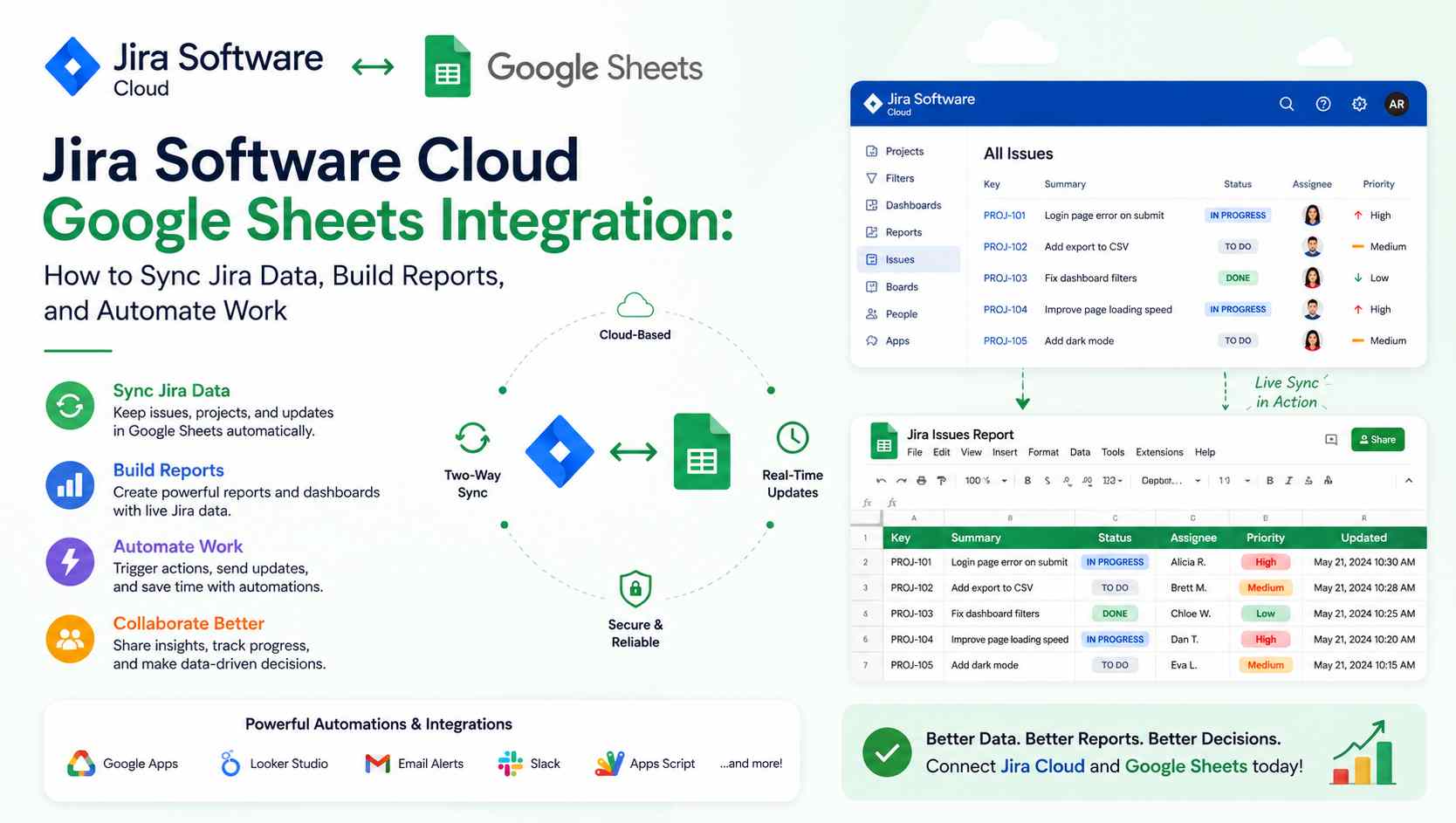
Atlassian’s official Jira Cloud for Sheets add-on lets you import Jira data into Google Sheets by using existing Jira filters or custom JQL. You can also use a =JIRA() custom function, combine data from multiple Jira sites and projects, and refresh reports on demand or periodically. That makes Sheets a reporting layer on top of Jira rather than a replacement for Jira.
The key idea is simple: Jira remains the system of record for work items, and Google Sheets becomes the place where you summarize, compare, share, and model that data. That matters when your team needs custom charts, stakeholder views, budgeting sheets, release rollups, or cross-project reports that are hard to build inside Jira alone.
Why Do Teams Connect Jira Software Cloud to Google Sheets?
Teams connect Jira to Google Sheets because they need flexible reporting, easier sharing, and faster analysis than a manual export process can provide.
A spreadsheet still solves real business problems. Project leads want a quick release view. Finance teams want issue counts by cost center. Operations teams want a clean table for audits. Leadership wants one page with trends, risk flags, and owner names. When your Jira data lands in Sheets, you can filter it, join it, chart it, and share it with people who never open Jira.
- Build executive reports: You can turn issue data into clean summaries for weekly updates, monthly reviews, and release meetings.
- Track sprint or backlog health: You can sort open work by assignee, status, priority, or due date and spot bottlenecks faster.
- Reduce copy-and-paste work: The official add-on supports repeat imports and refreshes, which cuts manual handling.
- Blend Jira with other data: Sheets lets you join Jira data with budgets, forecasts, support volumes, or staffing plans.
- Create light automation: No-code tools and scripts can create or update Jira issues from spreadsheet changes.
Those benefits are not just convenience. They improve speed, reduce reporting errors, and help you move from static exports to repeatable reporting. Jira Cloud for Sheets was built around exactly that use case: import Jira issues into a spreadsheet, analyze them, and keep reports fresh.
Which Jira Software Cloud and Google Sheets Integration Methods Work Best?
The best method depends on whether you need quick reporting, one-time exports, custom development, or two-way automation.
| Method | Best For | Setup Effort | Can Refresh Data? | Can Push Data Back to Jira? | Main Limits |
|---|---|---|---|---|---|
| Official Jira Cloud for Sheets add-on | Fast reporting inside Sheets | Low | Yes | Limited, mainly import-focused | Cloud only, admin access, add-on limits |
| CSV export from Jira Cloud | One-time analysis or migration | Low | No, manual | Yes, but by re-import workflow, not live sync | Manual process |
| Google Apps Script + Jira REST API | Custom logic and tailored workflows | Medium to High | Yes | Yes | Requires code and permission handling |
| No-code tool like Zapier | Trigger-based workflows between apps | Medium | Yes | Yes | Ongoing subscription and workflow design |
The table matters because each method solves a different problem. Many teams start with the official add-on, then add Apps Script or a no-code tool later when they need write-back or event-driven automation.
When Should You Use the Official Jira Cloud for Sheets Add-On?
You should use the official add-on when your main goal is to import Jira data into Google Sheets quickly and safely.
This is the fastest route for most teams. You install the add-on, connect your Jira site, run a JQL query or a starred filter, and populate a sheet. The add-on also supports the =JIRA() custom function, which is helpful when you want formula-based imports inside the spreadsheet itself.
When Should You Use CSV Export From Jira Cloud?
You should use CSV export when you need a one-time snapshot, offline file, or migration-friendly format.
Jira Cloud lets you export work items to CSV from a project view or from global search. That file can be stored locally, opened in Sheets, or used later for imports. It is simple, but it is still manual, so it does not replace an ongoing integration.
When Should You Use Google Apps Script With the Jira REST API?
You should use Apps Script and the Jira REST API when you need custom rules, tailored field mapping, or two-way workflows.
Google’s UrlFetchApp can send HTTP requests to external services, and Jira Cloud’s REST API supports JQL-based issue search through enhanced search endpoints. That means you can build a script that reads Jira data into a sheet, transforms it, and even sends updates back if your process requires it.
When Should You Use a No-Code Tool Like Zapier?
You should use a no-code tool when you want trigger-based automation without writing code.
Zapier highlights workflows such as creating Jira issues from new Google Sheets rows, creating Google Sheets rows from new Jira issues, and updating Jira issues from new or updated spreadsheet rows. That makes it a good fit for intake forms, issue logging, or simple sync rules across teams.
How Do You Set Up the Official Jira Cloud for Sheets Add-On?
You set up the official add-on by enabling Marketplace access, installing the add-on in Sheets, connecting your Jira site, and importing data with JQL or a starred filter.
Atlassian says your Google Workspace admin must allow Marketplace app access before users can use the add-on. Google also notes that admins can allow all apps, only allowlisted apps, or no apps, and policy changes can take up to 24 hours to fully apply.
- Confirm admin access: Your Google Workspace admin needs to allow the add-on or install it for users if self-install is restricted.
- Open Google Sheets: Start with a new sheet or an existing reporting file.
- Install the add-on: In Google Sheets, go to the add-on menu, search for Jira Cloud for Sheets, and install it.
- Connect your Jira site: Open the add-on sidebar, choose Connect, pick your Jira site, and accept the authorization flow.
- Choose your import method: Use custom JQL or switch to the Filters tab if you want to import from a saved filter.
- Pull the data: Select Get Data and let the add-on write Jira issue data into the sheet.
- Refine your report: Add formulas, pivot tables, conditional formatting, and charts after the raw import lands.
One important detail often gets missed: if you want to import with a saved filter, that filter must be a starred filter. Another important limit is product scope. Atlassian states that the add-on works only with licensed Jira Cloud products, not Jira Server.
How Does the =JIRA() Function Work in Google Sheets?
The =JIRA() function lets a sheet owner query Jira from cells instead of using only the sidebar import flow.
Atlassian explains that only the owner of the document can enable the =JIRA() function. After it is enabled, anyone with edit access to the sheet can use the function, and the queries run through the document owner’s configured Jira account. That detail matters for governance, permissions, and audit planning.
The function supports JQL, field selection, and pagination. Atlassian also documents a practical limit: the add-on generally works well with queries of up to 10,000 work items, and for bigger result sets, you should use the function with pagination and a sorted query.
=JIRA("project = APP order by updated desc")
=JIRA("project = APP order by updated desc", "key,summary,status,assignee")
=JIRA("project = APP order by updated desc", "", 0, 10000)
The examples above show the idea: start with a JQL query, optionally define columns, and add offset and limit values when you need larger pull windows. The exact field list depends on your Jira schema and reporting needs. Jira search behavior is also permission-aware, so users only see issues they are allowed to browse.
What Can You Automate After Jira Software Cloud Reaches Google Sheets?
You can automate imports, spreadsheet updates, issue creation, issue updates, and external notifications after Jira data reaches Sheets.
The official add-on supports fresh data pulls on demand and periodic updates, which already removes a lot of manual reporting work. But if you want event-based automation, tools like Zapier can turn new rows into Jira issues or turn new Jira issues into spreadsheet rows.
Jira Automation adds another layer. Atlassian documents a Send web request action that can notify another system when an automation flow runs and can also return response data for later steps. That means a Jira rule can call an external endpoint, including a web app or webhook that eventually writes to Google Sheets.
- Refresh a dashboard: Pull the latest open issues every morning into a report tab.
- Create issues from rows: Turn approved requests or intake records in Sheets into Jira issues.
- Log new issues in Sheets: Write each new Jira issue to a tracking spreadsheet for finance, QA, or operations teams.
- Update rows when status changes: Use a no-code workflow so a Jira status move updates the matching spreadsheet row.
- Call external services: Use Jira Automation web requests for a webhook-based bridge into custom integrations.
What Reports Can You Build in Google Sheets From Jira Software Cloud Data?
You can build workload, aging, release, backlog, and status reports from Jira data in Google Sheets.
Once issue data sits in a tab, Sheets becomes a reporting engine. You can add formulas, pivots, drop-down filters, charts, and conditional formatting without changing your Jira setup. That is useful when stakeholders want custom views that are easier to share in a spreadsheet than in Jira.
| Report Type | Common Jira Fields | What It Helps You See | Why Teams Use It |
|---|---|---|---|
| Assignee workload report | Assignee, Status, Story Points, Due Date | Who has too much work | Capacity balancing |
| Sprint status report | Sprint, Status, Priority, Updated | Which items are stuck | Daily standup prep |
| Aging report | Created, Updated, Status, Priority | Old unresolved items | Risk control |
| Release readiness report | Fix Version, Status, Assignee, Blockers | What is ready for launch | Release planning |
| Executive summary report | Project, Issue Type, Status, Owner | High-level trends | Leadership updates |
These report types do not require special Jira apps. They rely on good field selection, consistent filters, and a clean spreadsheet model. The official add-on uses your Jira column settings by default, and the =JIRA() function can also specify different fields when you want a custom output.
How Can You Build a Better Sprint Report in Google Sheets?
You can build a better sprint report by separating raw Jira data from summary views and using pivots for status, assignee, and age.
A simple structure works well. Use one tab for raw import, one tab for cleaned helper columns, and one tab for charts. That design reduces broken formulas and makes refreshes safer. Add helper fields such as “days open,” “current sprint,” or “blocked flag” so your summary tab can answer real questions without manual edits. This is a spreadsheet best practice that becomes even more useful when your source data refreshes often.
What Problems and Limits Should You Expect With Jira Cloud for Sheets?
You should expect limits around permissions, query size, admin controls, privacy settings, and product scope.
Atlassian says the add-on should work well with queries of up to 10,000 work items. If you try to import too many rows at once, the tool may return a generic error. Their workaround is to reduce row counts, retry in batches such as 1,000 to 2,000 rows, or use the =JIRA() function with pagination.
Privacy can also affect your output. Atlassian states that the add-on respects user profile privacy settings. If a person hides profile details, fields such as assignee or reporter may appear blank in the sheet. That can confuse teams that assume blanks mean missing ownership.
Permissions shape the data too. Jira’s REST API only returns issues the calling user can view, based on Browse projects permission and any issue-level security rules. So if two people run the same query under different identities, their results may differ.
Google Workspace policy is another common blocker. If your admin limits Marketplace app installs to an allowlist, users may not be able to install or run the add-on until it is approved. Google says those changes can take up to 24 hours to propagate.
How Do the Official Add-On, Google Apps Script, and Zapier Compare?
The official add-on is best for reporting, Apps Script is best for control, and Zapier is best for no-code workflow automation.
| Option | Strength | Weakness | Best Use Case |
|---|---|---|---|
| Official Jira Cloud for Sheets | Fast setup, native Jira import, JQL support | Import-focused, admin dependencies | Reporting and dashboards |
| Google Apps Script + Jira API | Flexible, programmable, can support custom logic | Requires coding and testing | Custom integrations and governed workflows |
| Zapier | No-code triggers and actions, fast automation | Subscription cost and connector limits | Intake, notification, and row-to-issue flows |
If your team is small and just needs reporting, start with the official add-on. If your team needs field mapping, validation, or cross-system logic, move to Apps Script. If your team wants a fast automation layer without code, use Zapier or a similar tool. This staged approach lowers risk and avoids overbuilding on day one.
How Can You Keep the Integration Secure and Reliable?
You can keep the integration secure and reliable by controlling access, using narrow queries, and separating raw data from reporting logic.
The most important security fact in this workflow is ownership. Atlassian says the =JIRA() function runs through the document owner’s configured Jira account. That means you should treat the sheet owner as a privileged role, not just the person who happened to create the file.
- Use a controlled owner account: Avoid personal throwaway ownership for business-critical sheets.
- Limit editor access: If many people can edit a sheet, many people can also use its enabled Jira function.
- Use narrow JQL: Pull only the projects, issue types, and date ranges you actually need.
- Expect permission-based results: Jira search respects project and issue-level permissions, so plan for filtered output.
- Separate raw and presentation tabs: Keep imports untouched and do reporting in downstream tabs.
- Document refresh rules: Record who owns the sheet, how often it refreshes, and what each tab means.
Reliability also improves when you sort paginated queries, batch large pulls, and avoid editing imported raw ranges by hand. These habits reduce broken dashboards after refreshes and make your spreadsheet easier to maintain over time.
What Does a Real-World Jira Software Cloud and Google Sheets Workflow Look Like?
A real-world workflow usually starts with imported issue data, then adds spreadsheet logic, then adds automation only where it saves time.
Many teams make this too complex too early. A smarter path is to start with one report, one query, and one refresh rule. Once that works, you can add a second tab for leadership or a simple automation for issue intake. That keeps your process stable while your data model matures.
How Can a Product Team Track Sprint Health in Google Sheets?
A product team can track sprint health by importing issues with JQL, grouping them by status and owner, and calculating days since last update.
For example, a team might import all issues from the current sprint, then create a summary showing open blockers, stale items older than seven days, and workload by assignee. That report is easy to review in a standup and easier for non-Jira users to scan in a shared sheet.
How Can an Operations Team Turn Spreadsheet Rows Into Jira Issues?
An operations team can turn rows into Jira issues by using a no-code automation that watches for new or updated spreadsheet rows.
A common flow is simple: a row is added to a request sheet, the automation creates a Jira issue, and the issue key is written back to the same row. That removes double entry and gives the team a light intake system without a separate custom app.
What Steps Should You Follow to Choose the Right Integration Setup?
You should choose your setup by starting with your outcome, not with the tool.
- Define the goal: Decide whether you need reporting, export, custom development, or workflow automation.
- Map the data direction: Ask whether data only needs to move from Jira to Sheets or also back into Jira.
- Check admin constraints: Confirm Google Marketplace policy and Jira licensing before you design the workflow.
- Estimate volume: If you pull very large datasets, plan for pagination or batching instead of one giant query.
- Choose the lightest tool first: Start with the official add-on for reporting before building code.
- Layer automation carefully: Add Zapier, Apps Script, or Jira Automation only when the manual step is clearly worth removing.
This order protects your team from wasted effort. It also matches how many successful teams adopt the workflow: first a clean import, then a stable report, then optional automation.
What Are the Most Common Questions About Jira Software Cloud and Google Sheets?
Can You Connect Jira Software Cloud to Google Sheets Without Code?
Yes. Atlassian provides the official Jira Cloud for Sheets add-on, and no-code platforms such as Zapier also support common Jira and Google Sheets workflows without custom coding.
Can You Import Jira Data With JQL Inside Google Sheets?
Yes. The official add-on supports importing Jira data with custom JQL, and the =JIRA() custom function also supports JQL-based queries inside a spreadsheet.
Can Google Sheets Create or Update Jira Issues?
Yes. A write-back workflow is possible through Apps Script plus the Jira REST API or through a no-code connector such as Zapier that maps sheet events to Jira actions.
Is the Official Jira Cloud for Sheets Add-On Available for Jira Server?
No. Atlassian states that the add-on works only with Jira Cloud products and does not support Jira Server.
Do Google Workspace Admin Settings Affect the Integration?
Yes. Google Workspace admins control whether users can install Marketplace apps, whether only allowlisted apps are allowed, and whether those changes apply across the organization.
No. Atlassian says the add-on respects user privacy settings, so fields such as assignee or reporter can appear blank if profile details are private.
Can the Official Add-On Handle Very Large Jira Queries?
Yes. Atlassian says the add-on generally works well up to 10,000 work items, but larger pulls should use pagination and smaller batches to avoid errors.
What Should You Do Next?
You should start with the simplest setup that solves your reporting problem today, then add automation only when it clearly saves time.
If your goal is reporting, begin with the official Jira Cloud for Sheets add-on. It is fast, Cloud-native, and designed for importing Jira data into spreadsheets with JQL or saved filters. If your goal is one-time analysis, CSV export is enough. If your goal is custom sync or write-back, move to Apps Script, Jira REST API calls, or a no-code platform such as Zapier.
The best Jira Software Cloud Google Sheets integration is not the one with the most features. It is the one that gives you clean data, trusted reporting, and less manual work. Start with one strong use case, such as a sprint dashboard or issue intake sheet, document the owner and permissions, and then expand from there. If you do that, your spreadsheet becomes a useful extension of Jira instead of another place where data drifts.
You May Also Like
 Cloud Computing
8 Best AWS S3 Alternatives Compared: Pricing, Egress, and S3 Compatibility
 SaaS
SaaSWhat is Confluence Used For In Project Management?
 SaaS
SaaSCognito Forms to Jira Software Cloud Integration: Setup, Automation, Field Mapping, and Best Practices
 Web Development
Building Apps with Lovable and Supabase: A Step-by-Step Guide
 Web Development
Heroku vs. Netlify (2026): Pricing, Features, and Best Uses
 Software
When Fixing Bugs Is No Longer Enough: How to Rescue a Failing Software Project
 SaaS
SaaS25 Best Pipedrive Integrations to Automate Sales and Grow Your Business
 SaaS
SaaS10 Best Virtual Phone Number Services for 2026: A Practical Buying Guide
 SaaS
SaaS