

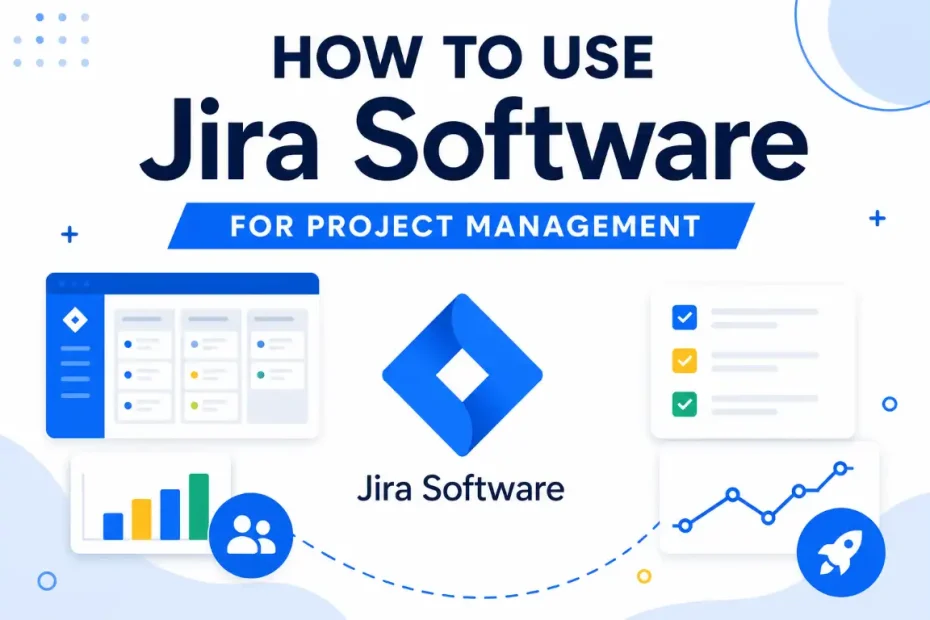
Jira Software is a project management tool built by Atlassian that helps teams plan, track, and release work using agile methods like Scrum and Kanban. Teams use Jira to break large projects into smaller tasks, assign owners, set deadlines, and watch progress on visual boards. The platform supports software developers, marketing teams, HR departments, and operations groups that need a single source of truth for daily work.
This guide explains how to use Jira Software from start to finish. You will learn how to create a project, set up a board, write user stories, run sprints, and pull reports. Each section gives clear steps, real examples, and direct answers so you can apply the lessons right away.
Jira works for teams of 3 people and teams of 3,000 people. Small startups, mid-size SaaS companies, and large enterprises like Spotify, eBay, and Square use Jira to manage their backlogs. By the end of this article, you will know how to set up workflows, manage issues, link tools like Confluence and Bitbucket, and build dashboards that show team velocity.
What Is Jira Software and Who Uses It?
Jira Software is an agile project management application made by Atlassian in 2002 that tracks issues, bugs, tasks, and stories across software and business teams. The tool runs in the cloud, on a server, or on a data center. Over 180,000 companies in 190 countries use Jira to manage daily work.
The main entity here is Jira Software. Related entities include Atlassian (the parent company), Confluence (a wiki tool), Bitbucket (a code repository), Trello (a card-based tool), and Jira Service Management (a help desk product). Each tool connects through the Atlassian ecosystem.
Who Uses Jira Software?
Software engineers, product managers, scrum masters, QA testers, and project leads use Jira. Marketing teams track campaigns. HR teams handle hiring pipelines. Finance teams manage audits.
- Software developers track code commits and bug fixes.
- Product managers plan roadmaps and release schedules.
- Scrum masters run sprint ceremonies and remove blockers.
- QA testers log defects and link test cases.
- Designers review tickets tied to UI work.
Step 1: How Do You Create a Jira Account and Project?
You create a Jira account by visiting atlassian.com, signing up with an email, and choosing a site name for your workspace. The free plan supports up to 10 users and includes Scrum boards, Kanban boards, and backlog tools.
To create your first project, follow these steps:
- Log in to your Jira site at yourcompany.atlassian.net.
- Click the Projects menu in the top navigation bar.
- Select Create project.
- Choose a template, such as Scrum, Kanban, or Bug Tracking.
- Enter a project name like “Mobile App Launch.”
- Set a project key, such as “MAL.”
- Pick a project lead and click Create.
Each project gets a unique key. The key appears in every issue ID, like MAL-101 or MAL-202. This system makes it easy to search and link work items across teams.
Which Template Should You Pick?
The template depends on your workflow. Scrum templates fit teams that work in fixed sprints of one or two weeks. Kanban templates fit teams that pull work from a continuous queue. Bug tracking templates fit support teams that log defects.
| Template | Best For | Sprint Length |
|---|---|---|
| Scrum | Product development teams | 1-4 weeks |
| Kanban | Operations and support teams | Continuous flow |
| Bug Tracking | QA and maintenance teams | No sprints |
| DevOps | CI/CD pipelines | Continuous flow |
Step 2: How Do You Set Up a Jira Board?
You set up a Jira board by opening your project, clicking the Board tab, and customizing the columns to match your workflow stages. A board shows tasks as cards that move from left to right as work progresses.
The default Scrum board includes three columns: To Do, In Progress, and Done. You can add columns like In Review, Testing, or Ready for Deploy.
To customize a board:
- Open your project and click Board.
- Click the three-dot menu and select Board settings.
- Choose Columns from the left panel.
- Add a new column with the Add column button.
- Drag statuses into each column.
- Save the changes.
What Is the Difference Between a Scrum Board and a Kanban Board?
A Scrum board organizes work into time-boxed sprints, while a Kanban board shows a continuous flow of tasks with no fixed end date. Scrum boards reset each sprint. Kanban boards stay open forever and use work-in-progress (WIP) limits to control flow.
- Scrum board features: sprint planning, burndown charts, and velocity reports.
- Kanban board features: WIP limits, cycle time reports, and cumulative flow diagrams.
Step 3: How Do You Create and Manage Issues in Jira?
You create an issue in Jira by clicking the Create button at the top of the screen, picking an issue type, and filling in the summary, description, and assignee. Every piece of work in Jira lives as an issue.
Jira supports several issue types:
- Epic — a large body of work, such as “Redesign Checkout Flow.”
- Story — a user-focused feature, like “User can save items to wishlist.”
- Task — a piece of work that is not a feature, like “Update API docs.”
- Bug — a defect, such as “Login button fails on Safari.”
- Sub-task — a smaller piece tied to a parent issue.
How Do You Write a Good User Story?
A user story follows the format: “As a [user type], I want to [action] so that [benefit].” This format keeps the focus on the end user.
Example: As a shopper, I want to filter products by price so that I can find items within my budget.
Each story should include:
- A clear summary under 100 characters.
- A detailed description with acceptance criteria.
- A story point estimate (1, 2, 3, 5, 8, or 13).
- A priority level (Highest, High, Medium, Low, Lowest).
- An assignee who owns the work.
- A due date if needed.
Step 4: How Do You Plan a Sprint in Jira?
You plan a sprint in Jira by opening the backlog, creating a new sprint, dragging issues into it, and clicking Start sprint. A sprint is a fixed time window, usually two weeks, where the team completes a set of tasks.
Sprint planning follows these steps:
- Open your project and click Backlog.
- Click Create sprint at the top of the backlog list.
- Drag stories and tasks from the backlog into the sprint.
- Set the sprint goal, like “Ship the new checkout page.”
- Click Start sprint.
- Enter the sprint name, duration, and start date.
- Confirm and begin work.
How Long Should a Sprint Last?
Most agile teams run sprints of 2 weeks. Shorter sprints of 1 week suit fast-moving teams. Longer sprints of 3 or 4 weeks suit hardware or research teams. The Scrum Guide by Ken Schwaber and Jeff Sutherland recommends sprints of 1 month or less.
Step 5: How Do You Track Progress with Reports?
You track progress in Jira by opening the Reports section in the project sidebar and selecting a report like Burndown, Velocity, or Cumulative Flow. Reports show how the team performs across sprints.
Common Jira reports include:
- Burndown Chart — shows remaining work in a sprint day by day.
- Velocity Chart — shows completed story points over the last 5 sprints.
- Cumulative Flow Diagram — shows the number of issues in each status over time.
- Sprint Report — shows what the team finished and what carried over.
- Control Chart — shows cycle time for completed issues.
What Does a Burndown Chart Show?
A burndown chart shows the amount of work left in a sprint compared to the ideal pace. The Y-axis shows story points or hours. The X-axis shows days. A line that drops faster than the ideal line means the team is ahead. A flat line means the team is stuck.
Step 6: How Do You Customize Workflows in Jira?
You customize a Jira workflow by going to Project settings, clicking Workflows, and editing the statuses and transitions that an issue can move through. A workflow defines the path an issue takes from creation to closure.
The default workflow has three statuses: To Do, In Progress, and Done. You can add custom statuses like Code Review, Blocked, or Waiting for Customer.
To edit a workflow:
- Open Project settings in the sidebar.
- Click Workflows.
- Select the workflow you want to edit.
- Click Edit to open the workflow designer.
- Add a new status with the Add status button.
- Draw transitions between statuses.
- Publish the workflow.
What Are Workflow Transitions?
Transitions are the actions that move an issue from one status to another. For example, the transition “Start work” moves an issue from To Do to In Progress. You can add rules like required fields, approvers, or automated notifications.
Step 7: How Do You Use Jira Automation?
You use Jira Automation by going to Project settings, clicking Automation, and creating rules that trigger actions based on conditions. Automation removes manual work like assigning tickets or sending Slack messages.
Common automation rules include:
- Assign new bugs to the QA lead.
- Move a story to Done when the linked pull request is merged.
- Send a Slack alert when an issue stays in Blocked for more than 2 days.
- Close epics when all child issues are Done.
- Add the “needs-review” label to stories without acceptance criteria.
To create a rule:
- Open Project settings → Automation.
- Click Create rule.
- Pick a trigger, like Issue created.
- Add a condition, like Issue type equals Bug.
- Add an action, like Assign to QA team.
- Turn the rule on.
Step 8: How Do You Connect Jira to Other Tools?
You connect Jira to other tools by installing apps from the Atlassian Marketplace or by using the built-in integrations panel in Project settings. Jira links to over 3,000 apps.
Popular integrations include:
| Tool | Purpose |
|---|---|
| Confluence | Documentation and meeting notes |
| Bitbucket | Code repository linked to issues |
| GitHub | Pull request status in tickets |
| Slack | Real-time notifications |
| Microsoft Teams | Channel updates |
| Figma | Design previews in issues |
| Zoom | Meeting links on cards |
Why Connect Jira to Confluence?
Confluence stores long-form pages like product specs, retrospective notes, and runbooks. When you link a Confluence page to a Jira issue, the team can jump from a ticket to the full spec in one click. Both tools share the same user list and permissions.
Step 9: How Do You Manage Permissions and Roles?
You manage Jira permissions by going to Project settings, clicking People, and assigning roles like Administrator, Member, or Viewer. Permissions decide who can create issues, edit workflows, or delete projects.
The main roles are:
- Site Administrator — controls billing, user accounts, and global settings.
- Project Administrator — manages a single project, including workflows and boards.
- Member — creates and edits issues within assigned projects.
- Viewer — reads issues but cannot edit them.
How Do You Add a New User?
Open User management in the site settings, click Invite users, enter the email addresses, pick a product like Jira Software, and send the invite. The new user gets an email with a sign-up link.
Step 10: How Do You Build a Dashboard in Jira?
You build a Jira dashboard by clicking Dashboards in the top menu, selecting Create dashboard, and adding gadgets that show charts, lists, and counters. Dashboards give leaders a single view of project health.
Steps to create a dashboard:
- Click Dashboards in the top bar.
- Select Create dashboard.
- Name the dashboard, like “Q2 Engineering Health.”
- Pick a layout with one, two, or three columns.
- Click Add gadget.
- Choose gadgets like Sprint Burndown, Pie Chart, or Filter Results.
- Set sharing permissions.
- Save the dashboard.
Which Gadgets Should You Add?
Add gadgets that match the audience. Engineering leads want Sprint Burndown and Velocity Chart. Product managers want Roadmap and Release Burnup. Executives want Issue Statistics and Created vs Resolved.
Best Practices for Using Jira Software
Apply these 10 practices to get more value from Jira:
- Limit work in progress to keep focus on fewer items.
- Write clear acceptance criteria in every story.
- Estimate with story points, not hours.
- Run sprint retrospectives every two weeks.
- Tag issues with components for easy filtering.
- Use epics to group related stories.
- Set up automation for repeat tasks.
- Review the backlog once a week.
- Train new team members on Jira basics in their first week.
- Archive old projects to keep the dashboard clean.
Common Mistakes to Avoid in Jira
Avoid these 7 mistakes that slow teams down:
- Creating too many custom fields that clutter the issue view.
- Skipping the description field and leaving tickets vague.
- Mixing bug reports with feature requests in the same epic.
- Letting the backlog grow past 200 items without a cleanup.
- Ignoring the priority field and treating all work as urgent.
- Forgetting to close sprints before starting the next one.
- Granting admin rights to every team member.
Comparison: Jira vs Trello vs Asana
Jira, Trello, and Asana share project management features but serve different audiences. Jira fits technical teams that need agile reports and code integration. Trello fits small teams that need simple card-based boards. Asana fits cross-functional teams that need timelines and goals.
| Feature | Jira | Trello | Asana |
|---|---|---|---|
| Best for | Software teams | Small projects | Marketing and ops |
| Agile reports | Yes | Limited | Limited |
| Code integration | Strong | Weak | Medium |
| Free users | 10 | Unlimited | 15 |
| Learning curve | Steep | Easy | Medium |
Frequently Asked Questions
Is Jira Software free to use?
Yes. Jira offers a free plan for up to 10 users with 2 GB of file storage and basic features like Scrum boards, Kanban boards, and backlogs. Larger teams pay $8.15 per user per month for the Standard plan or $16 per user per month for the Premium plan.
Can Jira replace email for team communication?
No. Jira is a project tracking tool, not a messaging app. Teams should pair Jira with Slack, Microsoft Teams, or email for chat. Jira handles task assignments, status updates, and reports, while messaging tools handle quick conversations.
Does Jira work for non-software teams?
Yes. Marketing, HR, finance, and legal teams use Jira to manage campaigns, hiring pipelines, audits, and contract reviews. Atlassian offers a separate product called Jira Work Management that ships with templates for business teams.
Is Jira hard to learn for beginners?
No. New users can learn the basics in 2 to 3 hours by following the in-app tutorials. Atlassian University offers free courses, and the Atlassian Community has answers to most common questions. Advanced features like JQL queries and automation take longer to master.
Can you use Jira without the cloud?
Yes. Atlassian sells a self-hosted version called Jira Data Center for companies that need on-premise control. The cloud version receives updates faster, while the data center version offers more compliance options.
Does Jira support remote teams?
Yes. Jira runs entirely in the browser, so remote teams in different time zones can update issues, leave comments, and review boards from anywhere. Mobile apps for iOS and Android keep team members in sync on the go.
Can Jira track time spent on tasks?
Yes. Jira includes a built-in time tracking feature where users log hours against issues. Add-ons like Tempo Timesheets and Clockify offer deeper reporting for billing and payroll.
Is JQL the same as SQL?
No. JQL stands for Jira Query Language, a syntax built only for Jira searches. SQL is a general database language. JQL uses simple terms like project = "MAL" AND status = "In Progress" to filter issues.
Conclusion
Jira Software gives teams a clear, structured way to plan, track, and ship work using agile methods. The 10 steps in this guide cover the full journey: create an account, build a project, set up a board, write stories, plan sprints, track reports, customize workflows, automate tasks, connect tools, manage permissions, and build dashboards.
Teams that follow these steps see faster delivery, fewer missed deadlines, and better team alignment. The combination of Atlassian products like Confluence, Bitbucket, and Jira Service Management creates a complete work management system that scales from 3 users to 3,000 users.
Start with a small Scrum project, run two or three sprints, and review the burndown chart. Adjust the workflow, refine the backlog, and add automation rules as the team grows comfortable. Jira rewards teams that invest time in setup with months of smooth, transparent project tracking.
You May Also Like
 Cloud Computing
8 Best AWS S3 Alternatives Compared: Pricing, Egress, and S3 Compatibility
 SaaS
SaaSWhat is Confluence Used For In Project Management?
 SaaS
SaaSCognito Forms to Jira Software Cloud Integration: Setup, Automation, Field Mapping, and Best Practices
 Web Development
Building Apps with Lovable and Supabase: A Step-by-Step Guide
 Web Development
Heroku vs. Netlify (2026): Pricing, Features, and Best Uses
 Software
When Fixing Bugs Is No Longer Enough: How to Rescue a Failing Software Project
 SaaS
SaaS25 Best Pipedrive Integrations to Automate Sales and Grow Your Business
 SaaS
SaaS10 Best Virtual Phone Number Services for 2026: A Practical Buying Guide
 SaaS
SaaS