

You’re shopping for hiking boots on one website, and suddenly every site you visit shows you hiking gear ads. That’s targeted advertising based on your IP address and location. Your IP address tells advertisers exactly where you are, what you’re interested in, and how to reach you with specific ads.
Targeted ads use your IP address to determine your physical location, browsing habits, and personal interests to show you customized advertisements. This tracking happens constantly as you browse the web. Advertisers pay premium prices for location-specific data because people are more likely to buy from local businesses or region-specific offers.
The good news? You can stop this tracking. This guide shows you practical ways to block targeted ads based on your IP address. You’ll learn about VPNs, browser settings, ad blockers, and privacy tools that actually work. Most methods are free or low-cost, and you don’t need technical skills to use them.
How Advertisers Track You Through Your IP Address
Your IP address reveals your approximate location, internet service provider, device type, and browsing patterns to advertising networks. Every website you visit can see your IP address. It’s like showing your home address to every store you walk into.
What Your IP Address Reveals
IP addresses contain more information than most people realize. When you connect to the internet, your ISP assigns you an IP address. This address identifies your general location down to the city level, sometimes even your neighborhood.
Advertisers use this location data to show you relevant local businesses. If you’re in Chicago, you’ll see ads for Chicago restaurants and stores. Someone in Miami sees completely different ads for Miami businesses. This geographic targeting makes advertising more effective and more expensive for advertisers.
Your IP address also identifies your ISP. This tells advertisers about your likely income level and demographics. Premium fiber internet users in wealthy neighborhoods see different ads than budget DSL users in rural areas. Fair or not, this economic profiling happens constantly.
How Ad Networks Build Your Profile
Ad networks like Google, Facebook, and hundreds of smaller companies track your IP address across different websites. They use tracking cookies, pixels, and scripts embedded in websites you visit. Each visit adds to your advertising profile.
These networks know which websites you visit, how long you stay, what you click, and what you buy. They combine this browsing data with your IP location to create detailed profiles. The profile includes your interests, shopping habits, income estimates, and personal preferences.
Multiple companies then share this data through real-time bidding systems. When you load a webpage, dozens of advertisers instantly bid to show you ads based on your profile. This entire process happens in milliseconds before the page finishes loading. Understanding what is data protection and privacy helps you grasp why this matters.
Location-Based Advertising Technology
Geotargeting goes beyond simple IP location. Advertisers combine your IP data with GPS information from mobile devices, WiFi network locations, and even Bluetooth beacons in physical stores. This creates extremely accurate location tracking.
Mobile apps constantly request location permissions. Many apps share this precise GPS data with advertising networks. Your phone knows exactly which stores you enter, how long you stay, and what products you look at. This physical tracking combines with online tracking for complete surveillance.
Websites also use your IP address to customize prices. Airlines and hotels show different prices based on your location. Wealthier areas see higher prices for the same flights and rooms. This price discrimination relies heavily on IP address location data.
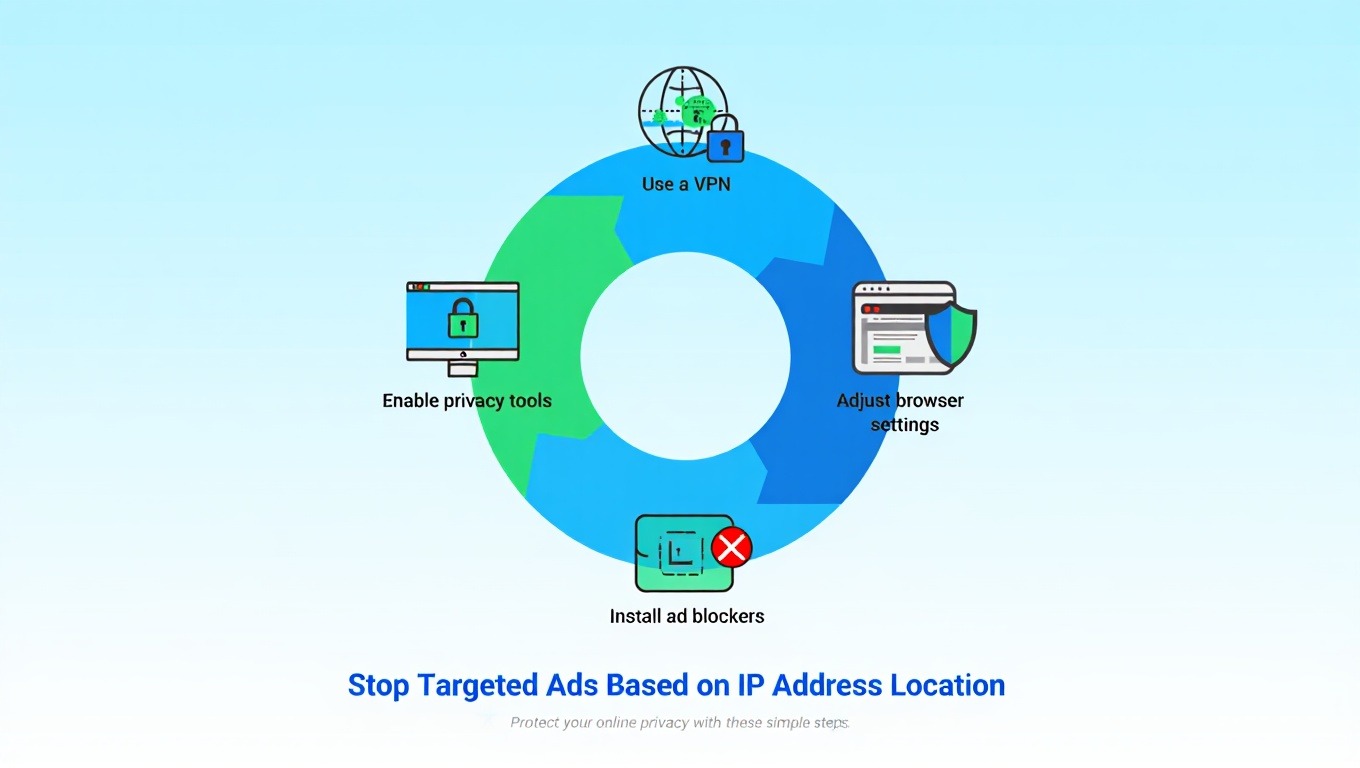
Method 1: Use a VPN to Hide Your IP Address
VPNs hide your real IP address by routing your internet connection through servers in different locations, making it impossible for advertisers to track your actual location. This is the single most effective method to stop location-based targeted ads.
How VPNs Stop Ad Tracking
When you connect to a VPN, your traffic goes through an encrypted tunnel to a VPN server. Websites see the VPN server’s IP address instead of yours. If you connect to a server in another city or country, advertisers think you’re in that location.
This geographic shift completely changes the ads you see. Connect to a New York server, and you’ll see New York ads regardless of where you actually live. Switch to a London server, and suddenly all ads are for UK products and services. The targeting breaks because advertisers can’t identify your real location.
VPNs also prevent your ISP from selling your browsing data. Your ISP can normally see every website you visit. They sell this information to advertisers. VPN encryption hides your browsing activity from your ISP. They only see encrypted data going to the VPN server. Learn more about how VPN encryption protects your data.
Choosing the Right VPN for Privacy
Not all VPNs protect your privacy equally. Free VPNs often sell your data to advertisers, defeating the entire purpose. They make money by tracking you just like the advertisers you’re trying to avoid. Some free VPNs even inject additional ads into websites you visit.
Look for paid VPN services with strict no-logs policies. These providers don’t record your browsing activity or connection history. If they don’t log data, they can’t sell it or hand it to advertisers. Reputable providers undergo independent audits to verify their no-logs claims.
Choose VPNs based in privacy-friendly countries. Providers in the US, UK, and other surveillance alliance countries face legal pressure to log user data. Services based in Switzerland, Panama, or the British Virgin Islands operate under stronger privacy protections. Understanding the benefits of a paid VPN over a free VPN makes this choice clearer.
VPN Setup and Configuration
Setting up a VPN takes just a few minutes. Sign up for a reputable VPN service, download their app for your device, and install it. Most VPN apps have simple one-click connection buttons. You don’t need technical knowledge to use them.
After installing the VPN, configure these privacy settings:
- Enable kill switch: This blocks all internet traffic if the VPN disconnects, preventing IP address leaks
- Use VPN DNS servers: This prevents DNS leaks that could reveal your location
- Disable IPv6: Many VPNs don’t support IPv6, which can leak your real IP address
- Connect automatically: Set the VPN to connect when you start your device for constant protection
Select server locations strategically. Connecting to servers in your own country maintains reasonable website load speeds while still hiding your exact location. For maximum privacy, choose servers in different countries. Some VPNs offer obfuscated servers that hide the fact you’re using a VPN at all.
VPN Limitations to Understand
VPNs reduce your internet speed because your data travels further and goes through encryption processing. Expect 10-30% speed reduction with good VPNs. This rarely affects normal browsing, but 4K video streaming might buffer occasionally.
Some websites detect and block VPN connections. Banking sites, streaming services, and government websites often restrict VPN access. You may need to disconnect your VPN to access these sites. Understanding are VPNs really safe to use helps you make informed decisions.
VPNs only protect your IP address. They don’t stop browser fingerprinting, cookie tracking, or account-based tracking. You need additional privacy tools for complete protection. VPNs work best as part of a comprehensive privacy strategy, not as a standalone solution.
Method 2: Configure Browser Privacy Settings
Browsers collect and share your data with advertisers through cookies, tracking scripts, and built-in telemetry that you can disable through privacy settings. Most browsers ship with privacy-hostile defaults that favor advertisers over users.
Disable Third-Party Cookies
Third-party cookies are the primary tool advertisers use to track you across websites. When you visit a site, dozens of third-party advertising domains place cookies on your browser. These cookies follow you everywhere, building a profile of your browsing habits.
Blocking third-party cookies immediately reduces tracking. Here’s how to disable them in major browsers:
Chrome: Go to Settings > Privacy and security > Third-party cookies > Block third-party cookies. Chrome will phase out third-party cookies completely by late 2025, but Google is replacing them with equally invasive “Privacy Sandbox” tracking.
Firefox: Visit Settings > Privacy & Security > Enhanced Tracking Protection > Select “Strict.” Firefox blocks most trackers by default, making it more privacy-friendly than Chrome.
Safari: Apple blocks third-party cookies automatically. Go to Settings > Privacy > Prevent cross-site tracking to ensure it’s enabled.
Edge: Navigate to Settings > Privacy, search, and services > Tracking prevention > Set to “Strict.” Edge uses Chromium’s tracking prevention but adds Microsoft’s own telemetry.
Enable Do Not Track
The Do Not Track (DNT) setting tells websites you don’t want to be tracked. Unfortunately, this is voluntary, and most advertisers ignore it. However, enabling DNT doesn’t hurt, and some privacy-conscious websites respect it.
Enable DNT in your browser settings. Every major browser offers this option in privacy settings. While not foolproof, it’s a simple checkbox that might reduce some tracking. More importantly, it signals to websites that you care about privacy.
Block Location Sharing
Browsers ask permission before sharing your precise location with websites. However, they still share your IP-based location automatically. Deny location permissions unless absolutely necessary for the website to function.
Configure location settings:
- Chrome: Settings > Privacy and security > Site Settings > Location > Don’t allow sites to see your location
- Firefox: Settings > Privacy & Security > Permissions > Location > Settings > Block new requests asking to access your location
- Safari: Preferences > Websites > Location > Deny without prompting
Some websites won’t work without location access. Maps, weather, and local search require your location. Grant permission only for specific trusted sites rather than allowing all sites to access your location.
Disable Browser Telemetry
Your browser sends usage data back to its developer. This telemetry includes websites you visit, features you use, and how you interact with the browser. Browser makers claim this improves the product, but it’s also valuable data for advertising.
Turn off telemetry in browser settings:
Chrome: Settings > Privacy and security > Send usage statistics and crash reports to Google > Disable. Google still collects massive amounts of data through your Google account if you’re signed in.
Firefox: Settings > Privacy & Security > Firefox Data Collection and Use > Uncheck all boxes. Firefox collects much less data than Chrome by default.
Edge: Settings > Privacy, search, and services > Optional diagnostic data > Disable. Microsoft collects extensive telemetry through Windows separately.
Use Private Browsing Mode
Private or incognito mode doesn’t make you anonymous, but it prevents local tracking. The browser doesn’t save your history, cookies, or site data after you close the private window. This stops advertisers from using cookies to track you across browsing sessions.
Private mode limitations:
- Your ISP still sees all websites you visit
- Websites still see your real IP address
- Bookmarks and downloads are saved permanently
- Extensions may still track you unless explicitly disabled in private mode
Use private mode for sensitive searches or when using shared computers. Combine it with a VPN for actual privacy. Private mode alone won’t stop advertisers from tracking your IP address. Learn more about how to hide your real IP address for comprehensive protection.
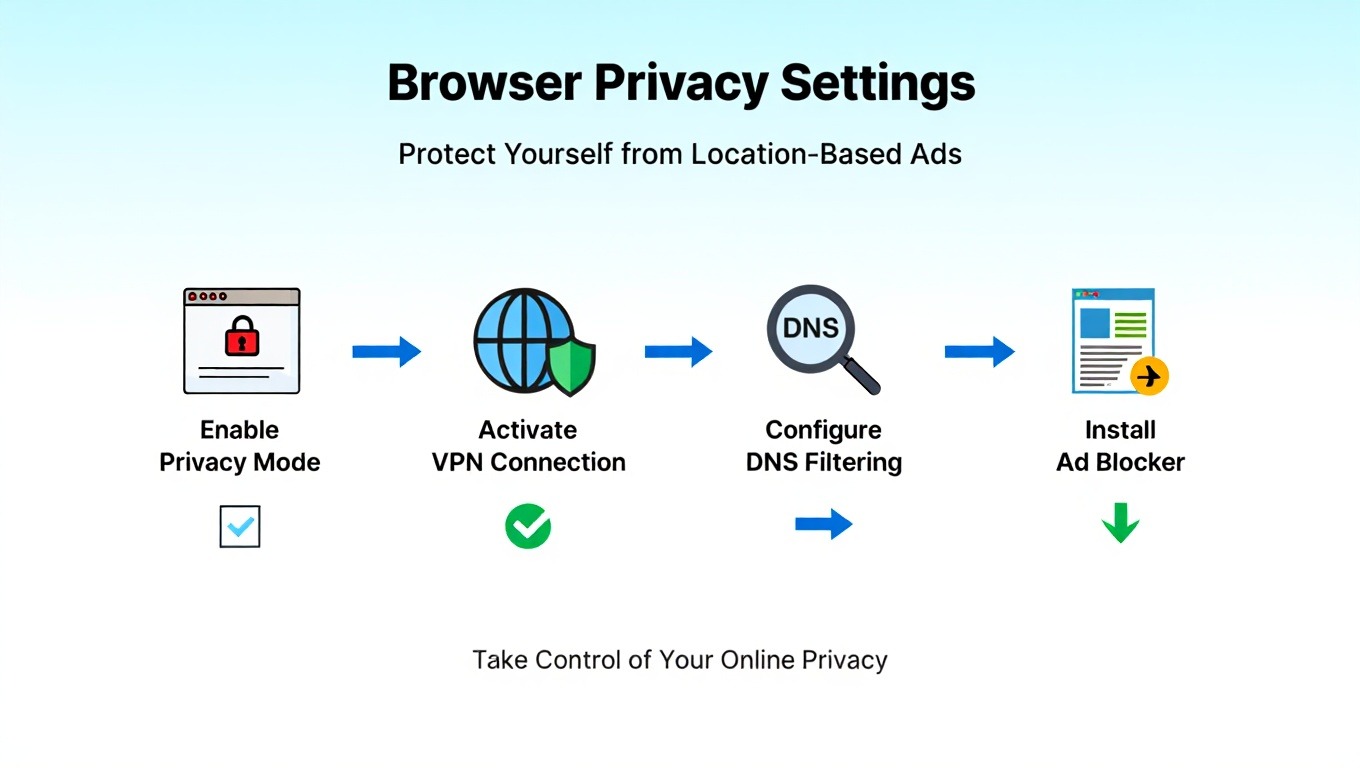
Method 3: Install Ad Blocking Extensions
Ad blockers prevent advertising scripts from loading, blocking both ads and the tracking technology embedded in them. This stops most targeted advertising at the source.
How Ad Blockers Work
Ad blockers use filter lists that identify advertising domains, scripts, and tracking technologies. When your browser tries to load an ad or tracker, the blocker stops the request before it completes. The advertiser never loads, so they can’t track you or show you ads.
Modern ad blockers do more than hide ads. They block tracking scripts, prevent data collection, stop cookie placement, and disable fingerprinting techniques. The best ad blockers significantly improve page load speed because ads and trackers consume substantial bandwidth.
Some websites detect ad blockers and refuse to show content unless you disable them. These “anti-adblock” measures try to force you to view ads. Many ad blockers include anti-anti-adblock features that bypass these restrictions.
Best Ad Blocking Extensions
uBlock Origin is the gold standard for ad blocking. It’s free, open-source, and blocks ads without selling your data. uBlock Origin uses multiple filter lists that block millions of known advertising domains. It’s lightweight and doesn’t slow down your browser.
Install uBlock Origin from your browser’s extension store. It works immediately with default settings. Advanced users can enable additional filter lists for stronger blocking. The extension uses minimal computer resources compared to alternatives like AdBlock Plus.
Privacy Badger takes a different approach. Developed by the Electronic Frontier Foundation, it learns which domains track you rather than relying on preset lists. Privacy Badger automatically blocks any domain that appears to be tracking you across multiple websites.
Use Privacy Badger alongside uBlock Origin for comprehensive protection. The two extensions complement each other. uBlock blocks known advertising domains while Privacy Badger catches new trackers that aren’t on filter lists yet.
Mobile Ad Blocking
Mobile browsers support extensions on Android but not iOS. Firefox for Android allows uBlock Origin and other extensions. Chrome for Android doesn’t support extensions, limiting your options.
iOS users should use content blocker apps from the App Store. These work system-wide in Safari. Popular options include 1Blocker, AdGuard, and Wipr. These apps use Safari’s content blocking API to filter ads and trackers.
Alternative mobile browsers like Brave have built-in ad blocking. Brave blocks ads and trackers automatically without extensions. It’s available for both Android and iOS. The built-in blocking is less powerful than uBlock Origin but requires zero configuration.
DNS-Level Ad Blocking
DNS-based blocking works at the network level rather than in your browser. Services like NextDNS and AdGuard DNS block advertising domains before they reach your device. This blocks ads in all apps, not just your browser.
Set up DNS blocking on your router to protect all devices on your network. This blocks ads on smart TVs, gaming consoles, mobile apps, and any device that connects to your WiFi. One configuration protects everything.
Free DNS services include:
- AdGuard DNS: Blocks ads and trackers with simple DNS server addresses you can configure in network settings
- NextDNS: Offers customizable blocking rules with generous free tier
- Pi-hole: Open-source software you can install on a Raspberry Pi for complete control
DNS blocking complements browser extensions. Extensions catch in-page scripts and elements while DNS blocking prevents connections to advertising servers. Use both for maximum protection.
Method 4: Opt Out of Ad Personalization
Major advertising networks offer opt-out tools that reduce but don’t eliminate targeted advertising based on your IP address and browsing history. These official opt-outs are less effective than VPNs or ad blockers but provide some protection.
Google Ad Settings
Google is the largest online advertiser and collects enormous amounts of user data. You can limit some of this collection through Google account settings, though Google makes these controls intentionally difficult to find.
Visit Google Ad Settings at adssettings.google.com while logged into your Google account. Turn off “Ad Personalization.” This prevents Google from using your browsing history, app usage, and searches for targeted ads. You’ll still see ads, but they won’t be based on your personal profile.
Google also tracks your location history. Visit Google Maps > Your Timeline > Settings > Location History > Turn off. Delete existing location history while you’re there. Google keeps detailed records of everywhere you’ve been with your phone.
Disable activity tracking at myactivity.google.com. This page shows every search, website visit, and YouTube video you’ve watched while signed into Google. Turn off Web & App Activity, Location History, and YouTube History. This significantly reduces Google’s ability to target you.
Facebook Ad Preferences
Facebook (Meta) tracks users across millions of websites through Facebook pixels and embedded social buttons. Even if you don’t have a Facebook account, they maintain a “shadow profile” about you.
Log into Facebook and visit Settings > Ads > Ad Preferences. Review the categories Facebook uses to target you. Remove categories that don’t interest you. This doesn’t stop tracking but may reduce ad relevance.
Turn off ads based on data from partners. Facebook buys data from data brokers who collect information from loyalty cards, credit reports, and other offline sources. Disabling this prevents third-party data from affecting your Facebook ads.
Visit aboutads.info/choices to opt out of Facebook’s off-site tracking. This uses cookies to tell Facebook not to track you on other websites. However, clearing your browser cookies removes these opt-out cookies, re-enabling tracking.
Industry-Wide Opt-Out Tools
The Digital Advertising Alliance operates optout.aboutads.info, where you can opt out of personalized ads from hundreds of advertising companies simultaneously. This tool uses cookies to inform advertisers about your opt-out preferences.
The opt-out tool shows you which companies are currently tracking you. The list is usually shocking, with 50-100 companies you’ve never heard of collecting your data. Click “opt out of all” to disable personalized ads from these networks.
Limitations of industry opt-outs:
- Only works if cookies are enabled
- Must be repeated in each browser and device
- Gets erased when you clear cookies
- Doesn’t stop tracking, just personalization
- Many companies don’t participate
Industry opt-outs are better than nothing but far less effective than VPNs or ad blockers. Advertisers designed these systems to appear privacy-friendly while maintaining most tracking capabilities. Understanding how to handle sensitive information online extends beyond just advertising.
Mobile Ad Tracking Controls
iOS and Android include advertising identifier opt-outs. These control the tracking ID advertisers use to follow you across mobile apps.
iOS: Settings > Privacy > Tracking > Turn off “Allow Apps to Request to Track.” This blocks apps from accessing your IDFA (Identifier for Advertisers). Most apps respect this setting because Apple enforces it strictly.
Android: Settings > Privacy > Ads > Delete advertising ID. This removes your advertising identifier. Android also lets you opt out of personalized ads while keeping the ID, but deletion provides stronger protection.
These mobile settings only affect app tracking. They don’t stop web browsers from tracking you through cookies and IP addresses. You need separate browser settings and extensions for complete mobile privacy.
Method 5: Use Privacy-Focused Browsers and Search Engines
Privacy-focused browsers and search engines don’t collect user data or sell information to advertisers, eliminating a major source of targeted advertising. Switching from mainstream options significantly reduces tracking.
Brave Browser
Brave blocks ads and trackers automatically without requiring extensions. It’s built on Chromium (same as Chrome) but strips out Google’s tracking components. Brave works identically to Chrome but protects your privacy by default.
Brave includes Shields that block:
- Advertisements of all types
- Cross-site trackers and cookies
- Fingerprinting attempts
- Cryptocurrency miners
The browser loads pages faster because it doesn’t download advertising content. Tests show Brave loads websites 3-6 times faster than Chrome with similar battery life improvements on laptops.
Brave offers optional private ads that respect your privacy. You can earn BAT cryptocurrency by viewing these ads. Unlike traditional advertising, Brave doesn’t collect personal information or track you across websites. This model shows advertising can work without surveillance.
Firefox with Privacy Modifications
Firefox respects privacy better than Chrome but still collects some telemetry. Configure Firefox for maximum privacy:
Install Firefox and immediately visit Settings > Privacy & Security. Set Enhanced Tracking Protection to “Strict.” This blocks most trackers, third-party cookies, and fingerprinting scripts.
Change your default search engine from Google to DuckDuckGo or Startpage. Firefox includes these privacy-focused alternatives. This stops Google from collecting your search history.
Disable Firefox telemetry and studies as mentioned in browser settings earlier. Firefox is open-source, meaning independent researchers verify Mozilla’s privacy claims. This transparency makes Firefox more trustworthy than closed-source browsers.
Privacy-Focused Search Engines
Google Search collects every query you enter and associates it with your account and IP address. Switch to privacy-focused alternatives that don’t track searches or build user profiles.
DuckDuckGo is the most popular private search engine. It doesn’t log searches, track users, or show personalized results. Everyone sees identical search results regardless of their history. Results come from multiple sources including Bing, Wikipedia, and DuckDuckGo’s own crawler.
Startpage provides Google search results without Google tracking. Startpage acts as a proxy to Google, submitting searches anonymously. You get Google’s search quality without the surveillance. Startpage is based in the Netherlands with strong privacy protections.
Brave Search is a newer option that doesn’t rely on Google or Bing results. It uses an independent search index while maintaining privacy. Brave Search includes a Goggles feature that lets users customize search results without centralized algorithmic control.
Switching search engines requires changing browser defaults. Most browsers make this easy through settings. The privacy improvement is immediate and significant. Search engines are the biggest collectors of personal information after social media platforms.
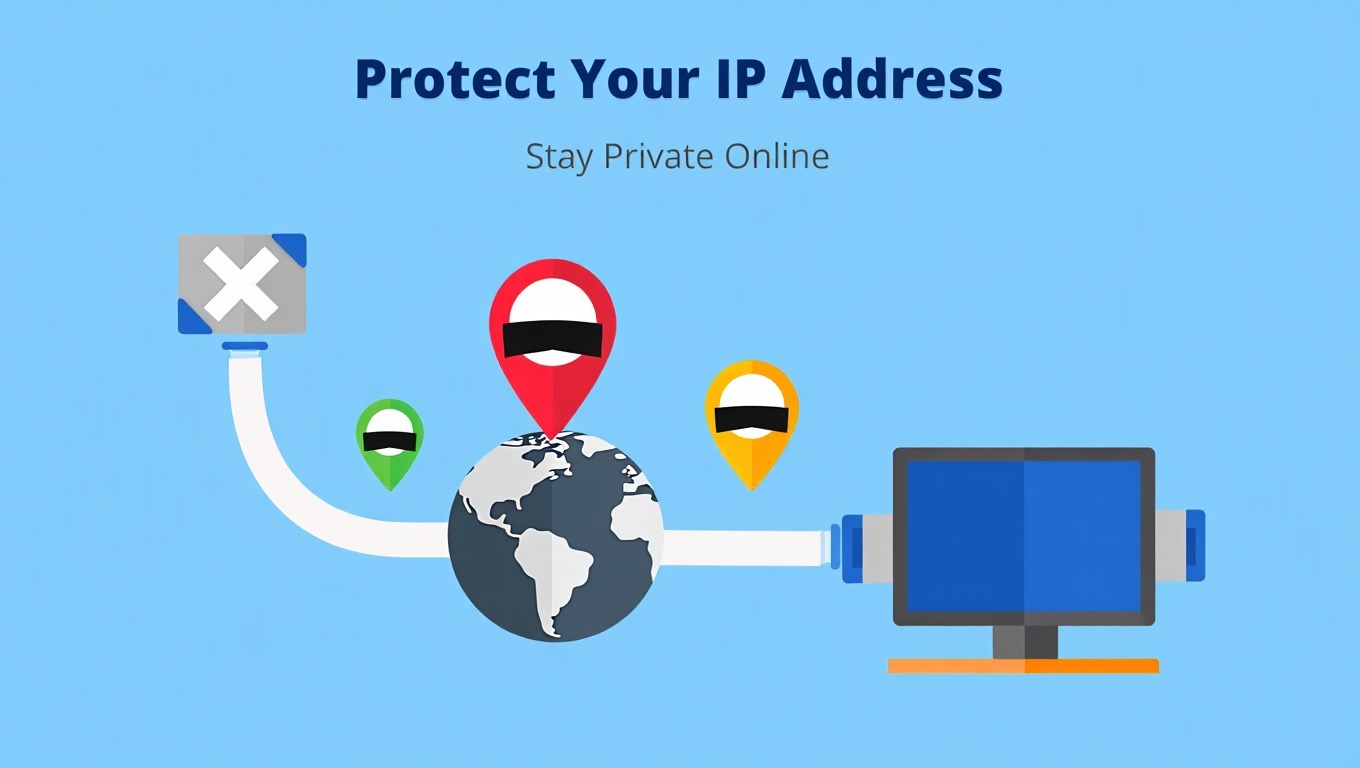
Method 6: Manage Cookies and Website Data
Cookies store information about your browsing habits that advertisers use for targeting, and regular deletion limits their ability to track you over time. Cookie management is free and works in any browser.
Understanding Cookie Types
First-party cookies come from the website you’re visiting. These store login information, preferences, and shopping cart contents. First-party cookies generally improve your browsing experience and pose minimal privacy risks.
Third-party cookies come from advertising networks and tracking companies. When you visit a news site, advertisers place cookies from dozens of third-party domains. These cookies track you across every website that uses the same advertising networks.
Tracking cookies don’t contain personal information like your name or email. Instead, they contain unique identifiers that link to profiles in advertiser databases. The cookies say “this is user #8472910” and the database contains everything about user #8472910.
Automatic Cookie Deletion
Configure browsers to delete cookies automatically when you close them. This prevents long-term tracking while maintaining functionality during your browsing session.
Firefox offers the best cookie controls. Go to Settings > Privacy & Security > Cookies and Site Data > Delete cookies and site data when Firefox is closed. Enable this for automatic cleanup.
You can whitelist specific sites to keep their cookies. This lets you stay logged into email and favorite sites while deleting tracking cookies from everything else. It’s the perfect balance of convenience and privacy.
Chrome and Edge offer similar features but require extensions for the same level of control. Install Cookie AutoDelete extension to automatically remove cookies from sites you’re not currently visiting. This prevents cross-site tracking while maintaining usability.
Cookie Whitelist Strategy
- Keep cookies for: Email providers, banking sites, frequently used services where staying logged in matters
- Delete cookies from: News sites, shopping sites, entertainment sites, social media
- Block completely: Known tracking domains, advertising networks, analytics services
This strategy maintains convenience for important sites while eliminating most advertising cookies. You’ll need to log in again to shopping sites, but this small inconvenience dramatically improves privacy.
Manual Cookie Management
Periodically check what cookies exist in your browser. The list often reveals surprising tracking from dozens of companies you’ve never heard of.
View cookies in:
Chrome: Settings > Privacy and security > Third-party cookies > See all site data and permissions
Firefox: Settings > Privacy & Security > Cookies and Site Data > Manage Data
Safari: Preferences > Privacy > Manage Website Data
Sort by date to find oldest cookies, which represent the longest tracking history. Delete individual cookies or clear everything. This breaks existing tracking connections and forces advertisers to start building new profiles.
Some websites break when you delete their cookies. You may need to re-enter preferences or log in again. This temporary inconvenience is worth the privacy improvement.
Method 7: Use Proxy Servers for Additional Anonymity
Proxy servers act as intermediaries between your device and websites, hiding your IP address similarly to VPNs but without encryption. Proxies work well for basic IP address hiding but provide less protection than VPNs.
How Proxies Hide Your Location
When you connect through a proxy server, websites see the proxy’s IP address instead of yours. This hides your real location and prevents location-based ad targeting. Proxies are faster than VPNs because they don’t encrypt your traffic.
Different proxy types serve different purposes. HTTP proxies work for web browsing only. HTTPS proxies add encryption for the connection between you and the proxy. SOCKS5 proxies handle all traffic types including email, torrents, and games. Learn about different types of proxies to choose the right one.
Free public proxies exist but come with serious risks. Many are operated by hackers who intercept your data. Others inject ads into websites you visit. Free proxies are often slower and less reliable than VPNs. Avoid free proxies for anything sensitive.
When to Use Proxies Instead of VPNs
Proxies make sense for specific use cases:
- Quick IP changes without VPN software installation
- Testing how websites appear in different locations
- Accessing content with minimal speed loss
- Situations where VPNs are blocked but proxies work
Proxies don’t encrypt your traffic like VPNs. Your ISP and network administrators can see which websites you visit. Proxies only hide your IP address from the destination website, not from observers along the network path.
Setting Up Browser Proxies
Configure proxies directly in browser settings or use extensions like FoxyProxy for easier management. Browser-level proxies only affect browser traffic, leaving other apps unprotected.
Paid proxy services offer better reliability and privacy than free options. Residential proxies use IP addresses from real homes, making them harder to detect and block. Data center proxies are faster but more easily identified. Understanding the differences between proxy types helps you choose appropriately.
Rotating proxies change your IP address automatically every few minutes or with each request. This prevents websites from building browsing profiles even within a single session. Rotation adds another layer of protection beyond simple IP hiding.
Practical Tips for Maximum Privacy
Combine multiple privacy methods for comprehensive protection against targeted advertising and tracking. No single solution stops all tracking.
Layer your privacy protections:
- Use a VPN to hide your IP address from websites and advertisers
- Install ad blockers to prevent ads and trackers from loading
- Configure browser privacy settings to limit data collection
- Delete cookies regularly to break tracking connections
- Use privacy-focused browsers and search engines
- Opt out of personalized advertising through industry tools
This multi-layered approach addresses different tracking methods simultaneously. VPNs hide your location, ad blockers prevent script execution, cookie deletion breaks long-term tracking, and browser settings limit data leakage.
Update your privacy tools regularly. Advertisers constantly develop new tracking methods. Privacy tool developers release updates to counter these new techniques. Enable automatic updates for browsers, extensions, and VPN apps. Understanding cybersecurity importance for small businesses applies to personal privacy too.
Test your privacy setup periodically. Visit websites like browserleaks.com or coveryourtracks.eff.org to check for tracking vulnerabilities. These tools identify IP leaks, browser fingerprinting, and other tracking methods that might bypass your protections.
Frequently Asked Questions
Does using a VPN completely stop targeted ads?
No, VPNs hide your IP address and location but don’t stop all forms of ad targeting. Advertisers also use cookies, browser fingerprinting, and account-based tracking. You’ll still see targeted ads based on your browsing history stored in cookies. However, VPNs eliminate location-based targeting and prevent ISPs from selling your browsing data. Combine VPNs with ad blockers and cookie deletion for comprehensive protection against targeted advertising.
Can advertisers still track me if I use incognito mode?
Yes, incognito mode only prevents local tracking on your device but doesn’t hide your IP address or stop external tracking. Websites, advertisers, and your ISP still see your real IP address and can track your activity. Incognito mode doesn’t save cookies after you close the window, but tracking happens during the session. Use a VPN with incognito mode for actual privacy protection against online tracking and targeted advertisements.
Are free ad blockers as effective as paid ones?
Yes, the best ad blockers like uBlock Origin are completely free and more effective than paid alternatives. Many paid ad blockers actually allow some ads through “acceptable ads” programs where advertisers pay to bypass the blocker. uBlock Origin is open-source, blocks everything, and doesn’t sell your data. Avoid AdBlock Plus and similar paid options that monetize by allowing certain ads. Free doesn’t mean inferior for ad blocking software.
Will blocking ads harm the websites I visit?
Websites lose advertising revenue when visitors use ad blockers, but this doesn’t typically harm quality sites. Many sites now use alternative revenue models including subscriptions, donations, and sponsored content. Privacy-invasive advertising funds low-quality content farms more than legitimate publishers. If you value a website, consider supporting them directly through subscriptions or donations rather than exposing yourself to privacy-invasive tracking technologies.
Do I need both a VPN and ad blocker?
Yes, VPNs and ad blockers serve different purposes and work best together for complete protection. VPNs hide your IP address and location from websites and advertisers. Ad blockers prevent advertising scripts from loading and executing. Neither alone stops all tracking. VPNs protect your network-level privacy while ad blockers protect your browser-level privacy. Combining both provides comprehensive protection against location-based and behavior-based targeted advertising.
Can websites detect and block me for using privacy tools?
Some websites detect VPNs, ad blockers, and privacy tools, and may limit access or request you disable them. Streaming services often block VPN IP addresses. News sites sometimes require disabling ad blockers to view content. You’ll need to decide whether to comply or find alternative sources. Many privacy tools include features to avoid detection. Obfuscated VPNs specifically hide the fact you’re using privacy protection.
How often should I clear my browser cookies?
Clear cookies weekly for good privacy protection, or configure automatic deletion when closing your browser for maximum protection. Frequent deletion breaks tracking connections before advertisers build detailed profiles. Automatic deletion on browser close provides the best privacy with minimal effort. Whitelist important sites where you want to stay logged in. The inconvenience of occasional re-logins is worth the significant privacy improvement from regular cookie deletion.
Is paying for a VPN worth it for stopping ads?
Yes, paid VPNs provide reliable IP address hiding that significantly reduces targeted advertising based on your location. Free VPNs often sell your data to advertisers, defeating the purpose. Quality paid VPNs cost $5-10 monthly and include additional features like malware blocking, DNS filtering, and multiple device connections. The investment is worthwhile if you frequently see location-based ads or want comprehensive online privacy protection beyond just advertising.
Conclusion
Targeted ads based on your IP address and location represent a significant privacy invasion. Advertisers track your every move online, building detailed profiles that follow you across websites and devices. This surveillance economy profits from your personal information without your meaningful consent.
You now have the tools to fight back. VPNs hide your location by changing your IP address. Ad blockers prevent tracking scripts from loading. Browser privacy settings limit data collection. Cookie deletion breaks tracking connections. Privacy-focused browsers and search engines eliminate data collection at the source. Combining these methods provides comprehensive protection.
Start with the easiest changes first. Install uBlock Origin and configure basic browser privacy settings today. These free changes take five minutes and immediately reduce tracking. Then add a reputable VPN service for location privacy. Layer additional protections over time as you become more comfortable with privacy tools.
Privacy requires ongoing attention. Advertisers constantly develop new tracking methods. Update your tools regularly and stay informed about new privacy threats. Test your setup periodically to identify vulnerabilities. The effort is worthwhile for the peace of mind that comes from controlling your personal information.
Take action now: Install an ad blocker, configure browser privacy settings, and research VPN services. Your online privacy matters. Don’t let advertisers profit from tracking your every move. The tools exist to stop targeted advertising based on your IP address. Use them.
You May Also Like
 VPN & Proxy
What Are Residential Proxies? Definition, Use Cases, and Best Providers in 2026 (Tested with Real Data)
 VPN & Proxy
Is ExpressVPN Safe? I Tested It for 14 Months – Here’s What I Found
 VPN & Proxy
Are VPNs Really Safe And Secure to Use?
 Data Security & Privacy
How Can Companies Protect Customer Data? Essential Security Strategies and Compliance Guide
 Cybersecurity
What Is a Software Vulnerability in Cyber Security and How Does It Put Systems at Risk
 Cybersecurity