

It’s important to know who’s accessing your Facebook account. This helps keep your online space safe and private. Facebook has tools to help you see where your account is logged in. We’ll show you how to check and manage these sessions on your computer and phone.
Why Should You Monitor Active Sessions?
Understanding Active Sessions helps you:
Detect Unauthorized Access: Identify unfamiliar devices or locations accessing your account.
Enhance Security: Take immediate action to secure your account if unauthorized access is detected.
Manage Devices: Keep track of devices you actively use and remove access from outdated or unused ones.
Prevent Account Hijacking: Reduce the risk of account takeover by controlling login instances.
How to Check Active Sessions on Facebook (Desktop)
Follow these steps to view and manage active sessions using a web browser on your desktop:
Step 1: Log Into Your Facebook Account
Open your preferred web browser.
Navigate to Facebook and log in using your credentials.
Step 2: Access the Security Settings
Click on the Downward Arrow:
Located in the top-right corner of the Facebook homepage.
Select “Settings & Privacy”:
From the dropdown menu, click on Settings & Privacy.
Go to “Settings”:
Click on Settings from the expanded menu.
Step 3: Navigate to “Security and Login”
Locate the Left Sidebar:
On the settings page, find the sidebar on the left.
Click on “Security and Login”:
This section contains various security-related settings, including active sessions.
Step 4: View Active Sessions
Find the “Where You’re Logged In” Section:
Scroll down to see a list of devices and browsers where your account is currently active.
Review the Information:
Each session entry displays:
Device Type: e.g., Chrome on Windows, Safari on iPhone.
Location: Approximate geographical location based on IP address.
Login Time: When the session was initiated.
Identify Unfamiliar Sessions:
Look for devices or locations you don’t recognize.
Step 5: Manage Active Sessions
End Individual Sessions:
Click the three dots (⋯) next to an unfamiliar session.
Select Log Out to terminate that specific session.
Log Out of All Sessions (Optional):
At the bottom of the Where You’re Logged In section, click Log Out of All Sessions to sign out from all devices except the one you’re currently using.
Secure Your Account:
Follow the prompts if Facebook detects suspicious activity, such as resetting your password.
How to Check Active Sessions on Facebook Mobile App
You can also monitor active sessions using the Facebook app on your smartphone. Here’s how:
Step 1: Open the Facebook App
Launch the Facebook app on your Android or iOS device.
Ensure you’re logged into your account.
Step 2: Access the Menu
Tap on the Menu Icon:
On Android: Three horizontal lines (≡) in the top-right corner.
On iOS: Three horizontal lines (≡) also typically in the bottom-right corner.
Step 3: Navigate to Settings & Privacy
Scroll Down and Tap “Settings & Privacy”:
This section contains various settings related to your account.
Select “Settings”:
Access more detailed account settings.
Step 4: Go to Security and Login
Find and Tap “Security and Login”:
This section manages security settings and login information.
Step 5: View Active Sessions
Locate the “Where You’re Logged In” Section:
Displays a list of devices and locations with active sessions.
Review the Details:
Similar to the desktop version, each entry shows device type, location, and login time.
Identify Unfamiliar Sessions:
Look for any devices or locations you don’t recognize.
Step 6: Manage Active Sessions
End Individual Sessions:
Tap the three dots (⋯) next to an unfamiliar session.
Select Log Out to terminate that specific session.
Log Out of All Sessions (Optional):
Scroll to the bottom of the Where You’re Logged In section.
Tap Log Out of All to sign out from all devices except the current one.
Follow Security Prompts:
If Facebook detects unusual activity, follow the in-app prompts to secure your account, such as changing your password.
Managing Active Sessions
Properly managing your active sessions ensures that only authorized devices have access to your Facebook account. Here’s how to handle them effectively:
1. Regularly Review Active Sessions
Frequency: Check your active sessions regularly, at least once a month or whenever you suspect unauthorized access.
What to Look For: Unrecognized devices, unusual locations, or unexpected login times.
2. Terminate Unauthorized Sessions
Immediate Action: If you identify any unfamiliar session, terminate it immediately by logging out.
Secure Further: After logging out, consider changing your Facebook password to prevent further unauthorized access.
3. Log Out from All Sessions When Necessary
After Sharing Devices: If you’ve used a public or shared computer/device, always log out of your Facebook account afterward.
Following Suspicious Activity: If you suspect your account has been compromised, logging out of all sessions can help secure your account.
4. Enable Login Alerts
Real-Time Notifications: Facebook can send you alerts via email or notifications when your account is accessed from an unrecognized device or location.
How to Enable:
Go to Settings > Security and Login.
Scroll to Setting Up Extra Security.
Click on Get alerts about unrecognized logins and follow the prompts.
Enhancing Your Facebook Account Security
Beyond monitoring active sessions, implementing additional security measures can significantly bolster your Facebook account’s protection.
1. Use Strong, Unique Passwords
Avoid Common Passwords: Use a combination of letters, numbers, and special characters.
Password Managers: Utilize tools like LastPass, Dashlane, 1Password, or Bitwarden to securely generate and store complex passwords.
2. Enable Two-Factor Authentication (2FA)
Additional Security Layer: Requires a second form of verification (like a text message or authentication app) when logging in.
How to Enable:
Go to Settings > Security and Login.
Under Two-Factor Authentication, click Edit.
Choose your preferred 2FA method and follow the setup instructions.
3. Update Contact Information
Reliable Contacts: Ensure your email address and phone number associated with Facebook are up-to-date.
Recovery Options: Add secondary email addresses or phone numbers for account recovery.
4. Be Cautious with Third-Party Apps and Services
App Permissions: Limit third-party apps’ access to your Facebook account. Review and remove unnecessary apps.
How to Manage:
Go to Settings > Apps and Websites.
Review active apps and remove any that you no longer use or recognize.
5. Regularly Update Facebook App and Device Software
Stay Current: Ensure that your Facebook app and device’s operating system are always updated to the latest versions to benefit from security patches and feature improvements.
6. Recognize and Avoid Phishing Attempts
Suspicious Links and Messages: Be wary of unsolicited messages or emails claiming to be from Facebook asking for your credentials or personal information.
Verification: Always access Facebook through the official website or app, not through links in emails or messages.
Frequently Asked Questions (FAQ)
1. Can I See All Active Sessions on Facebook?
Yes, Facebook allows you to view all active sessions on both the desktop website and mobile app. This includes information about the device type, location, and login time for each session.
2. How Often Should I Check My Facebook Active Sessions?
It’s advisable to review your active sessions regularly, such as once a month or immediately if you suspect any unauthorized access.
3. What If I Find an Unfamiliar Device Logged Into My Facebook Account?
If you identify an unfamiliar session:
Log Out: Terminate the unauthorized session by logging out.
Change Password: Immediately update your Facebook password.
Enable 2FA: Add an extra layer of security with two-factor authentication.
Review Security Settings: Ensure your contact information and security settings are up-to-date.
4. Can I Log Out from All Devices Except My Current One?
Yes, you can log out from all devices except the one you’re using. You can do this in the Security and Login settings.
5. Does Logging Out from All Sessions Delete My Browsing History?
No, logging out doesn’t delete your browsing history. It just ends your access to those sessions.
6. Is Facebook Sending Me Login Alerts?
If you’ve turned on login alerts, Facebook will email or notify you on your phone. This happens when someone logs in from a new device or location.
7. Can I Prevent Others from Seeing My Active Sessions?
You can manage and end sessions, but Facebook doesn’t let you hide them from you. The best thing to do is keep an eye on them yourself.
8. What Should I Do If I Can’t Log Into My Facebook Account?
If you can’t get into your account:
Use Facebook’s Account Recovery: Go to the Facebook Login Page and click on Forgotten account? to start the recovery.
Check Email and Notifications: Look for a password reset link in your email or phone.
Contact Facebook Support: If you can’t recover your account, contact Facebook’s support for help.
9. Can Hackers Use Active Sessions to Steal My Data?
Yes, hackers can use active sessions to get into your account. They might send messages or see your personal info. It’s important to watch and end any sessions that aren’t yours.
10. Does Facebook Track My Location?
Yes, Facebook uses your location to make your experience better. It uses your GPS, IP address, and more. You can change your location settings in your privacy settings.
Conclusion
Keeping an eye on your Facebook account’s active sessions is key to staying safe online. By checking where and how your account is accessed, you can quickly spot and stop any unauthorized activity. This helps protect your personal info and keeps your online identity safe.
Key Takeaways:
Regular Monitoring: Make it a habit to check active sessions often to catch any unauthorized access.
Implement Strong Security Measures: Use strong passwords, enable two-factor authentication, and update your contact info.
Be Proactive: Act fast if you notice anything strange. End sessions, change passwords, and boost your security settings.
Stay Informed: Keep up with Facebook’s security features and tips to keep your account safe.
By following these tips, you can have a safe and enjoyable Facebook experience. You’ll know who can access your account and when.
You May Also Like
 Data Security & Privacy
How Can Companies Protect Customer Data? Essential Security Strategies and Compliance Guide
 Cybersecurity
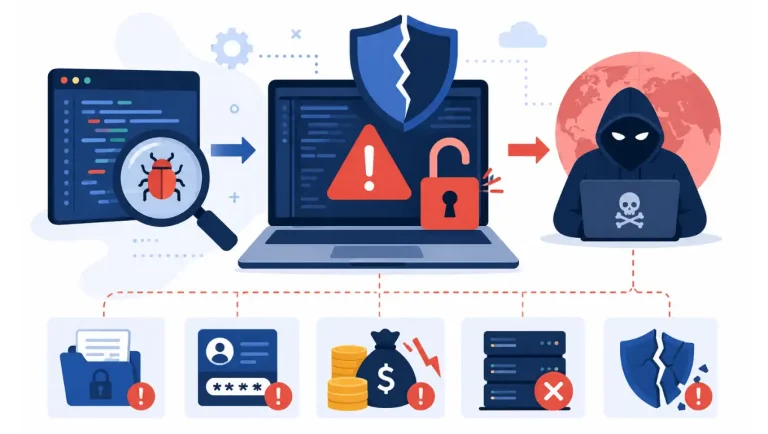
What Is a Software Vulnerability in Cyber Security and How Does It Put Systems at Risk
 Cybersecurity
What Are Remote Devices: Understanding the Basics
 Software
Why Updating ImmorPOS35.3 Software Regularly Is Important for Security, Speed, and Business Stability
 Network Security
Complete Network Security Audit Checklist: How to Protect Your Business from Cyber Threats
 Data Security & Privacy