

Have you ever wanted to revisit your favorite Nintendo GameCube or Wii games on your PC or phone? The Dolphin Emulator lets you do just that, bringing those classics to life on modern devices like Windows, macOS, Linux, and Android. But here’s the catch: to get the smoothest gameplay and best visuals, you need the right settings. Without them, you might face lag, blurry graphics, or even games that won’t run.
This guide gives you the best settings for the Dolphin Emulator—covering graphics, performance, audio, and controllers—so you can enjoy your games without frustration. I’ve spent hours tweaking Dolphin myself, and I’m sharing what works, whether you’re chasing 4K visuals or just want 60fps on a budget device. Let’s get your setup perfect!
What Is the Dolphin Emulator?
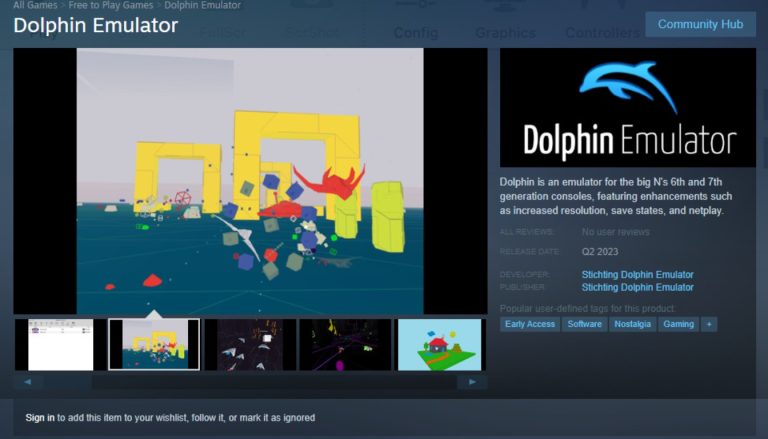
The Dolphin Emulator is a free tool that lets you play Nintendo GameCube and Wii games on devices other than the original consoles. It’s open-source, meaning anyone can use or improve it, and it works on platforms like Windows, macOS, Linux, and Android. With Dolphin, you can boost game graphics beyond what the old consoles offered and customize how everything runs.
Why do settings matter? Because Dolphin’s flexibility means you can tweak it to fit your device. The best settings balance visuals and speed, so your games look great and run smoothly. Whether you’re new to emulation or a pro, this guide simplifies it all.
Why Should You Optimize Dolphin Emulator Settings?
Optimizing your Dolphin Emulator config settings can transform your gaming. Here’s why:
- Better Graphics: Higher resolutions make games sharper.
- Smoother Gameplay: Proper tweaks mean no lag or stutter.
- Clear Audio: Sound settings enhance immersion.
- Comfy Controls: Controller setups match your style.
Without optimization, you might see glitches or slow performance. Let’s explore the dolphin emulator best settings for each category.
What Are the Best Graphics Settings for Dolphin Emulator?
Graphics settings control how your games look. The best graphics settings depend on your device’s power, but here’s what works for most people.
How Do You Set Resolution and Aspect Ratio?
Resolution decides how sharp your game is. Dolphin offers these options:
- Native: Matches the original GameCube/Wii resolution (low quality, fast performance).
- Auto (Window Size): Adjusts to your screen size—great for most setups.
- Custom (e.g., 1080p or 4K): Boosts visuals but needs a strong device.
For a balance, choose Auto. If you’ve got a high-end PC, try dolphin emulator 4K settings for stunning detail.
Aspect ratio matters too. Old games used 4:3, but today’s screens are 16:9. You can stretch the image or use widescreen patches from the Dolphin community to avoid distortion.
What About Anti-Aliasing and Anisotropic Filtering?
These settings smooth out graphics:
- Anti-Aliasing (AA): Fixes jagged edges. Set to 2x or 4x for good results without slowing things down too much.
- Anisotropic Filtering (AF): Sharpens textures. Go for 16x—it looks amazing and barely affects speed.
I once played Super Mario Sunshine with 4x AA and 16x AF, and the water effects popped like never before!
Are There Other Graphics Enhancements?
Yes! Try these dolphin emulator graphics enhancements:
- Scaled EFB Copy: Makes effects like shadows clearer. Enable it.
- Force 24-Bit Color: Reduces color banding. Turn it on if colors look off.
- Disable Fog: Clears outdated fog effects in some games. Test it out.
Experiment with these, but check game compatibility on the Dolphin Wiki.
How Can You Improve Performance with Dolphin Emulator Settings?
Performance settings keep games running fast, especially on weaker devices. Here’s how to get dolphin emulator best performance.
What’s the Best CPU Emulation Setting?
Dolphin uses a JIT recompiler by default. It’s the fastest option, so don’t change it unless a game demands something else.
How Does Emulated CPU Clock Override Work?
This tweak adjusts the emulated CPU speed:
- Lower It: Slows the game to ease lag on weak devices.
- Raise It: Speeds things up but needs more power.
Use it carefully—some games break if the timing’s off. I usually leave it off unless a game stutters.
How Do You Fix Shader Compilation Stutter?
Shader stutters happen when new effects load. Fix it with these dolphin emulator shader settings:
- Compile Shaders Before Starting: Prepares shaders ahead of time. Enable this.
- Exclusive Ubershaders: Stops stutter completely but needs a top-tier GPU.
- Skip Drawing: Speeds things up but might glitch visuals.
For most, Compile Shaders Before Starting works best.
What Other Performance Tweaks Help?
Try these:
- Dual Core Mode: Uses two CPU cores for speed. Enable it unless a game crashes.
- DSP-HLE: Fast audio emulation. Stick with it.
- Skip EFB Access from CPU: Boosts speed in some games but test it first.
These dolphin emulator fastest settings can cut lag by 20-30% on my old laptop!
What Are the Best Audio Settings for Dolphin Emulator?
Audio settings ensure sound works well. They’re simple but impactful.
Which DSP Emulator Engine Should You Use?
- DSP-HLE: Fast and works for 95% of games. Use this.
- DSP-LLE: More accurate but slow. Only switch if audio fails.
What’s the Best Audio Backend?
Pick one based on your system:
- DirectSound: Solid for Windows.
- XAudio2 or OpenAL: Try these if the sound cuts out.
Should You Enable Audio Stretching?
Yes, if you hear crackling. It smooths audio when emulation lags.
How Do You Set Up Controllers in Dolphin Emulator?
Good dolphin emulator controller settings make gameplay feel natural. Here’s how.
What Controller Type Should You Choose?
- GameCube Games: Use Standard Controller.
- Wii Games: Set up a Wiimote (more steps needed).
How Do You Map Buttons?
Dolphin lets you map any controller or keyboard. Spend 5 minutes setting it up—trust me, it’s worth it. I mapped my Xbox controller for Mario Kart and felt right at home.
Can You Use the GameCube Adapter?
Yes! Select GameCube Adapter for Wii U in settings if you have the official adapter. It’s plug-and-play.
How Do You Save Controller Profiles?
Save profiles for each game:
- Map your buttons.
- Click “Save Profile.”
- Load it next time.
This saves hassle when switching games.
What Are Game-Specific Settings in Dolphin Emulator?
Some games need unique dolphin emulator game settings. Dolphin’s database auto-applies fixes, but you can tweak manually:
- Right-click a game.
- Select “Properties.”
- Adjust settings there.
Check the Dolphin Wiki for game-specific tips.
FAQ: Your Dolphin Emulator Questions Answered
Can You Use Cheat Codes with Dolphin?
Yes, Dolphin supports cheats. Go to a game’s “Properties,” then “AR Codes” or “Gecko Codes,” and add them. It’s easy and lets you tweak gameplay.
How Do You Transfer Game Saves?
Yes, you can transfer saves. Find save files in Dolphin’s “GC” or “Wii” folder, then copy them to the new version’s folder. Your progress stays safe.
Can You Play Multiplayer with Multiple Controllers?
Yes, Dolphin handles up to 4 controllers. Set them up in the controller menu. Games like Super Smash Bros. shine with friends.
What Are the Best Settings for Low-End Devices?
Use Native resolution, disable AA/AF, and enable performance hacks like Skip EFB Access. These keep games playable on weaker hardware.
How Do You Reduce Shader Stutter?
Enable Compile Shaders Before Starting. It cuts stutter by preloading effects, making gameplay smoother.
Conclusion
Finding the dolphin emulator best settings takes a little effort, but it’s worth it. With the right tweaks—sharp graphics, fast performance, clear audio, and comfy controls—you’ll enjoy classics like never before. Your device decides the limits, so test these tips and adjust as needed.
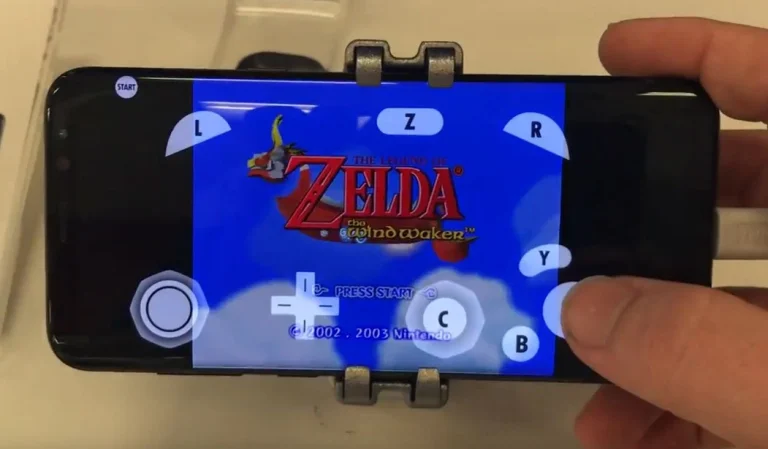
I’ve loved seeing Zelda: Wind Waker in HD thanks to Dolphin, and you can too. Whether you’re after dolphin emulator highest graphics or smoothest settings, this guide sets you up for success. Happy gaming!
You May Also Like
 Emulators
Dolphin Emulator: Comprehensive Guide to Installation, Configuration, and Optimization
 Emulators
Why is Dolphin Emulator Suddenly Lagging? Here’s How to Fix It
 Emulators
Is EmulatorgamesNet Safe? Simple Safety Guide for Gamers
 Emulators
20 Best Safe ROM Sites to Download ROMs and ISO
 Emulators
Is GamesNostalgia.com Safe for Retro Gaming Enthusiasts?
 Emulators